Tag: social media marketing

  • How to Win Followers and Influence People: Build Your G+ Following in 3 Steps

    We’ve cracked the code to successfully increasing the Google+ following for a small business (or at least we know we’re on to something). Our little experiment shows that if you follow three simple steps, you can gain more followers on Google+.

    Now, before you equate the importance of Google+ (colloquially referred to as “The Plus”—it’s a thing, I promise) to that of utensils at a pizza shop or a certain search engine that rhymes with “wing,” it is important to note that although Google has consistently denied any causal relationship between what shows up in a Google search and activity on “The Plus,” evidence shows there may be reason to listen up. Besides, even if you don’t drink the Kool-Aid and immediately become a Google+ fanatic, I think we can all agree that vying to be in Google’s good graces is always a smart idea. I mean, come on, you wouldn’t skip your boss in line at the movie theatre or punch Ryan Seacrest in the face after winning a trip to Hollywood (OK, I can’t make any promises on that one), but you get the point. Don’t bite the hand that feeds.

    Follow and Compliment

    Now that we have established that Google+ matters, let me clue you in on a little G+ secret. People on social networks are like that hyper-masculine guy on your road trip: all they want is to be followed and complimented. Following, and subsequently +1’ing a person on Google+, is like referencing your buddy’s cheese blog in the bar you are currently patronizing with a group of friends. Not only have you discovered him on an incredibly remote platform, but you’ve even followed up with a compliment! Go you, Stanley, you’re relevant, and people appreciate your knowledge of cheese.

    In all seriousness, though, over the past few months our experimentation shows that you will receive at best a 40 percent return rate in followers. For every 100 people followed and +1’ed, we received approximately 40 follows in return. It is important to note that the client happened to be a particularly interesting and popular business. That’s not to say the inherent love of HVAC nuances isn’t bountiful across the land, but it’s just something to keep in mind.

    Given the fairly low rate of return, you can see how this may prove to be quite taxing if your goal of followers is in the hundreds, especially considering Google+’s limit of 50 follows per day. So what shall we do as small businesses owners armed with this knowledge? Luckily, as your in-house guinea pig, I am here to break it down into three simple, effective steps.

    3 Steps to Building Your G+ Following

    1) Start by following larger, established pages in your geographic area. Think The Wizarding World of Harry Potter if you are located in Orlando. If you need help getting to the Google+ page for The Wizarding World of Harry Potter, I can’t help you. If you have to ask, you’ll never know. If you know, you need only ask.

    2) Once you have lost yourself in a voracious “following” spree, now it is time for flattery. The people who occupy the comment threads of your newly acquired network are relevant to you in a few ways. Not only do they most likely engage with local businesses, but they are also active on “The Plus” ← there it is again! See, I told you it’s a thing. Start following and +1’ing posts in your stream you deem relevant to your business’s interests.

    3) Be sure to watch out for exceeding Google’s “follow” limitation on a larger scale. After you exceed 1,000 people/pages followed on Google+, we’ve noticed that the social network gets a little buggy. If you begin “maxing out” of follows well before your promised allotment of 50, simply take a break for a week, binge on some Netflix, and live to fight another day.

    That’s all for now, folks! If my team discovers any new, innovative ways to garner your Google+ following, we will be sure to let you know. If you hear nothing, that means Skynet, ahem, I mean Google has discontinued “The Plus.”

    Image sources:

    Kool-Aid GIF

    Guinea pig GIF


  • Facebook Enters The Game of GIFs: A Feast For People, Not Pages

    Search Influence Game of Gifs Blog

    tyrion dancing

    On May 29, Facebook confirmed that it would begin supporting animated GIFs! Up until this point, only Giphy GIFs could be used on Facebook, but they appeared like videos where you’d have to click a play button for the animation to start. For now, however, this new, universal GIF support only extends to personal profiles and not Pages.

    In the past, I’ve jokingly (sort of) said that Google Plus would always be better than Facebook because it supported GIFs. As a freelance photographer and creator/curator of cinemagraphs (animations that consist of seemingly still photographs with subtle repeated movement in them—example below), I’ve always been annoyed that I could only share my art on Tumblr and G+. So I was really excited when I learned about the addition of GIF support to Facebook late last week. Sadly, I realized very soon after this announcement that Facebook had not extended this support to Pages.

    Cat Tail Animation Cinemagraph Gif

    So What GIFs CAN Pages Use And See?

    People can share GIFs in the comments of posts by Pages but not on the walls of Pages. Also, Pages cannot share, reshare or comment using GIFs. So Pages can see when people post GIFs, but if they try to reshare a person’s GIF status or post their own, it will have to be opened in a new window for the GIF to play. A statement from a Facebook spokesperson on Business Insider said “Like many features that we release on Facebook, we want to ensure that this drives a great experience for people first before rolling it out more widely. While Pages cannot currently post GIFs, we are exploring ways to enable this in the future.” This also means that GIFs cannot currently be used in ads. Here’s to hoping they mean to roll this out for Pages in the very near future.

    Here’s a GIF of the previously shown cat GIF moving in the comments of a post on a Page:

    Search Influence Gif on Facebook Page

    There are also other stipulations to using this new feature even on your personal Page. You cannot upload a GIF; it must be hosted elsewhere. So I suspect we’ll see a lot of sharing from sites like Tumblr (who just rolled out a GIF search—perfect timing) and Imgur.

    For now, I’ll just be happy that I can at least share my cinemagraphs that are already on my blog on my personal Facebook Page now.

    Thanks to HuffpostTV for the dancing Tyrion GIF!

  • Social Giving Success: An Intro to Online Marketing for P2P Fundraisers

    P2P-Fundraising-Search-Influence

    Which do you trust more: an ad or a friend?

    The answer is pretty clear, right? At least that’s what many nonprofits think, and that’s why the face of fundraising has changed significantly over the past decade. Instead of just soliciting direct donations, we’re seeing more and more peer-to-peer, or P2P, fundraising campaigns.

    Peer-to-peer fundraising enlists a nonprofit’s supporters to fundraise on their behalf, rather than or in addition to soliciting direct donations.

    Having your supporters fundraise for you offers that extra level of trust and intimacy that ads can’t provide. P2P engages supporters so they feel more connected to a cause, resulting in greater long-term support. And with today’s technology, it’s easier than ever to connect with huge networks of people and resources.

    So let’s talk about ways to make an online P2P fundraising campaign successful. From search engine optimization and social media to website development, here are some important tips:

    Make Donating Easy

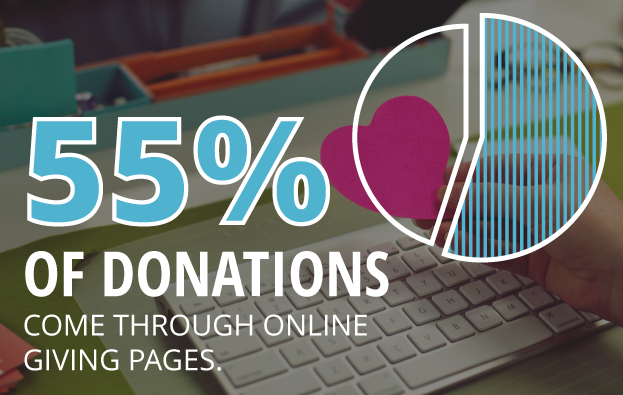
    First things first: You need a way to collect and differentiate donations. According to Network for Good’s annual Digital Giving Index, 55 percent of donations come through nonprofit, online giving pages, especially branded and personalized ones.

    A successful campaign has a user-friendly and effective system for making and processing donations that participants can share through social, mobile, email and every-which-way. This means also investing in either a mobile app or a responsive website. On DonorDrive’s platform, for example, donations have nearly doubled using responsive sites on mobile and tablets.

    The options out there are endless. Make sure your fundraisers have a link to share and trust your platform’s security and usability enough to want to share it.

    1511-SI-Newsletter-KG-D-02

    Engage your Followers

    More than half of those who engage on social media with a nonprofit take further action like donating or participating, according to Waggener-Edstrom’s Digital Persuasion Report.

    Fundraising as a whole is dependent on engaging and recruiting supporters. P2P requires not only engaging current followers to donate, but also inspiring them to fundraise and recruit for you. This means sharable content! Branded images, infographics and participant stories are just a few examples. Followers need to be able to see and share the effects of their donations, along with the whole experience along the way.

    Follow Basic SEO Guidelines

    SEO principles are universally applicable. Do some extra research on optimizing your website without stipulating that you’re a nonprofit or P2P campaign.

    That said, (1) make sure you’ve got relevant and easily accessible content on your website. Search engines are all about good content that naturally bridges the gap between what your organization does and what people are searching for. It’s no longer about stuffing exact-phrase keywords into every page of your site. (2) Submit and maintain consistent information for your organization to location- and industry-specific directories (and calendars if it’s an event). This way, you’re creating more links going to your website as well as solidifying your contact information with Google Maps and other mapping services. And (3) see if you qualify for a Google Ads Grant. Google gives out varying amounts of money each month to use for nonprofit AdWords campaigns, so take advantage of it! An AdWords campaign offers the opportunity to reach those who you might not be reaching with organic rankings alone.

    These are just a few tips to get you started. Even if you don’t have the budget to implement an intensive campaign, it’s important to cover your bases and make sure you’re tailoring your website and social media to work with P2P principles. The Internet is already THE social hub; use it to mobilize your followers for a successful campaign!

  • Return Of The YT Channel: Moving YouTube Channels Between G+ Pages In 2015

    Move YouTube Channels Between Google Plus Pages

    In the early ages of YouTube and Google Plus connections, disconnecting and reconnecting channels to the correct G+ page was not an easy feat. I once wrote a blog about this lengthy workaround for LocalU. Not long after that blog post, Google released a support form that allowed you to have a YouTube support specialist do the reconnection for you. While this support was amazing and usually reconnected channels within 24-48 hours, it required a middleman to get the work done and wasn’t immediate.

    Now, Google has released a way to reconnect your channel to another page within your account in the Advanced Settings section of YouTube! If everything is in one account, then this reconnection takes mere seconds. Often, however, we find ourselves in a situation where the channel is connected to a personal Google Plus page in one Google account, and we want it connected to a business page in another login.

    So I’m here to walk you through how to handle both of the aforementioned situations.

    Reconnecting A Channel Within One Account

    We’ll start with the simple one. You’ve got a YouTube channel connected to one page (probably a person page, maybe a random brand page), and you want it connected to your official business page on Google plus. Whatever shall you do!?

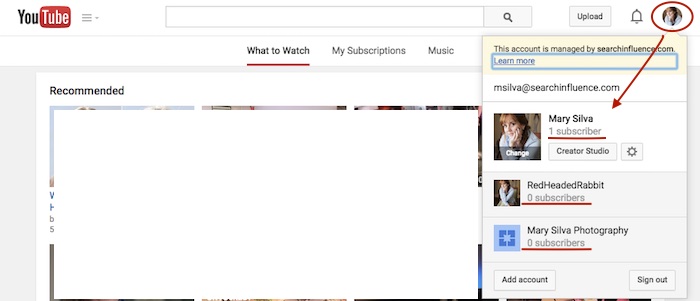
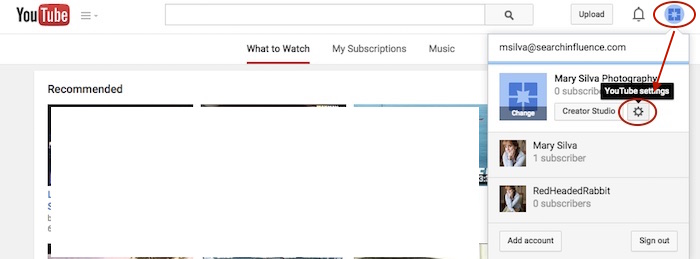
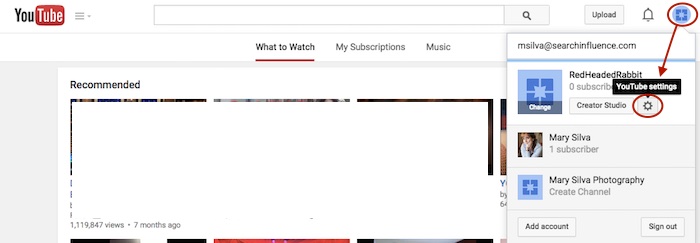
    Step 1: Go to YouTube.com and log in to your Google account. In the top-right corner of the page, click on the circle that shows your page icon to see a list of pages and their channels within this account.

    YouTube Users

    Usually, when you first log in to YouTube, you’re automatically managing or acting as your personal Google Plus page (the profile listed first in the dropdown is the one you’re currently acting as). To manage another page, which is what we’ll need to do to move channels, you’d just click the page you wish to manage from the dropdown.

    Deleting Unnecessary Channels Side Steps:

    Before we can proceed with moving channels, however, note that in the screenshot above, both of the extra pages have “subscribers” listed under their page names. This means that channels have been created for both of these pages already (otherwise we’d see “Create a Channel” below the page names). So if we want to move a channel to the page “Mary Silva Photography” in this account, then we’ll have to free it up for receiving a channel by deleting the unwanted channel that is currently connected to it.

    This can be done fairly easily by clicking the “YouTube Settings” gear from that top-right dropdown while managing the page from which you want to delete the channel.

    Screenshot 2015-05-18 10.36

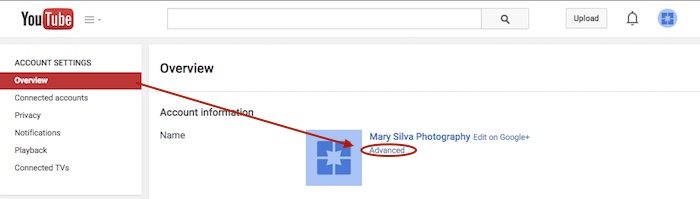
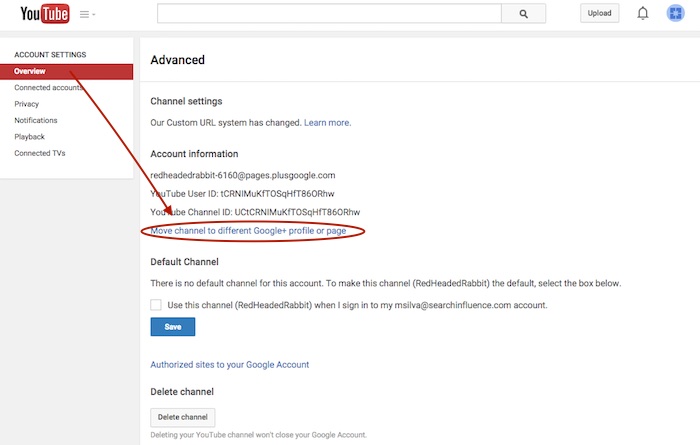
    Then click “Advanced” under the page name in the “Overview” tab.

    Screenshot 2015-05-18 10.37

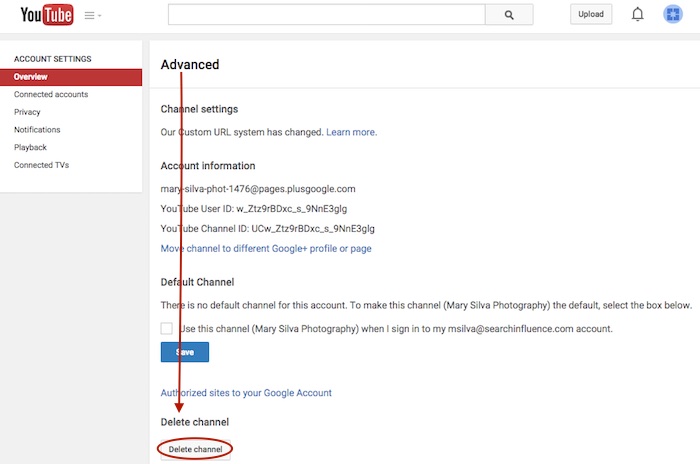
    At the very bottom of the page, you’ll see the “Delete channel” option. Once you click that, you’ll probably have to re-enter your password. Brace yourself.

    Screenshot 2015-05-18 10.38

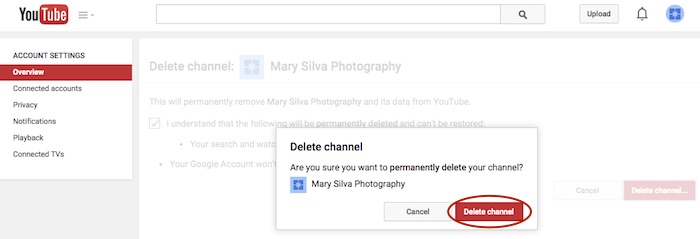
    You’ll see a verification page to confirm what you’re about to do. Check the box and click “Delete channel” to get one more verification dialogue, then click “Delete channel” one last time to complete the process.

    Screenshot 2015-05-18 10.41

    Now we can get back to moving the channel. In this example, we’ll pretend that the channel connected to “RedHeadedRabbit” needs to be moved over to “Mary Silva Photography.” As you can see in the next screenshot in Step 2, “Mary Silva Photography” now shows “Create a Channel” in the dropdown, so it’s free to take on the channel from the “RedHeadedRabbit” page.

    Step 2: Click on the page that has the channel you want to move in the top-right dropdown to manage the page (in this case, “RedHeadedRabbit”), and then the aforementioned “YouTube Settings” gear should appear for that page. Navigate back to the “Advanced” settings page from the “Overview” tab just as you would have to delete the channel.

    Screenshot 2015-05-18 10.47

    Step 3: This time, however, you’ll want to click the “Move channel to different Google+ profile or page” option just above the “Default Channel” header. Google will probably make you enter your password again, so brace yourself.

    Screenshot 2015-05-18 10.48

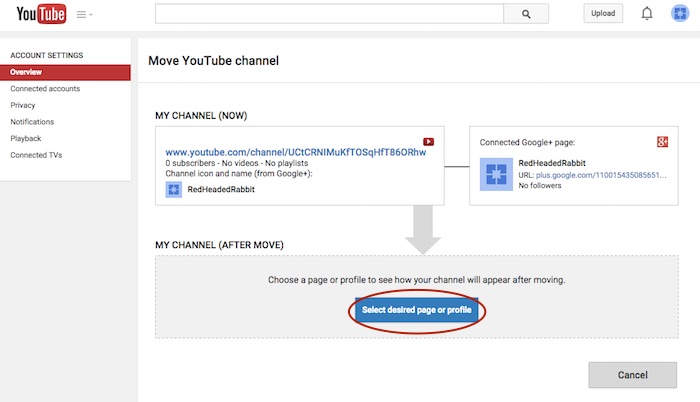
    Step 4: Now you’ll see the “Move YouTube channel” page. Under “MY CHANNEL (AFTER MOVE)” click the “Select desired page or profile” button.

    Screenshot 2015-05-18 10.49

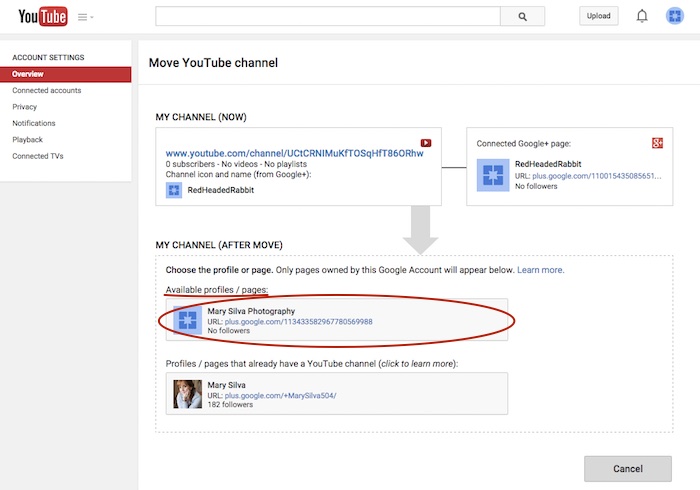
    Step 5: Choose the page you want to move the channel to from the “Available profiles / pages” section.

    Screenshot 2015-05-18 11.05

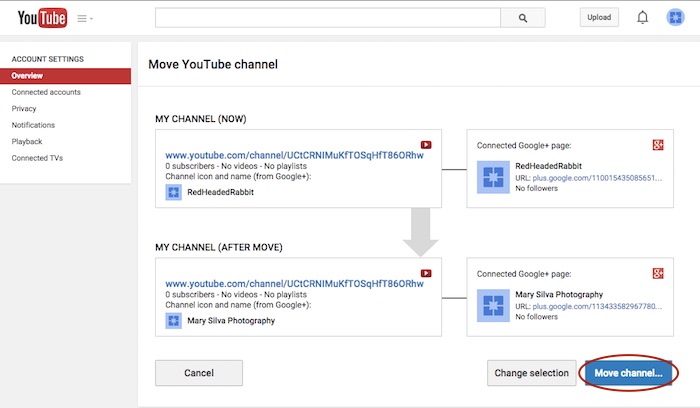
    Step 6: Confirm where you’re moving the channel (you can click links on this page to double-check that you’re moving the right channel to the right Plus pages) and click “Move channel…” to complete the transfer.

    Screenshot 2015-05-18 11.06

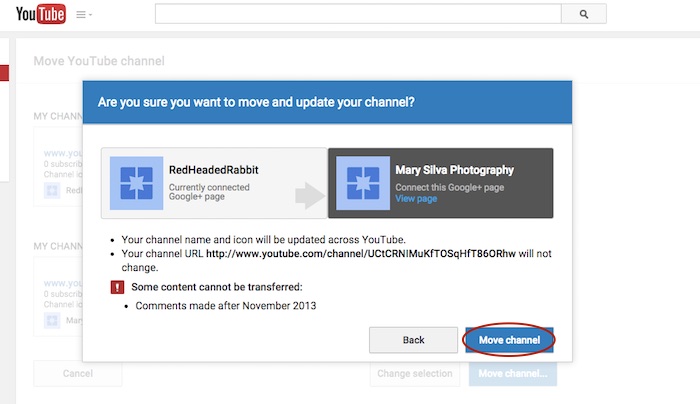
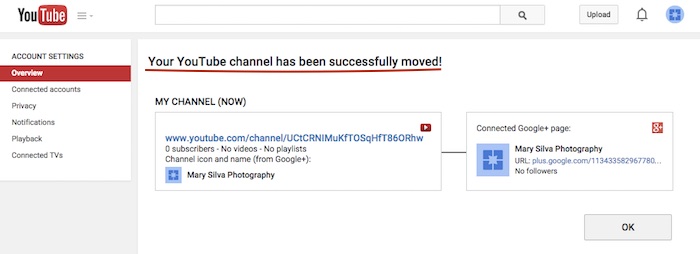
    Step 7: Click “Move channel” in one last confirmation dialogue box, and you’re done! You’ll see one last confirmation screen about the successful channel transfer.

    Screenshot 2015-05-18 11.13

    Screenshot 2015-05-18 11.09

    Reconnecting A Channel With Two Different Accounts

    As previously mentioned, we often find that we have a channel connected to a personal Google Plus page in one Google account, and we want it connected to a business page in another login. The steps for moving the channel will be the same as above, but first, we must get the pages all set up properly within one account.

    The account that has the channel has to be the OWNER of the page that we want to move the channel over to. So we need to go through adding the YouTube channel account as a manager of the business page within the other account first. Then we can go back and transfer ownership of the business page over to the channel account completely.

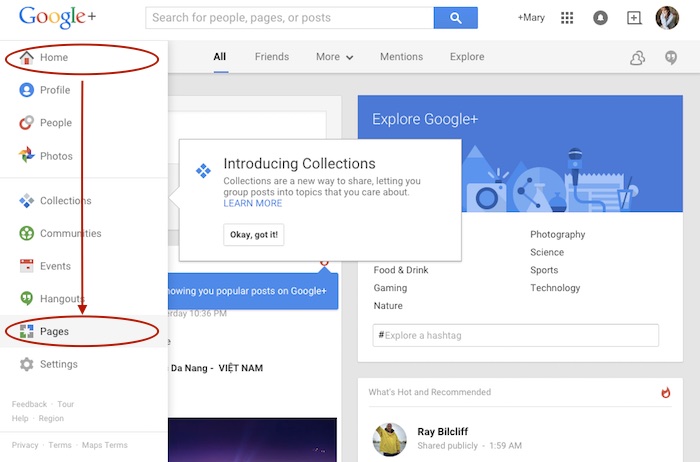
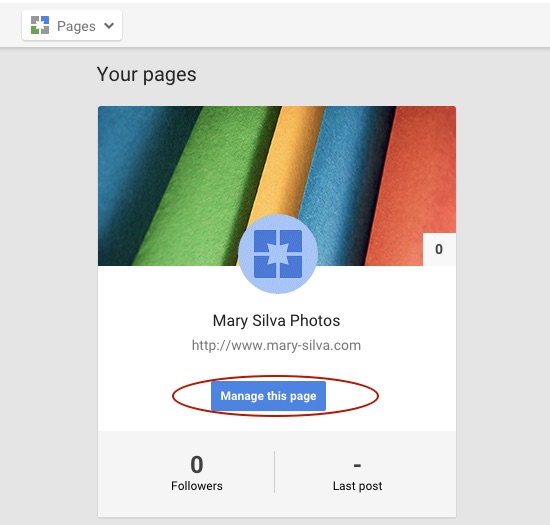
    Step 1: Log in to the account that the main business is claimed in and go into your Pages.

    Screenshot 2015-05-18 11.30

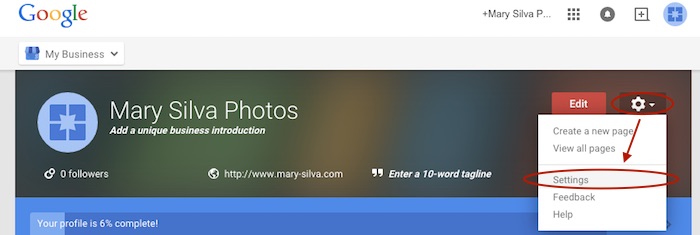
    Step 2: Choose “Manage this page” for the listing that you want to make the YouTube account a manager of.

    Screenshot 2015-05-18 11.31.30

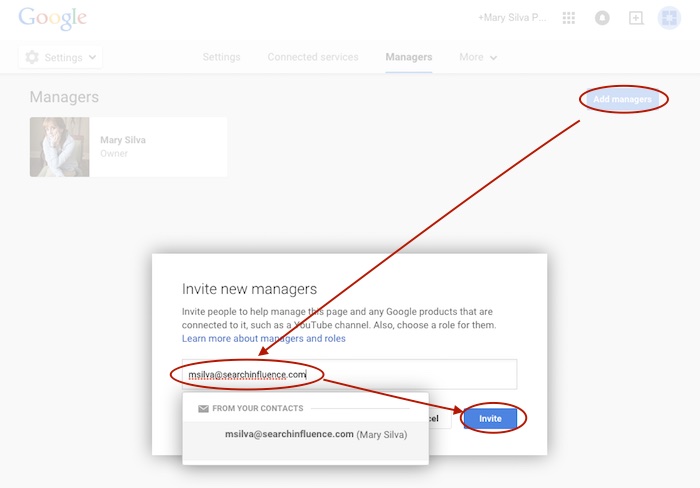
    Step 3: Go to “Settings” in the dropdown. Then, choose “Managers” under the “More” tab and add the email address for the YouTube account as a manager by clicking “Add managers.”

    Screenshot 2015-05-18 11.31.44

    Screenshot 2015-05-20 12.46.32

    Screenshot 2015-05-18 11.32

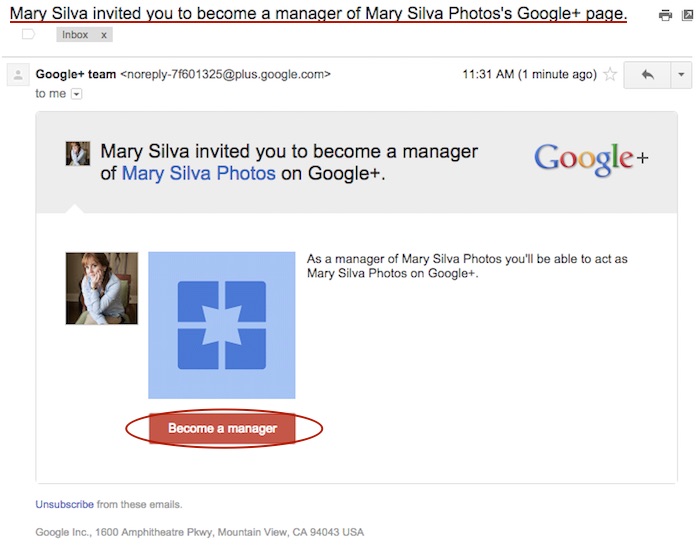
    Step 4: Log in to the email for the account with the YouTube in it. Look for the email that says “Person Name invited you to become a manager of the Business Name’s Google+ page” and click “Become a manager” within that email.

    Screenshot 2015-05-18 11.33.15

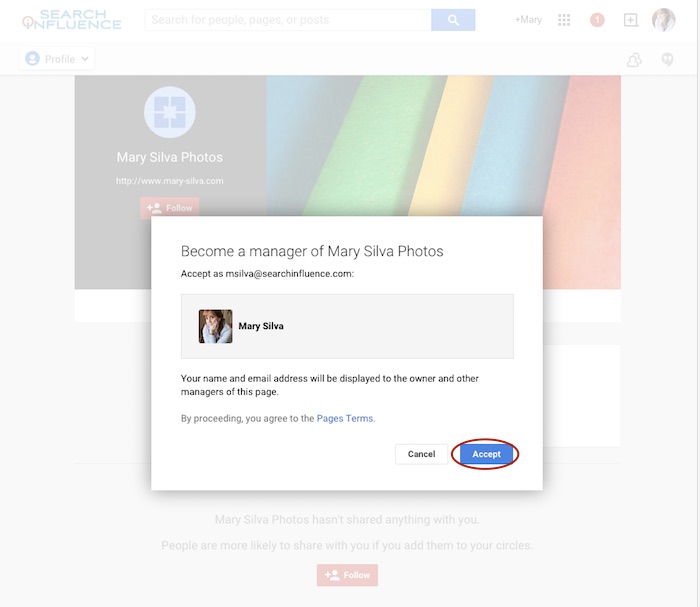
    Step 5: The link from the email will take you to the Google Plus page and automatically open a “Become a manager of Page Name” dialogue where you’ll click “Accept” to complete the managership setup.

    Screenshot 2015-05-18 11.33

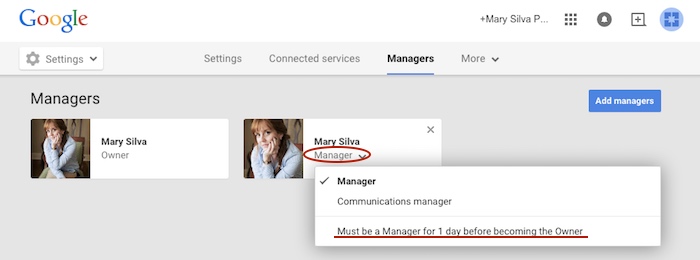
    Here’s where we wait…Unfortunately, for security reasons, Google requires an account to be a manager of a page for at least one day (as seen in screenshot below) before ownership of the page can be transferred over. So wait a day and come back to me when you’re ready to wrap this up. 😉

    Screenshot 2015-05-18 11.38.58

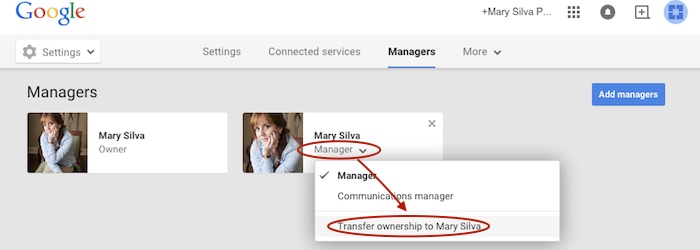
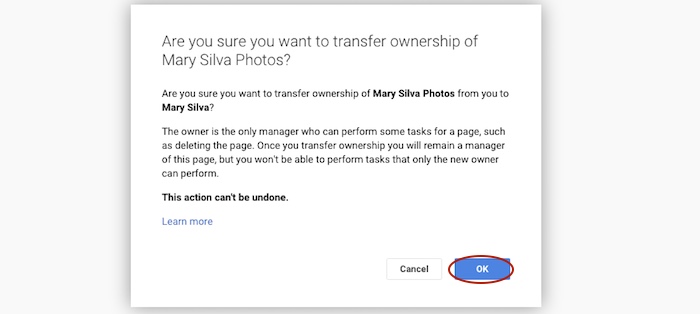
    Step 6 (One Day Later): Now log back in to the account that owns the page and follow steps 1-3 again to get back to your “Managers” settings page of your official business page. When you click “Manager” under the account name, you’ll see a dropdown with the option to “Transfer ownership to Person Name” where you previously saw “Must be a Manager for 1 day before becoming the Owner.” Once you click that, you’ll click “OK” to verify the transfer of ownership, and then the transfer is complete!

    Screenshot 2015-05-19 12.54.22

    Screenshot 2015-05-19 12.54.37

    You’ll get an email in that new owner account saying something like, “Person has made you the owner of the Page Name Google+ page.” Unlike the managership process, you don’t have to click anything in an email, so the ownership has been transferred completely, and you’re done!

    Now that you have everything set up properly, you can proceed with steps two to seven in the “Reconnecting A Channel Within One Account” section above.

    Hopefully this extensive tutorial helps you through all of your YouTube woes. To learn more about the ins and outs of Google Plus pages in Google My Business, you can read more on the blog here.

  • Five for Friday: Google’s Phantom Update Revealed, Remembering Sally Ride & More!

    1. Google’s “Phantom Update” Is a “Quality Update” – Search Engine Land

    In early May, many people noticed significant ranking changes, which led to the rumor that Google had run a Panda update or a spam-related update. However, Google denied this, leaving many stumped by what could have mysteriously caused these rankings changes. Now, Google has finally confirmed that the “Phantom Update” actually included changes to how content quality is ranked, leading some to call it the “Quality Update.” However, exactly what changes were made and how quality is now assessed by Google is still being kept top secret.

    2. New Cortana App Will Sync iPhones to Windows 10 “Very Soon” – Marketing Land

    Microsoft announced its plans to make Windows 10 cross-device friendly with a new Cortana “Phone Companion” application that will connect your Windows PC to mobile devices, including iPhones. This app will take Apple’s “Continuity” feature to the next level by not only syncing across devices, but by syncing across devices regardless of your operating system. Stay tuned for the Android version of Cortana at the end of June; iPhone users will be on hold for the app until “later this year.”

    3. Google Webmaster Tools Becomes Google Search Console – Google Webmaster Central Blog

    Say goodbye to the name Google Webmaster Tools and start becoming familiar with the term Google Search Console in its place. After 10 years of offering the beloved Webmaster Tools, Google announced the rebranding change last week. The company stated that there were many types of Google fans using the tool, from small business owners to marketers to true webmasters, and the goal is to make sure that the “product includes everyone who cares about Search.” No drastic changes to the tool’s functions were announced with the new name. Contrary to speculation, Bing says that renaming its Webmaster Tools is “not on the radar.”

    4. Twitter Helps Reinforce Your Mobile Local Branding In Search Results – Blumenthals

    Google mobile search results can now display Twitter content for branded searches, which provides a great place for local businesses to increase their visibility and positive brand message while also pushing competitors further down on the search engine results page. This also gives local businesses another platform for sharing content, which can easily be synced to a Facebook page, and more ways to control front-page content for reputation management.

    5. Google Doodle Celebrates Sally Ride’s 64th Birthday – Search Engine Roundtable

    Tuesday, May 26 would have marked the late Sally Ride’s 64th birthday. Google remembered the birthday of the first American female astronaut in space with a series of Google Doodles inspired by her life’s many accomplishments. On June 18, 1983, Sally became the first American female in space—and the youngest still to date! After another successful mission, Sally founded Sally Ride Science, where she focused on educating young people, especially girls, about careers in science, technology, math and engineering. As a woman in the technology field, I would like to say “thank you” to Sally Ride for all she has done to pave the way for those who have come after her.

    Image sources:
    It’s classified GIF

    Goodbye elephant GIF

    Sally Ride GIF

  • Give Your Facebook a Facelift: Social Media for Dermatologists and Plastic Surgeons

    Facebook Facelift Image - Search Influence

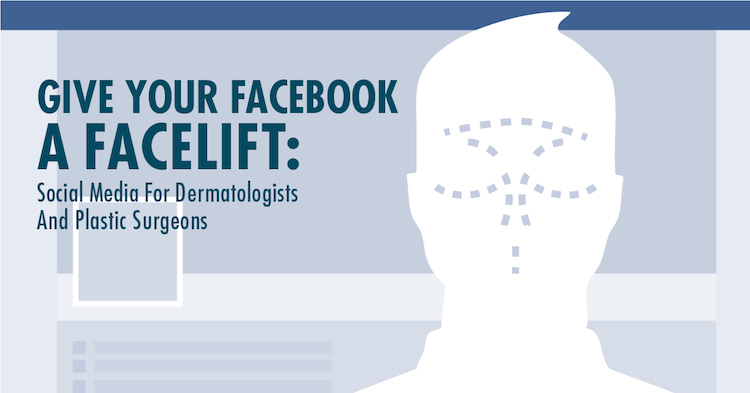
    Time Magazine recently posed the question, “Can Plastic Surgery Make You More Likeable?” Certainly, there are many benefits to cosmetic procedures for the patients, but it is also time for plastic surgeons and other physicians to think about how to make their practices more “likeable.” Facebook and social media can be used to attract new patients and shape the local perception of a business. For example, Search Influence helped one plastic surgery practice attract nearly 70,000 new fans on Facebook. Search Influence can help create and manage the online presence of your business through social media, but if you want to get started on your own, follow these five steps:

    1. Make a Facebook Page

    Most Internet users visit social media sites daily, and social media can be a cost-effective place to advertise. Facebook accounts are free to create and maintain, and AdWeek reported last year that advertising on Facebook is 70 percent cheaper than the industry average. While using it effectively will take a significant amount of work, creating a Facebook page for your practice takes only a few minutes. With pictures and information about the procedures you offer, a Facebook page allows potential clients to learn about your practice without following an external link. This can be a great place for a list of services and a few testimonials from past patients. It’s a streamlined version of the most relevant information, and you can direct people to call your office or visit your website to learn more.

    2. Get More “Likes”

    It’s easier said than done, but awareness about your practice will grow as users “like” your page. To draw their attention, it helps to have compelling pictures and interesting information. Showing a little personality can encourage people to identify with your practice, which helps set you apart from the competition. As more people interact with your page, Facebook will give you demographic information about their ages, where they live and other details that can help you better know the local market.

    Struggling to get potential patients and customers to follow you on Facebook? One way to get more likes on Facebook is through Facebook fan-building campaigns, which have been effective for Search Influence plastic surgery clients.

    3. Get People Involved

    Ask questions, and post updates that encourage people to interact with your page. When fans “like” an image you’ve posted, it makes it more likely that their friends will also see your page. If you post about local events and holidays, it will help connect you with your community.

    4. Update Your Page Regularly

    While it’s inadvisable to offer medical advice over social media, your page or a separate blog can be a great place to explain procedures or post updates about your practice. If you explain medical terminology and correct common misunderstandings, then potential patients will see you as more qualified and trustworthy.

    5. Pay to Play

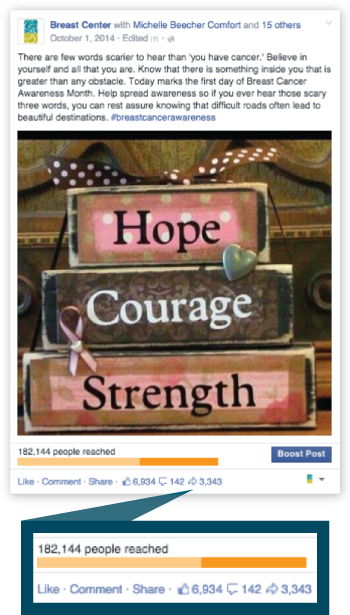
    Advertising your page on Facebook involves a lot of choices. Do you want help accumulating “likes,” or is it more important that people visit your website from your Facebook posts? While pay-per-click (PPC) advertising assures that people are viewing your page, your name will show up on more news feeds if you pay for exposure. For example, a promoted Facebook post for a Search Influence plastic surgery client reached more than 182,000 people.

    First Promoted Facebook Post - Success Study - Search Influence

    Because of the variety of choices involved, streamline your social media strategy and achieve successful results with the team at Search Influence managing your advertising plan. Search Influence can advertise on several sites and measure results in the ways that matter most to your practice, including new patients and calls to your office.

    If you want to give your whole business image a facelift, then injecting social media into your marketing plan is the most cost-effective option. Our team at Search Influence can help you create and manage your online image, and we can advertise on a variety of platforms including Facebook, Google+, Youtube, Pinterest and Twitter. Continuously providing updates can be a lot of extra work for your busy staff, and some employees may already spend too many work hours on their social media accounts. Let Search Influence manage your online image to make sure everything is handled professionally. Find out more about our services by browsing our website.

  • Web Augmentation: 9 Tips to Get Your Plastic Surgery Practice Trending

    Web Augmentation for Medical Practice Marketing Image - Search Influence

    Every second, there are almost 50,000 unique searches on Google. With that much traffic, it’s crucial to establish your plastic surgery practice as an online authority. By using social media, search engine optimization, and paid search strategies, you’ll be able to climb to the top of Google’s rankings in short order.

    Tips for Social Media

    Utilize “Audience Insight” on Facebook

    As of March 31, 2015, there are 1.44 billion monthly active users on Facebook, making it the platform with the largest audience for your advertisements. With Audience Insight, Facebook helps you sort through your targeted demographics in order to understand the kind of content that is popular among them.

    Use targeted Facebook ads

    If you use targeted Facebook ads, you can choose what kind of Facebook users will see your microdermabrasion advertisements. Not only can you sort your audience by age, location, and gender, but you can also target them according to their relationship status, whether they have children, and their personal interests. Facebook fan-building campaigns are also effective in making patients and customers into fans.

    Tag and post about local events and businesses 

    If you want to maximize your visibility, you’ll have to post outside of your practice. By sharing posts about local events and businesses, you’ll increase your presence in the community. Your potential clients will start to follow and share your content if your page is a reliable source for interesting information. 

    Tips for Search Engine Optimization

    Research Longer Keywords

    A short keyword like “chemical peels” is a competitive keyword, which means a lot of practices will be using it. Try to find a longer keyword that your audience will search for, like “chemical peel for rough skin in NJ.”

    Host Webinars

    Live Internet events boost your SEO rankings because they keep your audience on your website for a long time. Set up some demonstrative or informational webinars that prove your expertise while optimizing your search results.

    Make Your Site Mobile-Friendly

    More and more people use their phones and tablets, rather than a computer, to browse the Internet. A mobile-friendly website will ensure that the information on your website is accessible to everyone. In fact, mobile website traffic for our plastic surgery clients’ websites averaged 48.6 percent. And that doesn’t include tablet traffic; it is purely mobile.

    Another way to pump up your plastic surgery website is to use natural content on your practice’s website. Find out about how medical marketing is making the switch to natural content.

    Tips for Paid Search

    Post Lots of Information on Your Landing Page

    By having a wealth of information on your landing page about topics that are relevant to your practice—such as eyelid surgery—you ensure that your potential client gets the knowledge they desire. When this happens, they’ll stay on your page longer, and their trust in your expertise will grow.

    Invest in High-Quality Video Production

    Potential clients will seek out videos demonstrating a procedure before they schedule an appointment for one. If your practice has a high-quality video demonstration of laser hair removal, 79 percent of the potential clients who watch it will visit your website. In addition to videos, other types of content can help attract patients searching online for your practice. Find out the four ways to drive conversions in the medical industry.

    Have Your Contact Information Readily Available

    The content you make available on your website is meant to inspire more people to come to your practice. Having your contact information readily available increases the chance that potential clients will call your site, visit it, or save it for later.

    Implementing these tips will get your plastic surgery practice trending in no time!


  • How Infographics Can Give Your Online Strategy a Facelift

    Infographics Facelift Image - Search Influence

    No industry knows the importance of image more than plastic surgery. Before and after pictures are worth a thousand words, and prospective patients heavily rely on visual information derived from those pictures when deciding which cosmetic procedures to explore. However, plastic surgery websites do not have to restrict themselves to just pre- and post-op imagery.

    Introducing Infographics

    Simply put, infographics are images that visualize information or data in a compelling, creative, and colorful way.

    Businesses are increasingly turning to infographics to present their industry contributions. For example, Web company Unbounce, estimates that the use of infographics has seen a huge surge in recent years—an 800 percent increase from 2010 to 2012. Research conducted by AnsonAlex, a tech company specializing in producing tutorials, found that publishers with ample infographics grow website traffic 12 percent faster than those with no infographics.

    Infographics are clearly more than a passing trend; they are a strategic marketing opportunities upon which the plastic surgery industry can capitalize.

    Infographics Make Eye-Catching Websites

    If you are looking for a new way to promote your plastic surgery clinic’s webpage, infographics are a surefire strategy for keeping eyeballs glued to your site. A single infographic has the potential to reach as many as 15 million Internet users through web searches, according to an infographic by Top Marketing Schools.  In fact, searching ‘plastic surgery infographic’ yields 283,000 results on Google. Create and post infographics on your site to take advantage of this pool of interested users.

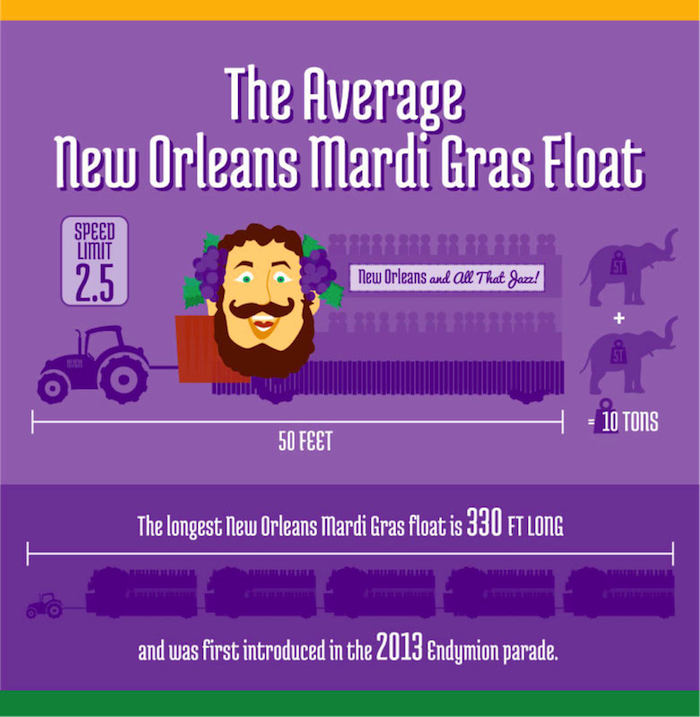
    The average page visit lasts under a minute, but an infographic can keep a user reading for longer. In fact, a Search Influence-produced infographic detailing the legendary New Orleans Mardi Gras renewed interest among people that visited the official New Orleans tourism guide website. While visitors to the website typically spend an average of two minutes browsing, visitors to the Mardi Gras infographic page were spending upwards of eight minutes.

    Infographic Content Marketing Image Search Influence

    Ninety percent of the information processed by our brains is visual, so it’s only logical that we are more drawn to vibrant images than walls of text. Readers are likely to skim the infographic, absorb the information, and then explore the site further to learn what else you have to offer.

    Be sure to add some written content outside the graphic. Site crawlers cannot scan images, so your optimized content must also appear elsewhere on the page in order to attract search engine hits.

    To keep your users on your website, it is vital that your infographic loads quickly! The average user expects a page to load in under three seconds and will not hesitate to close a window that does not deliver fast enough. The quicker your site loads, the better your conversion rates will be.

    Infographics Boost Social Media Reach

    Your plastic surgery clinic can also use infographics to attract more social media followers and shares. That’s because images perform well on Twitter—even better than videos! For example, images get 128 percent more retweets than video tweets, according to Quicksprout. Similar to web pages, our eyes are instinctively drawn to tweets with alluring images.

    To properly post your infographic on social media, however, you have to make sure it is shareable and easily traced back to your site. Use an embed code in the infographic so other industry professionals can easily add it to their sites. On the graphic, place your website address and the name of your clinic in bold letters. If your link or commentary is deleted through sharing, your clinic name will still remain. Using easy share links such as ow.ly or bit.ly can also make it easier to share on Twitter, Facebook, and Pinterest.

  • Taking Flight in 140 Characters or Less: Twitter Advertising 101

    Twitter advertising can be a great way to increase your follower base and drive traffic to both your social media pages and your website. It is relatively cost efficient, and it can help you drive the right traffic to your pages. There are three different types of Twitter ads all used for different purposes.

    Promoted Accounts

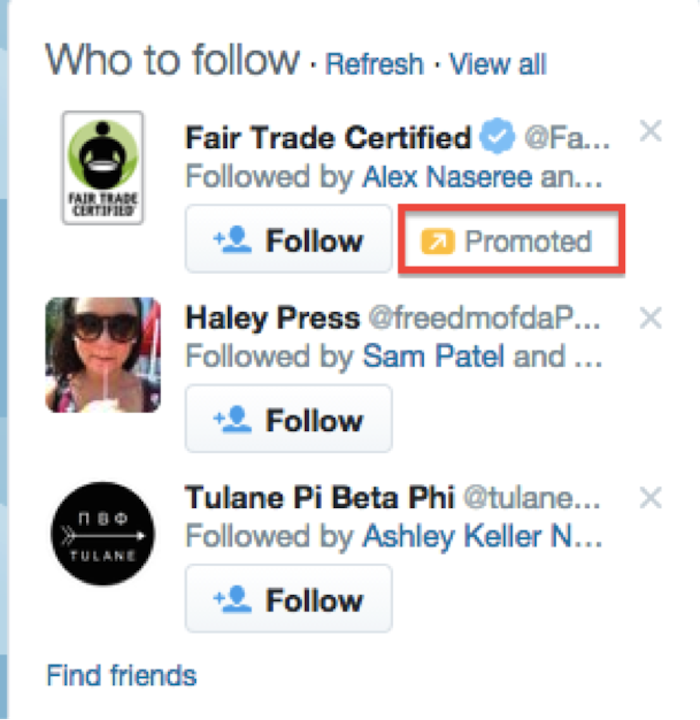
    For those of you who are familiar with Facebook advertising, this type of ad is very similar to Facebook fan-building ads. They are used to grow your follower base and draw more attention to your Twitter account. Promoted accounts typically range between $2-4 per follower. This price is dependent upon targeting: the more specifically targeted the ad is, the more it costs. The cost of these ads is subject to results, because you are charged when a user clicks on the ad and follows your account, but you do have the ability to set a maximum budget.

    Who to Follow Twitter Ads Image - Search Influence

    Promoted Tweets

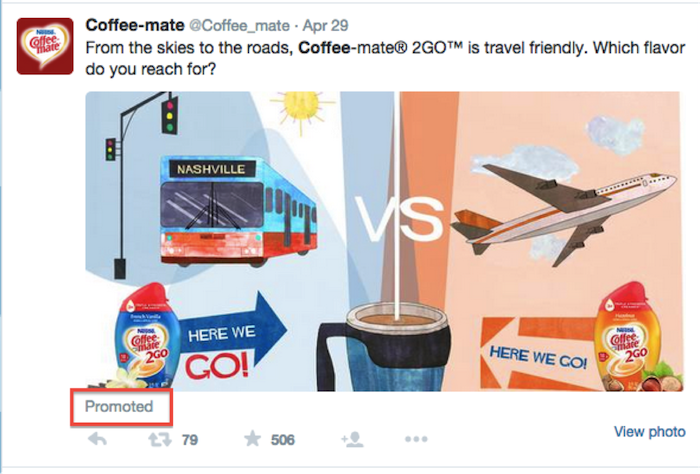
    Promoted tweets can be used to promote a specific product or service, and they can also be used to get more attention and exposure for your quality tweets. These ads help promote user engagement and show your content to people who are not necessarily following you on Twitter. These ads are also on a “pay per” basis, but instead of paying per follow, you pay per interaction. “Interacting” includes clicking, replying, retweeting, or favoriting your tweet. These interactions typically cost between $0.50-$2, depending on your targeting. Just like with the promoted accounts, you can set a budget so that you don’t end up spending more than you can afford (due to the awesome success of the campaign, of course).

    Twitter Advertising Promoted Tweet - Search Influence

    Promoted Trends

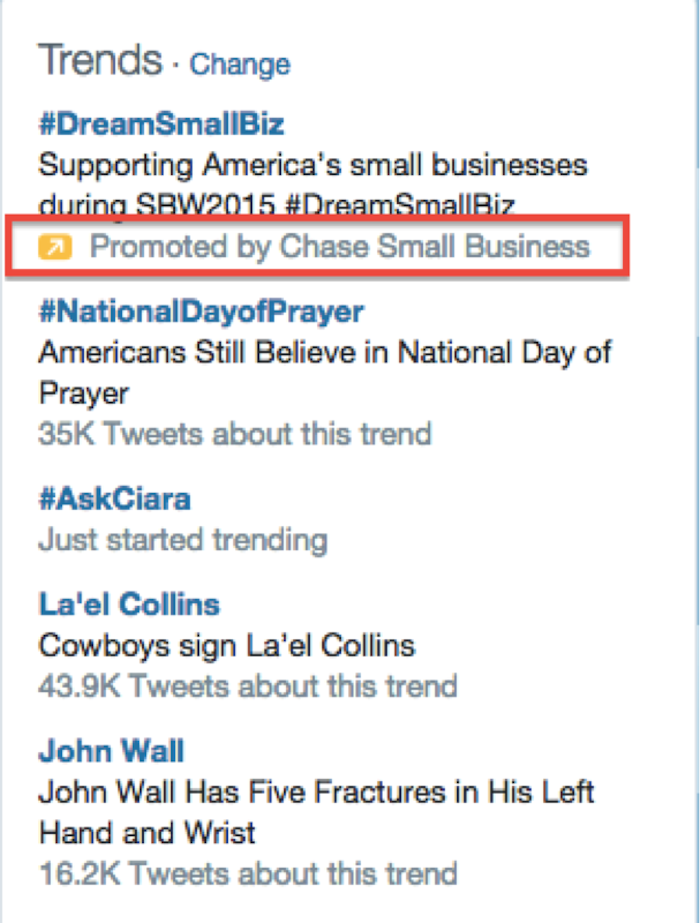
    This type of Twitter advertising is really meant for the iconic brands of the world. These will only work for you if you are looking for significant exposure in a short amount of time. Promoted trends are guaranteed placement in the “trends” section and are shown to everybody. The types of businesses that do this appeal to the masses (McDonald’s, Nike, Chase, etc.). Another reason that this type of ad only appeals to huge companies is the large price tag: it costs $200,000 to run a promoted trend for one day.

    Twitter Advertising Trends Image - Search Influence

    Targeting

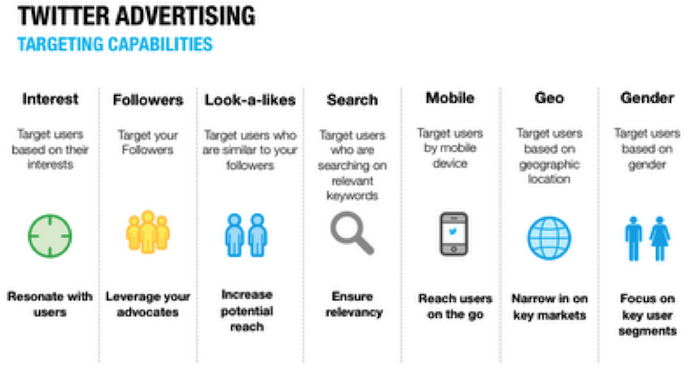
    For promoted accounts and tweets, you can get pretty granular with the targeting. Twitter allows you to target based on a multitude of different demographic and behavioral factors. Advertisers can target based on behaviors, gender, region, device (mobile, desktop, or tablet), and more. Social media targeting is a delicate balance because as you get more specific, the price per click or interaction goes up, but it is important to be specific enough that you are targeting people who are likely to convert.

    Twitter ads can be a really great way to drive more followers, engagement, and even traffic to your website. Using this ad platform also allows advertisers full access to Twitter analytics so they can see what types of tweets perform the best, which helps them choose which ones to promote in the future. Happy tweeting!

    Twitter Advertising Targeting Image - Search Influence

    Image sources:
    Twitter targeting image


  • This National Small Business Week, Step up Your Online Marketing

    It’s National Small Business Week—time to celebrate the successes and the insane amount of work small business owners put in. The struggle is real.

    You know you’re a small business owner when…

    …Your nightmares are about getting bad Yelp reviews.

    …Your social media “strategy” consists of bribing your college-aged daughter to handle your Facebook and Twitter accounts.

    …Your holiday hours did not quite make it to the Internet, and customers actually showed up only to find your business closed.

    To cure these and other headaches, start with a little TLC for your website and your online marketing strategy—after all, both of these play a huge role in bringing you customers, but they may unfortunately also be keeping you up at night. Follow these top three online marketing tips for small businesses.

    If You Can’t Beat ‘Em, Join ‘Em

    It may sound upsetting that Yelp listings are front and center in a Google search for your business while your own website is far down the list of search results. But savvy small business owners know that Yelp and other large online directories can win over customers with minimal effort. So if you can’t beat the Yelps of the world, join ‘em!

    This strategy is also known as Barnacle SEO. Basically, your business needs to attach itself to large, fixed objects and then wait for customers to float by in the powerful current. Identify the large, high-ranking online directories that matter to you most, such as Yelp, and add your information there in the hopes of “borrowing” some of the page one rankings. There are many trusted online directories like Yelp out there you can barnacle up to: Angie’s List, Foursquare, Google+, Avvo (for lawyers), Healthgrades (for doctors), and even TripAdvisor.

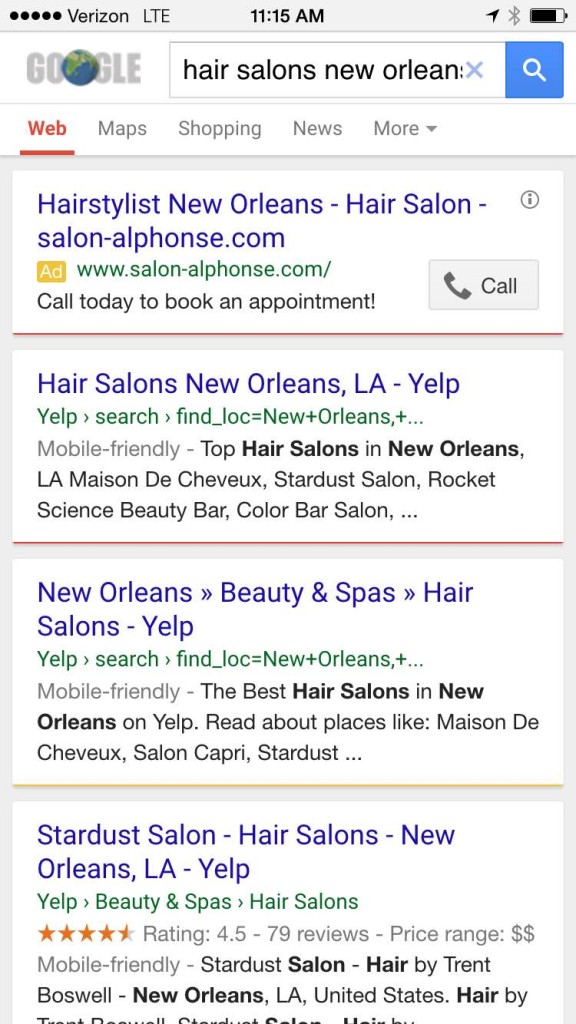
    And this tip comes with a bonus: this strategy also works well for customers searching on smartphones because these websites are optimized for the mobile experience—providing the targeted information that local customers searching on their smartphones really need. When you perform a Google search for “hair stylists New Orleans,” for example, the top results are mostly from Yelp:
    Yelp Mobile Screenshot Image - Search Influence

    Target Your Social Media Efforts

    Another thing that keeps you as a small business owner up at night? Social media—or more specifically, finding the time for it. For starters, why is social media worth your time? The latest statistics from the Pew Research Center paint a pretty compelling picture that customers are on social media: 74 percent of online adults use social networking sites.

    As a time-starved small business owner, you must get the most for your social media time. This requires targeting your social media efforts. Start by channeling your ideal customer. What is your typical customer’s age, marital status, and family status? Where is your customer physically located? Do your customers fall into a certain income bracket?

    Once you know who your target customer is, find the social media channel that appeals to them. For example, Facebook still skews significantly female and is the top-used social network for U.S. teens, making it ideal for fast-moving consumer goods, according to Business Insider. Instagram is also popular among females ages 18 to 44, so clothing, accessories, and those types of brands tend to perform well on this network. While LinkedIn is most popular for adults, Twitter is primarily a news source and attracts mostly male users. YouTube reaches more adults ages 18-34 than any single TV network. Pinterest is the place for food and drink-related information as well as parenting tips.

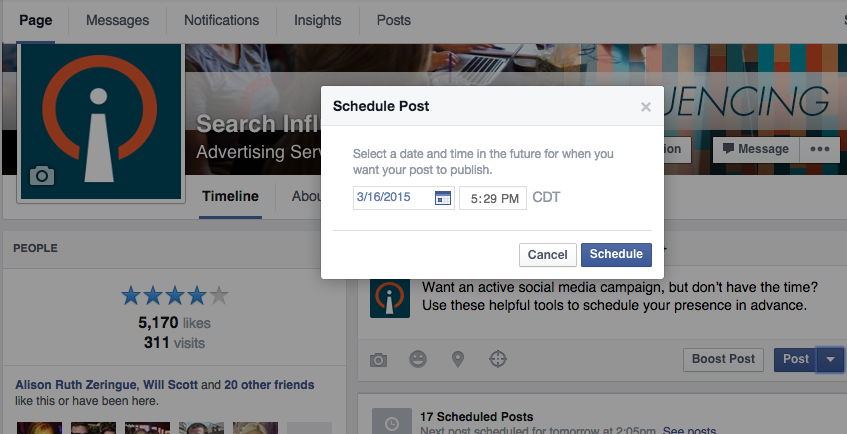
    But remember, whichever social networks you decide to focus on, automate your posts with these quick tips.

    Facebook Scheduled Post Image - Search Influence

    Avoid Customers Crying in Your Parking Lot

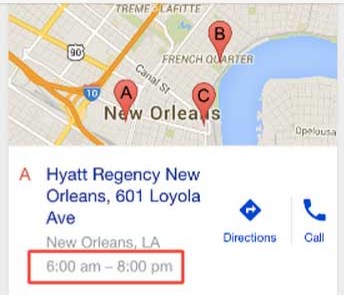
    If you’ve ever done a Google search for your business, you’ve likely seen this kind of result:

    MapsTimeViewImage

    But what happens when you have special holiday hours? Will customers see your normal hours in a Google search and show up in your parking lot over the holidays? Currently, Google My Business has not built out the functionality for saving holiday-specific hours ahead of time. As the profile setup currently stands, you’ll need to manually edit the hours of operation on a given day when your business is open (or closed) outside your standard hours of operation. See Google’s steps on how to update your business’ hours.

    Also, remember to let folks know when you are, in fact, open on the holidays. For instance, let everyone know your restaurant is open on Independence Day and post your holiday-specific menu for the day or highlight any patriotic specials. Is your medical practice open for limited hours on Memorial Day this year? Post a piece to your blog or social media profiles highlighting the top summertime health hazards from boating accidents to severe sunburns.