Tag: Google

  • Five For Fridays: How To Get Yourself an Assistant, Get Rid of Spammy Links, and Go Evergreen!

    Screen Shot 2014-12-17 at 3.26.46 PM

    1. Think Like a User – Search Engine Land

    Sometimes we can get so caught up in trying to get attractive links that we forget why we are writing a piece of content in the first place. We try so hard to get people to read it that we fail to remember who it’s for. In one of her latest columns, Julie Joyce describes the importance of thinking like a user when trying to integrate links to our content. She gives us tips of where users really want links and how it could be helpful to go offline to see things from a different perspective.

    2. Go EverGreen! – Search Engine Land

    Why is it that some pieces of content seem to get more traffic year after year, while others die away to Internet uselessness? Neil Patel shows us the benefits of incorporating evergreen qualities to your content. These qualities can help your content continue to gain traffic and readers regardless of how long ago it was published. Even though it might take some ongoing work, he stresses the importance of relevance and quality so that your content can be seen for ages.

    Screen Shot 2014-12-17 at 3.42.31 PM

    3. Penguin, What Have You Been Up To? – Search Engine Land

    There has been a lot of debate about what magnitude the new Penguin algorithm update is going to have. In this article, Philip Petrescu shares data on Penguin’s latests impact. His data shows the effect the algorithm has had on low ranking websites and how it’s affected other countries of the world. He argues that the impact the algorithm has had depends on the rankings you currently have, the industry you are in, and who you’re competing against.

    GoogleNow

    4. Say Goodbye to Spammy Links – Moz

    Recently, Marie Haynes wrote a handy guide on how to use Google’s disavow tool. Even though this tool has been around for a while, it can still be confusing to use. With the constant updates Google is doing on its algorithms, it’s imperative to be on top of getting quality links to your site. This guide shows a step-by-step process to get rid of those spammy and unnatural links that are pointing to your website.

    5. Stressed at Work? How About a Personal Assistant – Mashable

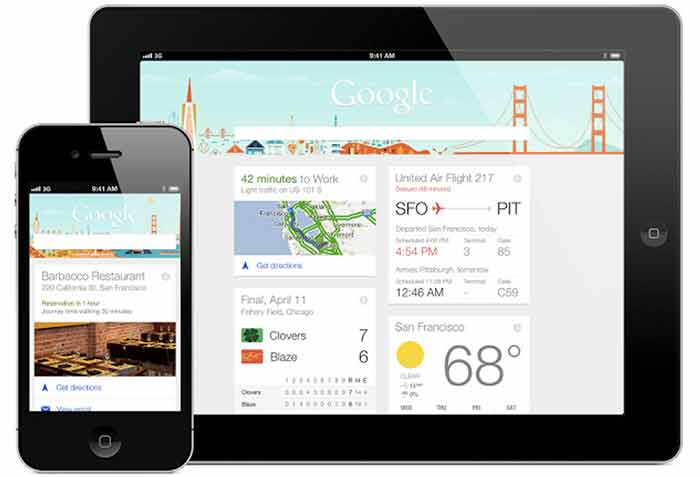
    In this hectic world that we live in, most of us could use a little help. I know that I would love to have my own little minion. These five apps are here to become your own digital personal assistants. They can help you get organized, check the best route to work, store boarding passes, remind you of tasks, vocalize your social media feeds, and much more. Who would you hire as your virtual assistant?

    Image Sources:

    Thanks to Bill Selak for the number five image, Maria Sarfraz for the Google now image, and Splatito8127 for the Sequoia National Park image.

  • Five For Friday: Google Language 101 – Metas, SEO, & Link Building Without Content

    12507215604_e7408e02c4_z1. Link Building Without Content Creation  – Search Engine Journal

    A common misconception about link building is that content creation is a necessary part of it. While new content certainly helps, Jon Ball recently posted an article arguing that updating content is not always necessary, especially for small businesses that lack the resources to invest in new content. Small businesses, he claims, shouldn’t dismiss link building just because they think it is too costly or time-consuming. Fortunately, Ball offers five link building approaches that do not require content creation.

    2. Google+ Finally Lets Us Pin Posts! –  Marketing Land

    Finally, Google+ users can highlight certain posts to make them stand out. Early last week, Google+ announced that users can now pin posts to the top of their pages. Google+ is a little late on the trend, as Facebook and Twitter have already offered this feature to users. So far, Google+ pinned posts are only visible on a desktop or Android device. What does this mean for businesses? With this new feature, you can increase the visibility of posts you want your users to see.

    3. 2015: Over Half of Search Spending Goes to Mobile – Marketing Land

    5143183460_944dd8ac97_z

    A new study conducted by eMarketer shows that in 2015, spending on mobile paid search ads and SEO is predicted to be at 50.1%. This is due to a change in consumer behavior, which has veered away from searching on desktops to show a preference for searching on tablets and smartphones.

    4. Caution: Don’t Ignore Meta Descriptions – Search Engine Land

    Google has continually stated that meta descriptions do not impact search engine rankings, which has led many people to disregard them. However, Neil Patel argues that these descriptions are still important. While the content in a meta description is not considered in Google’s search ranking algorithm, the click-through rate (CTR) is part of Google’s search ranking algorithm. Instead of ignoring meta descriptions, businesses should write optimized meta descriptions to increase CTR and overall site rankings.

    5. Five “Googley” SEO Terms Explained – Search Engine Watch

    Misunderstanding search industry terms could cost you an entire SEO campaign. Kristine Schachinger discusses five commonly misunderstood Google terms that can lead to negative implications in the long run. In Schachinger’s opinion, the most commonly misunderstood Google terms are:

    1. Robots.txt
    2. Google DNS
    3. Penguin, Panda, Penalties
    4. Duplicate Content Filter
    5. PageRank

    To avoid accidental negative SEO implications, she offers the correct definition and usage for each commonly misunderstood Google term.

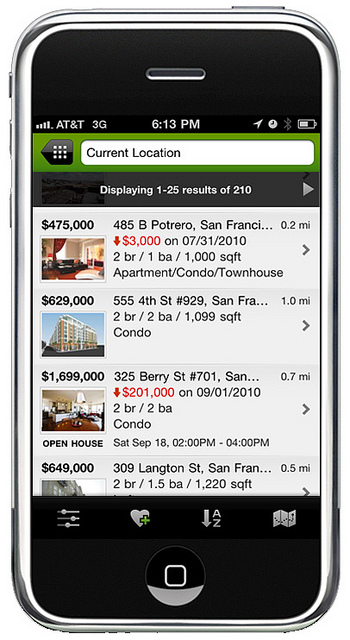
    Thanks to Christopher Sessums for the blue five and Trulia for the mobile app images!

  • Google AdWords Cram Session: Don’t Let Google Kick You in The Ads

    To start off this post: yes, we are a Google Partner. No, we do not do Google’s laundry or cook romantic meals for Google. And we try our best not to steal Google’s side of the bed. We are, however, certified and qualified to help you with all aspects of your online advertising campaigns by building an appropriately aggressive website marketing strategy. So what makes us certified and qualified? Well, let me bring your attention back to our lovely Partner: Google.

    The Perks of Partnership

    Being a Google Partner has lots of perks. From access to live trainings to beta testing opportunities to extra support and professional networking (the list goes on and on, but feel free to peruse here), you can bet we love being a Google Partner. However, along with the perks come some requirements, one of which is obtaining certifications in Google’s products and services.

    One of these certifications focuses on proficiency in using Google AdWords, Google’s online advertising platform. This platform allows users to market their products or services in the Google search engine and affiliated sites. Still following? Great! Now, in order to become a certified Google AdWords advertiser, you will need to pass a couple of tests. In the upcoming paragraphs, I’m going to give you (1) a quick overview of each AdWords exam, and (2) a few general test-taking tips. You’re welcome.

    Google AdWords Exams

    GoogleAdwordsLogoImage

    There are a total of four exams for AdWords certification: Advertising Fundamentals, Advanced Search, Advanced Display, and Video Advertising. Google requires you to pass the Fundamentals test along with at least one of the advanced tests in order to become certified.  However, here at SI, we like to take both advanced tests for good measure. We’re thorough like that. After getting certified in AdWords, you then have the option of taking the Video Advertising exam.

    1. Advertising Fundamentals – 2 Hours. 90 Questions.
    This is the exam that covers all the basic features of AdWords. Questions will pop up on topics like campaign and ad group management, ad formats, and budgeting and bidding options. In order to pass this exam, you’ll need to achieve an 85% or higher. The good news? If you achieve a passing score, it’s valid for two years!

    2. Advanced Search – 2 Hours. 98 Questions.
    This exam goes more into detail on best practices for managing campaigns on Google’s Search Network and Search Partners. Questions will be on topics like ad and site quality, AdWords API, understanding ad performance, and performance optimizations. In order to pass this exam, you’ll need to achieve an 80% or higher. The validity period for this exam is one year.

    3. Advanced Display – 2 hours. 88 Questions.
    This exam focuses on best practices for advertising on the Google Display Network and on YouTube. Questions on this exam test your ability to plan, design, implement, measure, and refine display and video advertising campaigns. In order to pass this exam, you’ll need a score of 70% or higher. The validity period for this exam is one year.

    4. Video Advertising – 1.5 Hours. 74 Questions.
    This exam focuses on video ad campaign creation and management on YouTube and the Display Network. In order to pass, you’ll need a score of 85% or higher. The validity period for this exam is one year.

    General Tips

    VisitorsImage

    If you’re hoping for more test-specific tips, don’t worry…more posts on AdWords certifications to come. However, to get you started on your studying, here are a couple of general test-taking tips!

    1. First and foremost: have a plan. (What is this? Standardized Testing 101?) Don’t cram all the studying into one day or even one week and then rush through the exam hoping you’ll pass. Do this instead:

    • Set a realistic test date for yourself. Might I recommend giving yourself a one-month study period?
    • Take a look at the study guides provided by Google and come up with a time frame that will allow you to go over and understand each section of the study guide thoroughly.

    Google provides you with a wealth of studying material for each exam because Google wants you to succeed. Use the materials provided. Stick to a timeline. And don’t panic!

    2. Which brings me to my second tip: don’t panic. Google is a very forgiving partner and is big on second chances! If you don’t pass on your first try, you can try again in seven days.

    3. Log into AdWords and play around on the platform a little. Not only will this help familiarize you with the many aspects of the AdWords platform, but it will also give you a point of reference when going over the Google study guides for each exam. Plus, haven’t you heard of the phrase “hands-on learning?” It very much applies here.

    On that note, I’m going to cut myself short so you can process all the information you just read. If you’re interested in becoming AdWords Certified, click here. If you’re interested in getting some professional help from an awesome team of AdWords Certified Individuals, click around. You’re in the right place. We’re a Google Partner, after all!

    Thanks to Search Engine Land for the Google AdWords Image, to Google for the cute Google cartoon, and Renee Jacques for the cute cat gif!

  • Old Google Plus Guidelines Go Out Of Business

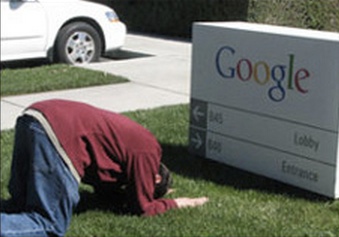
    bowing to google - search influenceTwo nights ago, on December 1st, Google updated the business guidelines for pages in Google My Business (aka Google Plus). I’m here today to walk you through what’s changed and to give examples of good and bad practices of these new guidelines. It’s important to note, however, that these tips aren’t standalone. Having a thorough understanding of the “Guidelines for representing your business on Google” is essential to using this blog to your advantage.

    Descriptors in the Business Name Are NOT Allowed

    Back at Pubcon last year, I heard a lot about how to use descriptors and why you should be using them. While in theory it’s a great idea, when asked if we should be using this in house, my thought was that it ruins the principle of NAP (Name, Address, Phone Number) consistency across the web and that Google probably wouldn’t stick with it. Sure enough, this was one of the changes two nights ago.

    Before:

    In addition to your business’s real-world title, you may include a single descriptor that helps customers locate your business or understand what your business offers.

    Now:

    Your name should reflect your business’ real-world name, as used consistently on your storefront, website, stationery, and as known to customers. Any additional information, when relevant, can be included in other sections of your business information (e.g., “Address”, “Categories”).

    Note the word “consistently” in the new guidelines. The examples Google gives in the new guidelines say you can’t include the following in your business name:

    • taglines
    • store codes
    • trademark signs
    • unnecessary all caps
    • hours info
    • phone numbers or websites
    • special characters (e.g. %&$@/”) or legal terms (e.g. LLC Ltd) – unless part of your real name
    • services or products
    • location information

    My advice is to pick an official business name and stick to using it everywhere. Avoid punctuation if possible, because it just provides another opportunity for inconsistency.

    BAD: Starbucks Downtown

    GOOD: Starbucks

    Importance of Name & Category Consistency for Chains & Brands

    Now:

    All business locations within the same country must have the same name for all locations.

    All locations of a business must share the one category that best represents the business.

    Along the same lines of not using unique descriptors, if your business has multiple locations, the name and categories of their pages should reflect the same information. Note that there are instances of when variances are acceptable to Google that you can read more about within the guidelines.

    BAD: Location #1 – Name: The Search Influence, Location #2: Search Influence

    GOOD: All Locations – Name: Search Influence

    BAD: Search Influence Page #1 – Category: Advertising Agency

    Search Influence Page #2 – Category: Internet Marketing Service

    GOOD: All Search Influence Pages – Category: Internet Marketing Service

    Categories Must Be As Specific As Possible

    Before:

    Select at least one category from the list of available categories.

    Now:

    Use as few categories as possible to describe your overall core business from the provided list. Choose categories that are as specific as possible, but representative of your main business.

    This is one that will mostly affect major niches like doctors and lawyers, as there are a lot of general terms that could apply to these types of businesses. In the example above where I showed Search Influence with the categories Advertising Agency and Internet Marketing Service, our more specific category would be the latter. Adding Advertising Agency as an alternate would not be best practice.

    BAD: NOLA Hospital – Categories: Hospital, Children’s Hospital, Doctor, Surgeon

    GOOD: NOLA Hospital – Categories: Children’s Hospital
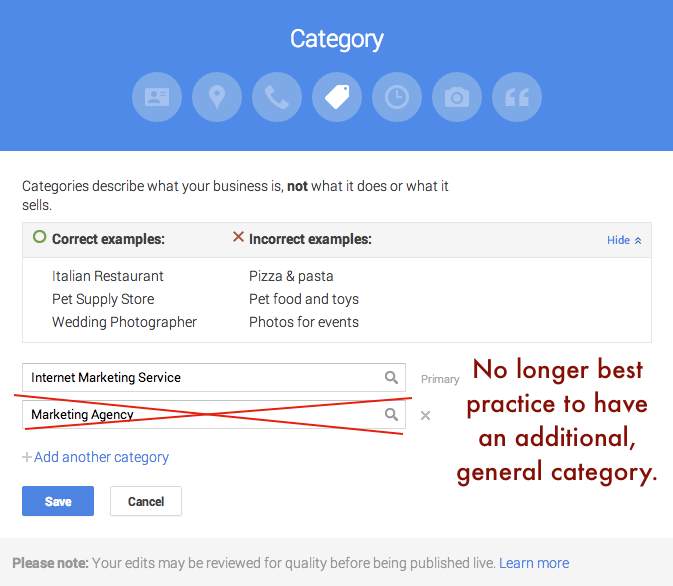
    Google Plus Categories Guidelines - Search Influence

    Departments Within One Location Must Have Unique Categories

    Before:

    Departments within businesses, universities, hospitals, and government buildings may be listed separately. These departments must be publicly distinct as entities or groups within their parent organization, and ideally will have separate phone numbers and/or customer entrances. Businesses that operate in a service area, as opposed to a single location, should not create a page for every city they service.

    Now:

    Publicly-facing departments that operate as distinct entities should have their own page. The exact name of each department must be different from that of the main business and that of other departments. Typically such departments have a separate customer entrance and should each have distinct categories. Their hours may sometimes differ from those of the main business.

    If you choose to represent the various departments of your business through multiple pages in Google My Business (e.g. Hospitals, Schools), each page should have a unique department. Also, as per normal Google guidelines for multiple pages at one location, each page should have some unique location identifier, which would be either a unique suite number/address or a unique phone number.

    BAD: NOLA University – Category: College

    NOLA University Cosmetic Surgery Department – Category: College

    GOOD: NOLA University – Category: College

    NOLA University Graduate School – Category: Graduate School

    Multiple Brands At One Location Must Choose ONE Name

    Now:

    If your business location combines two or more brands, do not combine the brand names into a single page. Instead, pick one brand’s name for the page. If the brands operate independently, you may use a separate page for each brand at this location.

    The examples Google gives for this update seem to pertain to places like fast food restaurants where, for example, a KFC and Taco Bell are in the same building. In that instance, a page called “KFC / Taco Bell” would not be acceptable, and they would have to have two separate pages if they’d like to represent both business names.

    At first, I thought this might affect car dealerships that use multiple business names for multiple pages but are at the same location. However, as long you have separate pages for multiple “brands” at the same location, you should be fine. It is important to note that multiple businesses at the same location need at least one form of unique location identifiers, whether it be a different phone number for each brand at the one location or a different suite number for each brand at the one location.

    BAD: Page #1 – Name: KFC / Taco Bell

    GOOD: Page #1 – Name: KFC Page #2 – Taco Bell

    BAD: Page #1 – Mary’s Jeep, 935 Gravier Street, New Orleans, LA (504) 208 – 3900

    Page #2 – Mary’s BMW, 935 Gravier Street, New Orleans, LA (504) 208 – 3900

    GOOD: Page #1 – Mary’s Jeep, 935 Gravier Street #1300, New Orleans, LA (504) 208 – 3900

    Page #2 – Mary’s BMW, 935 Gravier Street #1301, New Orleans, LA (504) 208 – 3900

    No Practice Name in Practitioner Names of Multi-Location Practices

    Now:

    If the practitioner is one of several public facing practitioners at this location:

    The organization should create a page for this location, separate from that of the practitioner.

    The page for the practitioner should be titled with name of the practitioner only, excluding that of the organization.

    The reason the now improper formatting is bad practice is that it impedes the user experience and could prevent someone from finding the page they’re looking for if practitioners with the practice name in their name are showing up in practice search results. This needs no further explanation in my opinion, so straight to examples.

    BAD: NOLA Cosmetics: Mary Silva

    GOOD: Mary Silva

    Solo Practitioner Name Formatting

    Now:

    If a practitioner is the sole public-facing one at this location and represents a branded organization, the practitioner page should not be separate from the organization’s page. Instead, create a single page, titled using the following format: [brand/company]: [practitioner name].

    Along the same lines of the last guideline, to help users find this type of business, practitioners who own a branded practice and are the only practitioner of said practice should have just one page that combines their name with the branded name.

    BAD: Page #1 – NOLA Cosmetics Page #2: Mary Silva

    GOOD: ONE PAGE – Nola Cosmetics: Mary Silva

    What Happens If I Get This Wrong?

    Some of these guidelines appear to be less enforceable than others, in my opinion. So I’d say it’s best to adhere to them and get your pages fixed as soon as possible. If it’s something like pages that appear to be duplicates because there are multiple businesses at the same location with matching info (matching category or matching phone and address), it might get flagged by Google’s algo as a duplicate page violation, but only time will tell how strictly these changes will be enforced.

    If you’d like to see the old version of the guidelines to compare them to the new, my way of doing this was to use the Internet Archive Wayback Machine and look at the guidelines page on November 30, 2014. Also, Mike Blumenthal provided a concise, comprehensive list of these updates in his blog!

    Hope my thoughts and these examples help. Good luck in all of your Google My Business endeavors! Also, thank you to Amanda DiSilvestro at business2community.com for the bowing to Google image.


  • New Gmail Inbox Has It All, But Can It Separate Naughty From Nice?

    Always on a mission to improve user experience, Google recently released a fresh new look to “Inbox by Gmail.” This update provided additional labels for better organization of your inbox, reminders, snooze options, attachment previews, and more.

    Invite Only

    Recent buzz about Inbox by Gmail has circulated, especially during the first phase of the invite-only system. People are curious about Inbox by Gmail because they want to be part of this exclusive group. If you have yet to receive an invite, send an email to [email protected], and ask politely. Maybe Google will invite you in their next circulation.

    InboxByGmailImage

    Organize With Labels

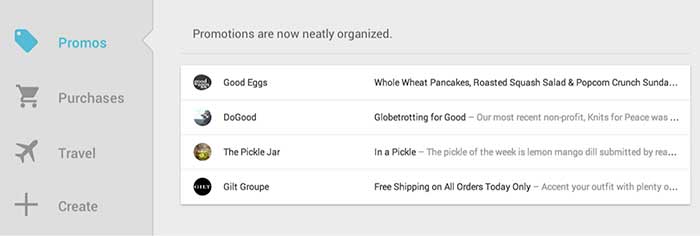
    Google announced Inbox by Gmail “is a better way to get back to what matters.” For this reason, Google created more categories of labels to keep emails organized. Gmail currently bundles emails under tabs “Primary,” “Social,” and “Promotions.” Inbox by Gmail will have many more label tabs available, like “Updates,” “Finance,” “Purchases,” “Travel,” and “Forums.” You also will have the option to create your own labels. This exciting feature organizes emails for you before they arrive in your general inbox.

    InboxByGmailPromotionsImage

    Timeline

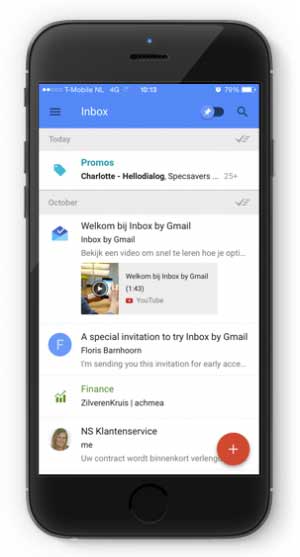
    Warning, your general inbox will look different. When an email belongs to a label, it will be automatically placed within its designated tab. In your general inbox, you will only see who sent the email. This way, you will have less emails showing in your general inbox.

    Mark Your Mail

    Other features: you can mark emails as “important,” as a “to do,” you can add reminders to emails (with extra information like phone numbers), and you can snooze an email to get it out of your inbox until you’re ready to view it.

    More Features

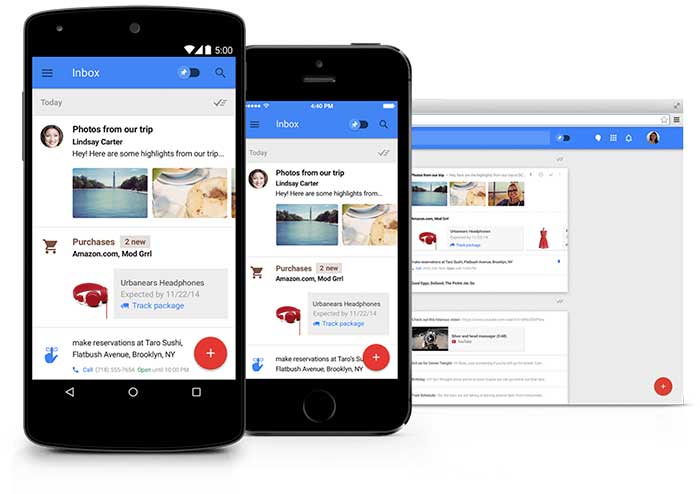
    You can see the highlights of your email without opening the message. The new inbox previews reservation information, online orders, and pictures. You can also get real-time flight updates and speed dial a friend – all from your Gmail account.

    InboxByGmailSmartphoneImage

    Promotional Email

    There are two reasons why I’m not excited as a professional, serving my clients who send the occasional promotional emails:

    1. Promotional emails are now one click further away from the target audience. These types of emails are thrown under a tab and may never be seen.
    2. In their general inbox people will only see a preview of all of your promotional emails. This will include the name of the person or business that sent the promotional email, but not the subject. This update will have a huge impact on the open rate of promotional emails.

    InboxByGmailPromotionsPreviewImage

    Three tips for promotional email to pass the new application:

    1. Address the email to the name of a person rather than a business so the email looks more personal.
    2. People will scan the “Promotions” or “Social” inbox very fast, so you need to be unique and engaging to be noticed. Your subject line is extremely important. Perform some A/B testing to find out which type of subjects score best.
    3. Be relevant – send people emails they would want to read.

    Inbox By Gmail: Yes Or No?

    For personal-use and some business purposes, this new update deserves a big resounding YES! For people or businesses who send promotional emails, this demographic echoes a big fat NO!

    Get an invite and let us know by email what you think of Inbox by Gmail. Your email will end up in our label “VIM” – Very Important Mail.

  • Don’t Be Afraid To Stop & Ask For Directions: Making Google My Maps for SABs

    As promised in my last blog about the new Google My Maps, I’m here today to teach you how to how to create My Maps for service area businesses (often referred to as SABs) that have highlighted boundaries of what counties or parishes they service.

    Before we delve into this guide, let’s start with the basics like what exactly is a KML file. KML is the file format used to show geographic data in mapping programs. It is an XML based format and stands for Keyhole Markup Language. Now that you know what this file type is, let’s see how you can use it.

    How to Use Old 2011 KML Files

    Fun Fact: The U.S. Census Bureau holds kml files for all county guidelines here!

    As you can see, they’re from December 2011, so any boundaries that have changed since then will be incorrect. In a very general sense however I’ve found these codes very useful in the past. Each file contains all county boundaries in one state, but the tricky part is that they don’t tell you what state it is in the file name. I went ahead and downloaded them all a long time ago and updated the file names to reflect the state they contain. It’s pretty closely in alphabetical order so if you just use a list of US states in alpha-order next to the list of files in numerical order it should match pretty closely.

    Once you’ve figured out which file contains the state you’re looking for, find the county or counties that you want to display in your map, and move it’s entire code for each county (should start with “Placemark” attribute and end with the closing of the “Placemark” attribute) just below the “Document” attribute. Once you’ve moved the boundaries you want to keep to the top of the KML file, remove all the excess counties and leave the closing attributes for “Document” and “kml” at the bottom.

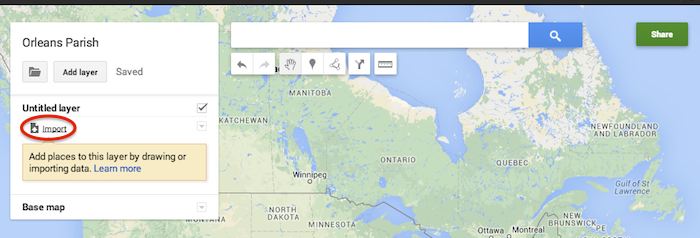
    Now that you’ve successfully prepared your KML file, in My Maps, click Import on the left and choose your KML file from your computer.

    Import A KML File To My Maps - Search Influence

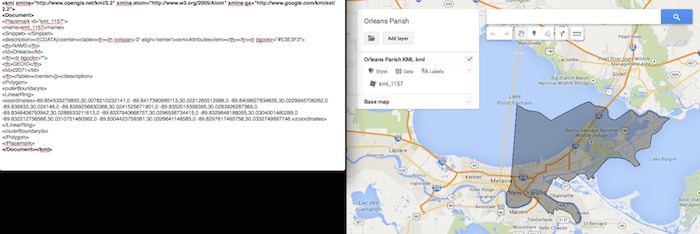
    See the screenshot below for an example of how your KML file should generally look if you’ve done it correctly. The screenshot shows the file for Orleans Parish of Louisiana in TextEdit and then what said file looks like imported into My Maps. (NOTE: In order to show a not so massive screenshot of the KML code, I removed about 3/4 of the coordinates. There are a massive amount of coordinates used to make up these detailed boundaries.)

    Preparing Viewing A KML File In Google My Maps - Search Influence

    How to Use New 2013 KMZ Files

    The U.S. Census Bureau also has the most up to date 2013 files, which are KMZ format (note the .kmz instead of .kml extension). This is essentially zipped KML files with a .kmz extension, but if you use a Mac like me, unzipping or unpacking the zipped file is not easily achieved. The 500k file contains the most detailed boundaries out of the 3 options.

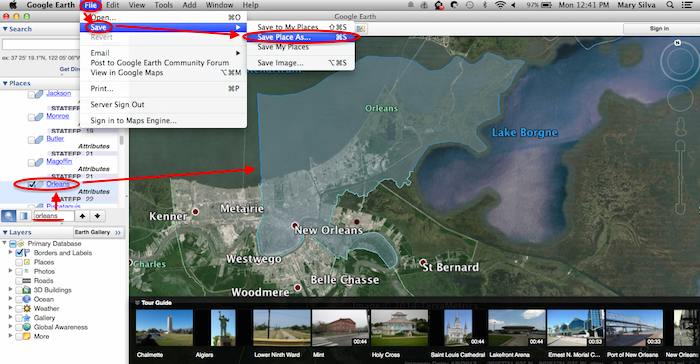
    So, the way I handle this KMZ file is to open the entire file in Google Earth and export just the KML file of the areas I want displayed. To do so you’ll use the search feature of Google Earth on the left at the bottom of the “Places” window to search for and select the areas you want displayed. Since many counties have the same name you’ll want to make sure it’s showing up in the state and location it’s supposed to. Also, note that if you’re trying to add multiple counties in the same state, the Attribute number to the right of the county will be the same for all counties within the same state. This should help you easily identify the counties you’re looking for when adding multiple.

    Once you’ve selected the geographic areas you want displayed on your map in the “Places” section, then save the file as a KML file by clicking File>Save>Save Place As….

    Saving A KML File from Google Earth for Google My Maps - Search Influence

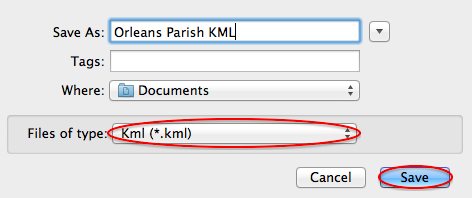
    My Maps will not accept a KMZ file, so make sure to save as a KML.

    Saving a Map in Google Earth As a KML File to Use in My Maps - Search Influence

    Once you’ve saved your file, follow the same steps mentioned above to import the KML file to My Maps. I’m not sure if the paid My Maps Pro is any different, but it appears to me that you cannot import multiple KML files to one My Map. So, in the event that you want to represent multiple service areas in one My Map, you’ll want to have all of the geographic area codes in one KML file.

    This Google Earth process can also be used instead of manually editing the older KML file codes as shown in the first instructional section in case you don’t want to delve into the coding via text edit. It’s definitely an easier route, but for me, Google Earth can sometimes run slow when trying to handle these files and I don’t mind manually editing code.

    Hopefully these steps and screenshots help out a fellow My Mapper!

  • Five For Friday: Backlinks Back, Alright! The Missing Linkjuice & More

    5PoolBallImage

    1. Blogs on Blogs
    – Moz

    Recently, Isla McKetta wrote an entry on The Moz Blog entitled “When Is a Blog the Right Form of Content Marketing?” Blogs have been championed as sure shots for improving online traffic and increasing a company’s influence. McKetta, however, argues that blogs are often overrated, and whether or not a business needs a blog depends on the type of business it is. The article provides concrete examples of when blogs are superfluous and marketing efforts would be better spent on other areas. It’s definitely worth reading.

    2. Link Trouble
    – Search Engine Land

    Julie Joyce wrote a piece on why a website might not be as “linkworthy” as it could be. It’s common knowledge within the SEO realm that having other websites link to yours is vital. There are many steps that can be taken to optimize your site’s linking potential. While some of Joyce’s examples are somewhat obvious, such as including social sharing buttons, there are some important points that could be overlooked. For example, if your site has “atrocious writing,” it’s very unlikely that anyone will link to it.

    3. Backlinks Matter
    – Search Engine Watch

    Adam Stetzer posted an article concerning why backlinks matter for small businesses. Stetzer argues that while small companies can’t afford to overlook backlinks when trying to rank higher on Google, they can’t take an easy way out either. According to Stetzer, low-cost deals offering “500 backlinks for $79” are actually dangerous for businesses because Penguin will view those links as spam and therefore suppress the business’ ranking. The article also discusses the relatively new concern of “Negative SEO” and how to avoid it.

    4. How to Verify Apple Maps Listings Faster
    – Mike Blumenthal

    It has happened to just about everyone working in Internet marketing – while trying to verify a listing on Google or Apple Maps you’re forced to spend extraneous amounts of time retrieving a verification code over the phone and enter it in online. It seems as if these directories are trying their hardest to prevent you from taking control of the listing. Arbitrary factors, such as using a specific phone number too many times, can delay this process from anywhere between 5 minutes to an hour. Luckily, Justin Moseback of blumenthals.com has a trick to curb your time (and anger) spent on getting this task done.

    5. Stuff: Where Should You Put it?
    – Matt Cutts

    TypingOnLaptopImage

    When working within SEO, copious amounts of data are used every day. Therefore, it’s important to know where and how to store it most effectively. Matt Cutts has posted an in-depth article that explores the pros and cons of various data ecosystems. Ultimately, it seems, the best option is the one that molds the best to your business’ needs. However, there are some very convincing arguments for a few of them!

    Image Sources:
    Thanks to Dricker94 for the #5 pool ball image, and to Ministerio TIC Colombia for the typing image.

  • The Hitchhiker’s Guide To The New Google My Maps: Coding 101

    So along with many other recent Google Maps enhancements, Google has finally done away with the “Classic” My Maps. On September 16, Google sent an email to many users stating that “Google My Maps [was] being upgraded.” Recently, you were able to continue using Classic, but if you wanted you could upgrade to new My Maps. At this point all of your maps once created in Classic My Maps should have transitioned to the new My Maps automatically. As of the past few days the classic My Maps version has officially phased out.

    For those of us who have become accustomed to the features of Classic My Maps, it’s easy to feel a little shell shocked by the changes.

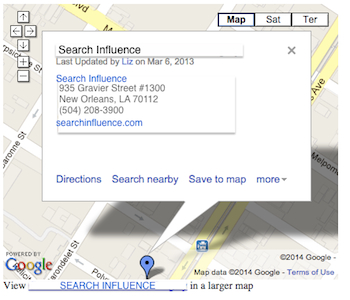
    Before we start delving into the new My Maps, here’s three examples of the different types of maps you could/can embed on your site.

    Old/Classic My Maps (EXTINCT) vs New My Maps – Respectively:

    Classic My Maps Embed - Search Influence New My Maps Embed - Search Influence

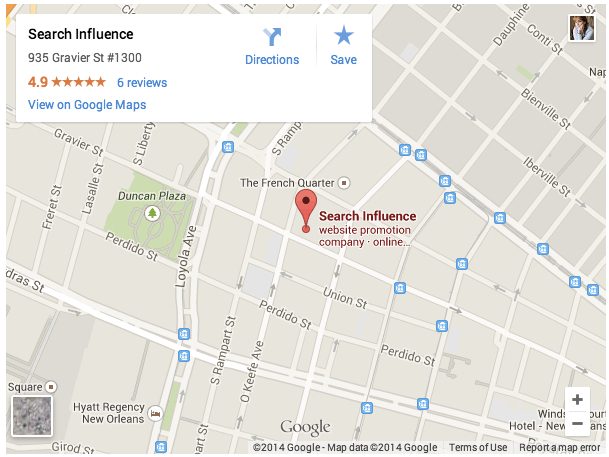
    Simple Google Maps Embed:

    Google My Business Embed Map - Search Influence

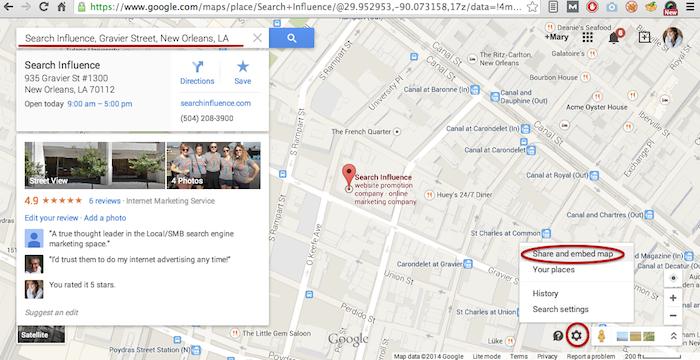
    My Maps should really only be created when you need a map with multiple business locations represented in one map or when you want to create maps with service area outlines. Otherwise, for single-location clients you should use the Google Maps embed feature as shown below:

    Google Maps Share and Embed Map - Search Influence

    In the new My Maps, making the My Map itself hasn’t changed really, the map interface is just a little prettier. You can still import KML files as well as search and add plus page pins to your map. I’m here to help you through the major changes ranging from the simple movement of where to access features to the extensive parameter codes breakdown with the loss of InfoWindows. So let’s get to it!

    New Tool, New Tricks:

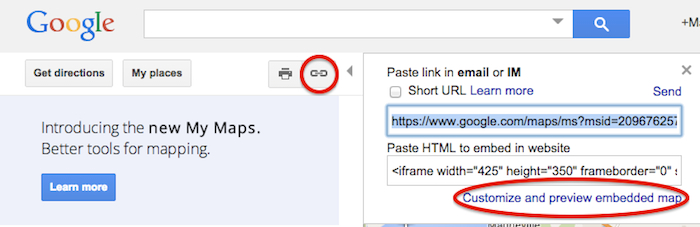
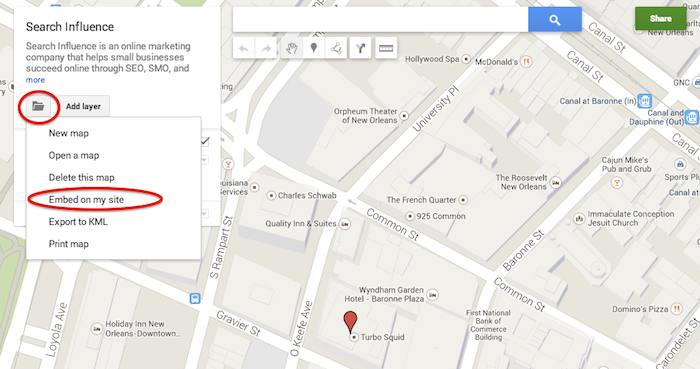
    First things first, where the heck did they move “customize and embed” button to get your embed code!? Well, as obscure and vague (to me at least) as it seems, it’s now housed in the folder icon on the left next to the “Add layer” button. It took me longer than I care to admit to sort that one out, so hopefully I save someone reading this that bit of time.

    Old Location to Grab the Embed Code:

    Old Google My Maps Embed Location - Search Influence

    NEW Location to Grab the Embed Code:

    New Google My Maps Embed Location - Search Influence

    Learn to love that new folder. It also houses the button to create a “New map” once you’re done creating your map or whenever you need to start a new map.

    IMPORTANT NOTE: You now have to share your My Map to make the map visible when you embed it, similarly to how you would share something from Google Drive. Click “Share” in the top right corner then I’d recommend to set access to “Public on the web – Anyone on the Internet can find and view.” The automatic setting when you choose “Public” is editable by the public. Unless you want to risk some strangers editing your maps, switch over to “view” only mode.

    New Product, New Parameters:

    Code Before and After:

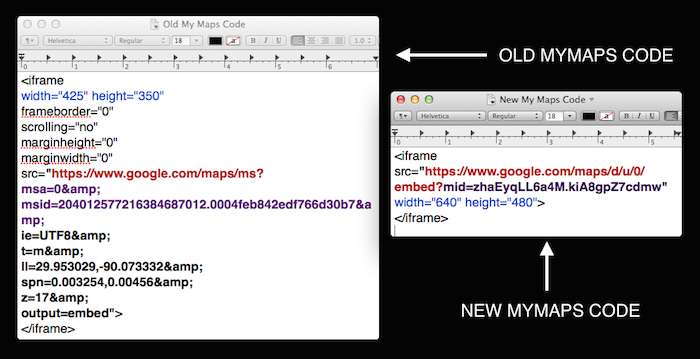
    Google My Maps Embed Code Before and After - Search Influence

    So as you can see in the image above, they’ve removed a lot of previously provided parameters, making the source attribute a lot shorter and more concise. These parameters were responsive to and generated by the now extinct InfoWindow. The InfoWindow allowed you to preview and adjust the My Map before grabbing the code. As previously mentioned, these adjustments must now be done manually.

    First, for sake of knowing what we lost, we’ll cover all the attributes and parameters that were provided in the old My Maps codes.

    Size
    For the size of the maps, the InfoWindow used to let you choose Small, Medium, Large, or Custom.

    Here’s what old My Maps defaults gave you:
    Small: width=”300″ height=”300″
    Medium: width=”425″ height=”350″
    Large: width=”640″ height=”480″ (New My Maps is large by default)
    Custom: WHATEVER YOU WANT

    The parameters that adjust the source code are now separated by just “&” instead of the “&” parameter divider. I’m assuming that this change is a result of Google’s preference to save some characters.

    My Map ID
    First, you’ll notice that the parameters msa= and msid= have been replaced by mid=. The msa= parameter was used to set whether you were showing a particular, identified map (when set to 0) or showing other things like the My Map create form (when set to 2). Then when msa= was set to 0 to indicate that you were showing a particular map, you’d identify said map using the My Map identifier parameter msid=. It looks like the new identifier parameter, mid=, encompasses all you need.

    Input Character Encoding
    In the old code, ie= was used to set the input character encoding, which is typically set to Unicode 8 (UTF8).

    Terrain
    The type of terrain shown in the base of your My Map used to be set using t=. The following inputs will give you the respective results:
    t=m: normal map (think white cities, yellow street lines, green parks)
    t=k: satellite (the photographic, Google Earth look)
    t=h: hybrid (combination of normal and satellite, street lines and photographic)
    t=p: terrain (think atlas-type with shaded mountains)

    Latitude and Longitude
    To set the center point of the map, the code ll= would be used. Must be in decimal format and have latitude before longitude separated by a comma. Alternately, using sll= instead, with the same input formatting will set the latitude and longitude of the center point of the business.

    Span
    The parameter spn= was used to set the width and height for the geocoder to determine how many degrees of latitude and longitude will be shown.

    Zoom
    One of the most important parameters for My Maps in my opinion is the zoom adjusting z= parameter. Smallest input, 1, will show you all continents of Earth and the largest possible input (most zoomed in input) is 21.

    The only one I’ve needed is the zoom parameter so far, but any of the above will work. I think the terrain parameter might be helpful as well, but that can also be done by adjusting the terrain of your map directly in My Maps under “Base map”. Below is an example of the new My Maps code adjusted with a zoom parameter in bold.

    New Google My Maps Code With Zoom Parameter - Search Influence

    What about the popup window with all the dropped marker information!?

    Sadly, there is no longer a parameter to make the information of the My Map marker already visible on your map. This marker typically contains businesses’ location information. Viewers will now have to click the marker in the My Map to view this information.

    So, for single location businesses, the easiest way to get an embed code for your site, which shows your business info with the marker, is by using the simple “Share and embed map” feature already in Google Maps (see “Google Maps embed feature” screenshot above).

    Hopefully this will save someone having trouble adjusting to the new My Maps some time from scouring forums for this info. Stay tuned for my future post on how to use KML files for service area business maps!

  • I Wanna Index You Up: Google Exposed

    Google is a great keeper of secrets. They’re willing to share parts of demographic data captured from their users with potential advertisers. But, they keep their own personal data locked up pretty tight, or at least tight enough to keep anyone without a neurosis for data away.

    About a month ago, I was trying to get an idea of URLs that existed on a client’s website. Due to their unfortunately dated decision to integrate a Flash-based navigation on their front page, I could not use a sitemap generator — software that crawls a site and outputs all URLs — to gather up a URL list.

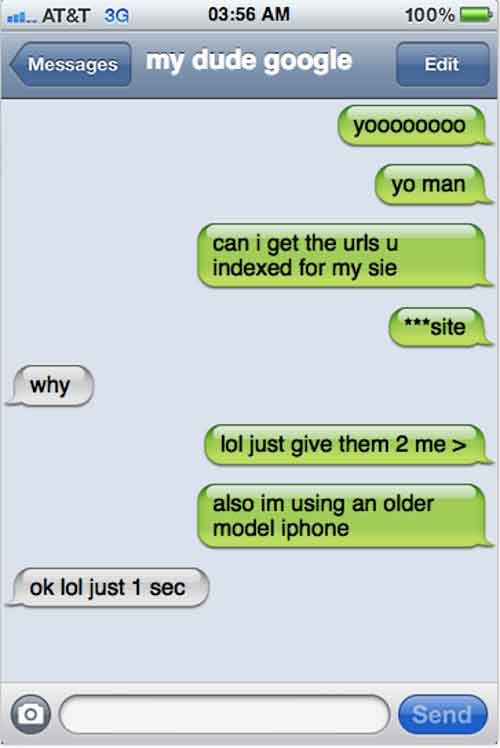
    Because I’m pretty lazy, or some could argue resourceful, I decided to look into what Google indexed for that site. However, you can’t exactly text Google up to request the URLs be sent over.

    MyDudeGoogleImage

    It’s Up To You, My Dude

    Although Google Webmaster Tools provides you with a lot of info about your site, including how many URLs are indexed, it does not tell you which URLs are indexed. So I did a little bit of digging, and I found this “bookmarklet” that easily captures the SERPs that appear on a given page of results, and lists them in an easy-to-import-into-Excel format.

    CoolTipImage

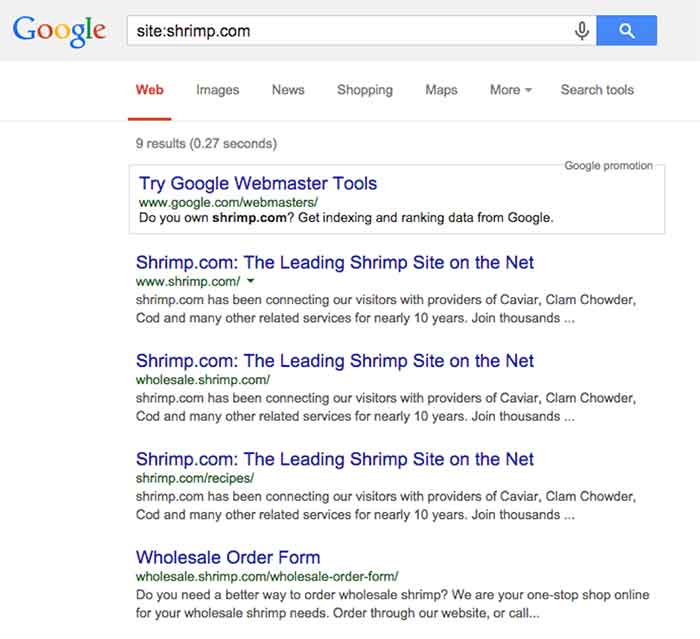
    To see a list of URLs (or at least a partial list) Google has indexed for a specific domain name, query Google for “site:sitename.com.”

    Here’s a reenactment of what I saw when searching for the indexed URLs:

    SiteShrimpComImage

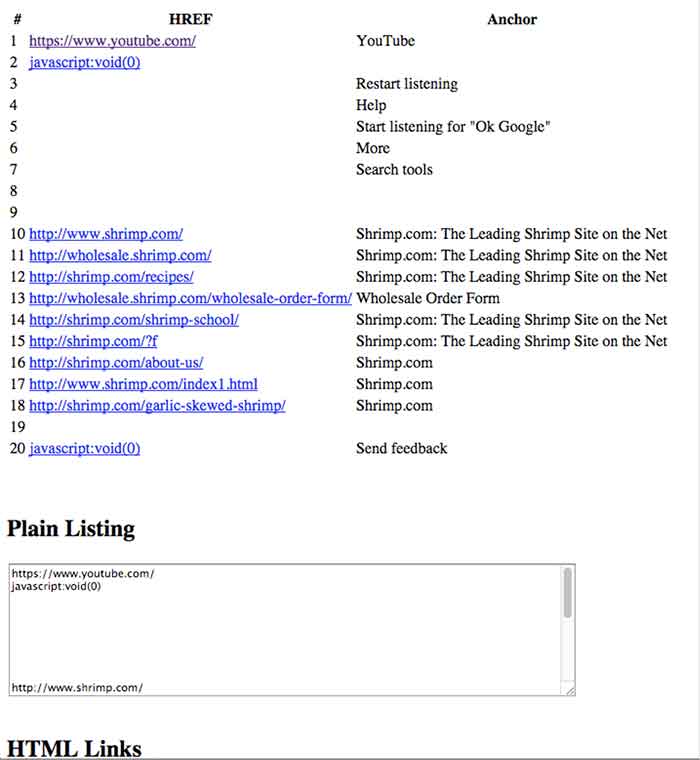
    Once you have that bookmarklet added to your bookmarks bar (just drag and drop, as the instructions say), clicking it gives results like this in a new tab:

    RankingListImage

    By visually filtering out the worthless stuff (JavaScript, a link to Youtube, and blank rows), I’m left with this tidy list of first page of results. Sadly, we find that there are only 9 pages indexed of shrimp.com, inclusive of its subdomains, within Google:

    • http://wholesale.shrimp.com/
    • http://shrimp.com/recipes/
    • http://wholesale.shrimp.com/wholesale-order-form/
    • http://shrimp.com/shrimp-school/
    • http://shrimp.com/?f
    • http://shrimp.com/about-us/
    • http://www.shrimp.com/index1.html
    • http://shrimp.com/garlic-skewed-shrimp/

    For the purpose of finding the indexed URLs for my client, I just kept clicking “Next Page” and running this until I couldn’t get any more results.

    And with that, I had a pretty good idea of URLs that were actually indexed by Google. Luckily, this was a reasonable amount of pages to parse through, but I could imagine this being particularly tedious process for larger sites.

    Although you may want to take the results of these queries with a grain of salt, given the presence of Google’s filter bubble, its accessibility to non-technical users make it a helpful tool.

    In my experience at Search Influence, we’ve had a few clients with indexing issues related to pages that are actually discoverable by search. We knew how many URLs were indexed, as well as how many we expected to be indexed, but we did not know which URLs were not part of their index. By cross-referencing a sitemap with all discoverable URLs versus the results of this manual URL scraping of Google’s index, we can have a clue into what the heck’s wrong, and start troubleshooting with more focus.

  • Those Who Do Not Learn From The Past Are Doomed To Have Poor Search Value

    If you’re reading this blog you’re probably already aware that Google has been busy updating their algorithms. If you work in the Internet marketing industry you may be on edge, cowering at the very mention of any animal whose name begins with the letter P. Ever since the first Panda update in 2012, followed by the introduction of the infamous Penguin algorithm that laid waste to the search engine rankings of many a carefully formulated marketing campaigns, ended careers, crushed SEO companies, and changed the hierarchy of competing businesses across the globe, people have kept an ear to the ground for the approach of further updates.

    Unfortunately, the secrets behind these algorithms are tightly guarded, and only general guidelines and information are provided to the public by the clandestine data giant, Google. So what are we to do? How can we avoid being penalized for our efforts and implement a lasting marketing strategy that won’t blow up in our faces like some Looney Toons derived Acme product?

    Threading Through the Maze: Birth of the Search Engine

    In search for the most strategic tactics to create a future-perfect website, I believe we must first visit the distant past, the primordial pre-digital world of 1945. Yes, its time for a flashback.

    BackToTheFutureImage

    The heated global conflict of World War II has induced a brave new world of scientific development spurred on by allied nations sharing research to gain a technological edge in the war. In the wake of the conflict, a newly established international science community, having proven itself as an invaluable resource in every aspect of the war, is continuing to progress at an unprecedented rate. As the head of the U.S. Office of Scientific Research and Development, Vannevar Bush, has been coordinating between a broad range of scientific disciplines from all over the world since 1941. Frustrated with the inefficiencies involved with sharing massive amounts of data between specialized fields of study, namely the inability to quickly find pertinent information, Bush devised a solution that he described in his essay As We May Think.

    “The summation of human experience is being expanded at a prodigious rate, and the means we use for threading through the consequent maze to the momentarily important item is the same as was used in the days of square-rigged ships.”

    Bush’s vision was to create a system that more naturally indexed information by association, implementing “associative trails”  allowing a person to further explore particular ideas within an article as opposed to having to put down one resource to take up the search for information anew. He envisioned the ability to view multiple articles on a single screen, with the ability to add comments that could be stored and recalled with the article thereafter and the creation of links between related articles, allowing users to map out a network of information easily accessed and built upon by future users.

    Of course, in that day, the technology did not exist to implement Bush’s machine. Bush’s device, the “Memex”, he proposed would use every 60’s spy film’s favorite storage format — microfilm. His vision inspired further development within the scientific community that above all other things resulted in streamlining the exchange of information making exponential leaps and bounds in development and implementation of new science possible.

    Back to the Future

    WhereWereGoingDontNeedRoadsImage

    So you’re probably thinking at this point. “Awesome. A guy back in the 1940’s thought up something vaguely search-engine like. Great. Maybe next time I need to change the oil in my Nissan you can tell me about the inception of the steam engine.”

    Okay. I like nerding out about history. Guilty as charged, but this brief walk through the annals of history does have some significance to the modern webmaster. As much as technology changes and improves, the demands that drive development remain unaltered. The desire for an intuitive means to access a large network of information led to a series of advancements that reshaped modern society.

    The entire history and continued development of search engines lies within the scientific community as an effective means to index and provide relevant information to those that are looking for it. Every search engine adheres to these concepts and despite the negative association with algorithm updates in the Internet marketing community these updates are, at the very least, intended to improve on Google’s ability to provide the most relevant and desirable information to the user.

    For those looking to the future, bare in mind that Google isn’t just getting better at devising its algorithms and penalizing what it interprets to be undesirable marketing practices, Google also provides ever increasing access to information and incorporates more user behavior into how they determine the validity of a website. As the #1 search engine in the world, and largest provider of analytics solutions, Google has access to massive amounts of user data which is being actively used to determine search rankings. While you can fool search engine crawlers and automated ranking processes, Internet users of today are savvy, experienced, and don’t take kindly to spammy or misleading marketing practices.

    Preparing for the Inevitable

    The oversimplified answer to how to implement a website that will succeed on the search engines, and continue to do so, is one that embraces the ideals on which Bush’s Memex was based and all search engines were built — to put useful information into the hands of the people that are looking for it.

    STEP 1: To best do this, the important first step is determining what information your clients need and want most. Don’t get tripped up analyzing at this part of the process. Think simple. If it’s a product you’re selling, generally a wealth of user reviews on the Internet will tell of the user’s opinions and desires. Tap into these for inspiration.

    STEP 2: Next, create original, well-written and researched content. The content should provide users with the information they are looking for, clearly labeled and organized to enable a user to quickly find the tidbits that are most relevant to their search. Updating or adding to this information often is important. Keeping your site current and error-free will help continue visits to your site and an upward progression in ranks.

    Step 3: In addition to text, it’s important to provide high-quality images, videos, and other media, and it’s even more important to label these properly. The more original media you provide the better.

    Step 4: Established social media sites and Internet communities relevant to your industry are important places to have a presence in order to connect directly with potential clients and establish your site’s authority.

    I know these tips are nothing new. These are the time-tested practices for Internet success that have barely changed since the genesis of the Internet.

    I understand the general reaction to algorithm updates. It’s crushing to struggle up the ranks using all your know-how just to have those efforts ripped to pieces. And when battling for exposure in the dog-eat-dog world of marketing, many, if not most, will turn to any competitive advantage they can muster.

    It’s important to realize, however, that with regular updates occurring that further marginalize the gains of shady marketing practices, anyone looking for more than a flash in the pan needs to embrace the ideals from which the search engine was born and connect people to the information they are looking for.

    Image Sources:

    Thanks to Don’t Count Your Chickens and to halbschwer for the Back To The Future Gifs. Also, thanks to Mark Bourne for the Wile E. Coyote image.