Tag: google maps

  • Avoid Customers Crying In Your Parking Lot: A Cautionary Tale

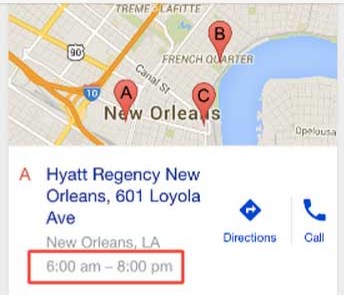
    If you’ve ever done a Google search for a business, you’ve likely seen this kind of result.
    MapsTimeViewImage

    And I’m sure at least once, you’ve seen this result, driven to the location, and found it to be closed.

    CatDrivingImage

    In that crushing moment, did you hear your heart beating in your ears? Did you see black spots? Did you curl up into a fetal position?

    Google lied to you. It clearly said the business was “open.” You had a full 8 hours before they closed! Rapidly stalking the business’ multiple social media platforms, you finally find one tiny post that says “Closed for the holidays.”

    If this has happened to you, you definitely are not alone. Rest assured that I have cried in a coffee shop parking lot due to this very scenario.
    QuoteImage

    With Great Power Comes Great Responsibility

    Know this, my comrades: it is not the fault of Google—nay! This falls on the responsibility of business owners as part of properly managing and maintaining a Google My Business profile.

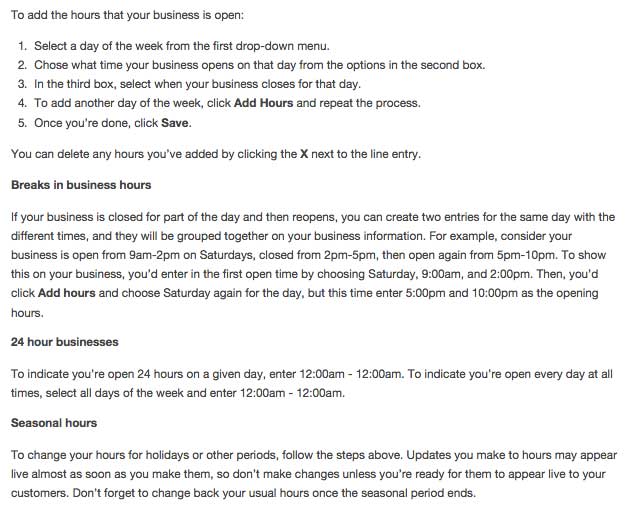
    Currently, Google has not built out the functionality for saving holiday-specific hours ahead of time. As the profile setup currently stands, you’ll need to manually edit the hours of operation on a given day when your business is open (or closed) outside your standard hours of operation.

    See Google’s steps on how to update your business’ hours.
    InstructionsOnAddingHoursImage

    After scouring Google’s forum for topics related to holiday-specific hours, it doesn’t seem like they’ll be adding the ability to set such hours ahead of time. Many of you may grumble and say that this is the last thing you’d think about during the holidays and, man, I get it, but know this:

    If customers have just one instance where they very much look forward to coming to your establishment and are discouraged by misleading information, they have less of a chance of coming back. How can they know if you’ll be open?

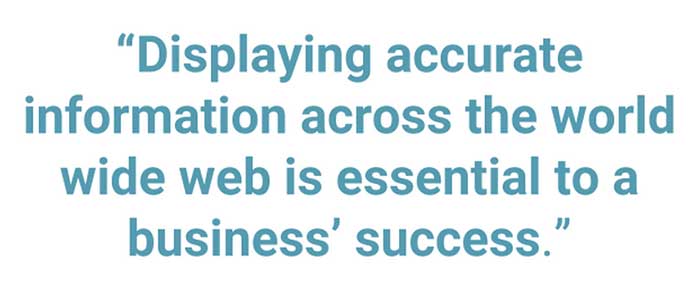
    This issue, however, is not specific to the holidays. It’s also applicable to businesses that have season-specific hours, and … really, all businesses! Companies with out-of-date or incorrect hours will quickly lose favor with customers. Really, take this as a larger lesson for why displaying accurate information across the World Wide Web is essential to a business’ success.

    As Google’s search engine becomes increasingly more sophisticated, results will become increasingly more accurate. Online users already rely on the Internet to supply the most up-to-date information on any given topic, so why should your business be immune to this demand? The point is, it isn’t.

    Google Time Stops For No Man

    Set a calendar reminder the day before to update your hours. Set an alarm on your phone! Put post-it notes all over the place. Tie a ribbon to your finger. Pay your tech-savvy kid to do it. Or hire an Internet marketing company to manage your profile for you. Whatever method you choose, just know that you are doing a great service to your customers—and to the world!

    In addition to managing an accurate and up-to-date Google My Business profile, it’s a good idea to update your social profiles as well. Facebook has easy-to-manage settings on your business’ page. Additionally, if your website has a built-out blog, it might be a good idea to have a holiday-specific post. In addition to alerting your customers about abnormal hours, a holiday-specific blog post opens the door to great time-sensitive content marketing opportunities.

    Opportunistic Marketing

    For instance, let everyone know your restaurant is open on St. Patrick’s Day and post your holiday-specific menu for the day, highlighting any specials you may have on account of the holidays.

    Contracting company closed for Christmas? Make a blog post about being unavailable on certain days, but highlight necessary winter-related structural checks or services that you will be offering when you return to normal business hours. Share the blog post across your social media platforms.

    Medical practice open for limited hours over Easter? Post a piece highlighting choking hazards for Easter-related paraphernalia, common food dye allergy reactions, or the importance of a dental check-up after candy-centric holidays.

    CatBunnyHatImage

    Clothing boutique open on the Fourth of July? Embellish a blog post with photos of your cutest red, white, and blue outfits. Have a friendly contest amongst shoppers and get them to post the Fourth of July outfits they purchased at your store. Who wore it best?

    Sno-ball stand closed for the winter? Write up a cute post about how you’ve gone north to collect more “snow” for the next coming season and when your customers can expect you to return! Also, post new flavors that they can anticipate for next season (or new combinations of old flavors). Or have a contest over the winter to see who can come up with the best flavor!

    CatAbeLincolnImage

    Go Forth And Update

    So, let this be a warning to you. Every time a search result for your business shows inaccurate information, you may just be losing a customer. Don’t think of maintaining accurate information as a chore but as an opportunity to engage and educate your customers.

    Have questions about maintaining other aspects of your Google My Business profile or opportunistic content marketing? Have an incorrect-business-info experience you’d like to share? Let us know in the comments below!

    Image Sources:
    Grumpy cat

    Easter cat

    Bearded cat

  • Let’s Get Medical: How To Manage Healthcare Listings On G+

    When it comes to adding healthcare listings in Google My Business (now the one-stop shop that includes Google Plus business management), there are many things to consider when managing multiple entities within one location. While building out multiple listings unnecessarily is not ideal, some instances may call for multiple listings in order to distinguish between unique departmental differences.

    If there are multiple departments within your hospital or practice that have unique information (for example, a different phone number from the main hospital or practice) and operate differently from the primary location (for example, unique hours are typically considered an operational difference), then it is best to build out separate location pages for each of the departments to provide this information to customers more clearly.

    Let us delve into an explicit example of this. If your general hospital houses a hospital pharmacy and an emergency department, then these departments serve different purposes and might have separate hours and phone numbers.

    IMPORTANT NOTE BEFORE PROCEEDING: The following examples are ENTIRELY FICTIONAL BUSINESSES.

    Creating Pages:

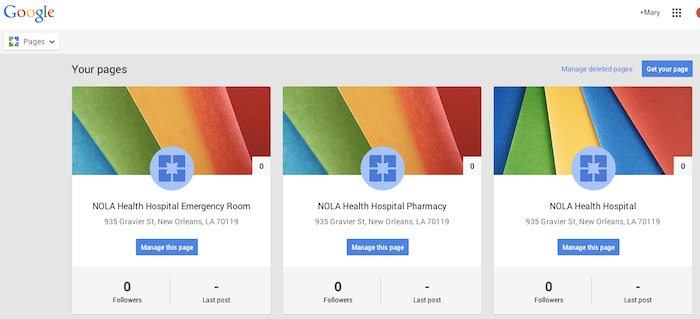
    Let’s say the aforementioned example is called NOLA Health Hospital. NOLA Health Hospital, in this instance, should have three Local (Storefront) Google Plus Pages. Note that these pages, while most likely using the same address, should have unique phone numbers. They should also have unique names; for example, “NOLA Health Hospital,” “NOLA Health Hospital Emergency Room,” and “NOLA Health Hospital Pharmacy” would be the proper names. These pages should also list their hours of operation according to their department-specific hours. If these pages were properly set up in the Google My Business dashboard, they would look like the following screenshot.

    Google My Business Dashboard - Search Influence

    Setting Categories:

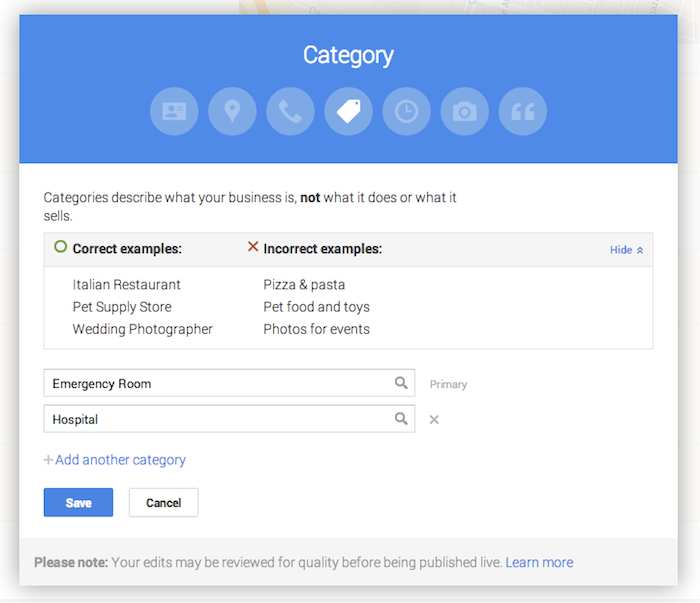
    Now that you have created the pages, it is important to use the categories to distinguish the differences between them. Google’s guidelines for businesses explicitly state that “For each department, the category that is the most representative of that department must be different from that of the main business and that of other departments.” This means that the primary category for each page should be different. In this example, NOLA Health Hospital Emergency Room will have the primary category “Emergency Room,” NOLA Health Hospital Pharmacy will have the primary category “Pharmacy,” and the general hospital of NOLA Health Hospital will have the primary category “Hospital.”

    Google Plus Page Editing - Search Influence

    While these settings are typically arranged during the page creation process, they can also be edited after the page is created. Click on “Manage this page” from the Pages dashboard, then click “Edit” in the top right-hand corner, and finally click into the “Category” section of the editing page to adjust the category. This is also where you can build out supplemental categories for the page. However, it may be wiser to use a few specific categories, as Google’s guidelines advise that it is best to “choose the fewest number of categories it takes to describe your overall core business.”

    As always, if you’re ever confused about how to proceed with your page, you can find the Google My Business “Guidelines for representing your business on Google” on the support site.

  • Old Google Plus Guidelines Go Out Of Business

    bowing to google - search influenceTwo nights ago, on December 1st, Google updated the business guidelines for pages in Google My Business (aka Google Plus). I’m here today to walk you through what’s changed and to give examples of good and bad practices of these new guidelines. It’s important to note, however, that these tips aren’t standalone. Having a thorough understanding of the “Guidelines for representing your business on Google” is essential to using this blog to your advantage.
    Descriptors in the Business Name Are NOT Allowed

    Back at Pubcon last year, I heard a lot about how to use descriptors and why you should be using them. While in theory it’s a great idea, when asked if we should be using this in house, my thought was that it ruins the principle of NAP (Name, Address, Phone Number) consistency across the web and that Google probably wouldn’t stick with it. Sure enough, this was one of the changes two nights ago.

    Before:

    In addition to your business’s real-world title, you may include a single descriptor that helps customers locate your business or understand what your business offers.

    Now:

    Your name should reflect your business’ real-world name, as used consistently on your storefront, website, stationery, and as known to customers. Any additional information, when relevant, can be included in other sections of your business information (e.g., “Address”, “Categories”).

    Note the word “consistently” in the new guidelines. The examples Google gives in the new guidelines say you can’t include the following in your business name:

    • taglines
    • store codes
    • trademark signs
    • unnecessary all caps
    • hours info
    • phone numbers or websites
    • special characters (e.g. %&$@/”) or legal terms (e.g. LLC Ltd) – unless part of your real name
    • services or products
    • location information

    My advice is to pick an official business name and stick to using it everywhere. Avoid punctuation if possible, because it just provides another opportunity for inconsistency.

    BAD: Starbucks Downtown

    GOOD: Starbucks

    Importance of Name & Category Consistency for Chains & Brands

    Now:

    All business locations within the same country must have the same name for all locations.

    All locations of a business must share the one category that best represents the business.

    Along the same lines of not using unique descriptors, if your business has multiple locations, the name and categories of their pages should reflect the same information. Note that there are instances of when variances are acceptable to Google that you can read more about within the guidelines.

    BAD: Location #1 – Name: The Search Influence, Location #2: Search Influence

    GOOD: All Locations – Name: Search Influence

    BAD: Search Influence Page #1 – Category: Advertising Agency

    Search Influence Page #2 – Category: Internet Marketing Service

    GOOD: All Search Influence Pages – Category: Internet Marketing Service

    Categories Must Be As Specific As Possible

    Before:

    Select at least one category from the list of available categories.

    Now:

    Use as few categories as possible to describe your overall core business from the provided list. Choose categories that are as specific as possible, but representative of your main business.

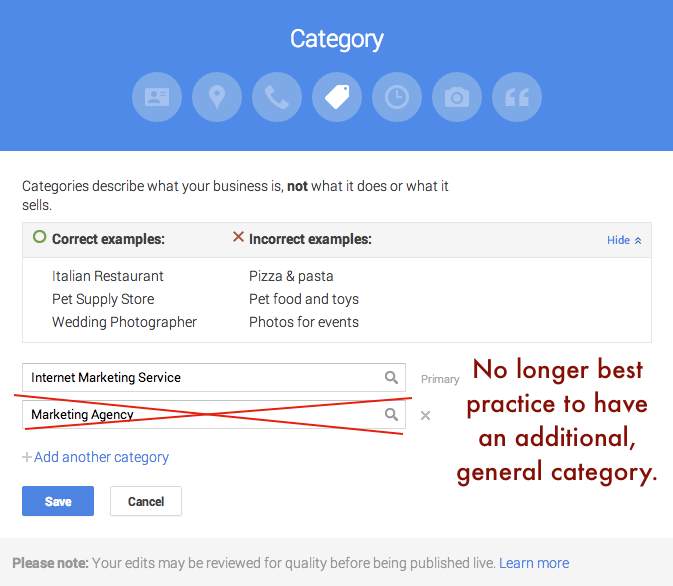
    This is one that will mostly affect major niches like doctors and lawyers, as there are a lot of general terms that could apply to these types of businesses. In the example above where I showed Search Influence with the categories Advertising Agency and Internet Marketing Service, our more specific category would be the latter. Adding Advertising Agency as an alternate would not be best practice.

    BAD: NOLA Hospital – Categories: Hospital, Children’s Hospital, Doctor, Surgeon

    GOOD: NOLA Hospital – Categories: Children’s Hospital

    Google Plus Categories Guidelines - Search Influence

    Departments Within One Location Must Have Unique Categories

    Before:

    Departments within businesses, universities, hospitals, and government buildings may be listed separately. These departments must be publicly distinct as entities or groups within their parent organization, and ideally will have separate phone numbers and/or customer entrances. Businesses that operate in a service area, as opposed to a single location, should not create a page for every city they service.

    Now:

    Publicly-facing departments that operate as distinct entities should have their own page. The exact name of each department must be different from that of the main business and that of other departments. Typically such departments have a separate customer entrance and should each have distinct categories. Their hours may sometimes differ from those of the main business.

    If you choose to represent the various departments of your business through multiple pages in Google My Business (e.g. Hospitals, Schools), each page should have a unique department. Also, as per normal Google guidelines for multiple pages at one location, each page should have some unique location identifier, which would be either a unique suite number/address or a unique phone number.

    BAD: NOLA University – Category: College

    NOLA University Cosmetic Surgery Department – Category: College

    GOOD: NOLA University – Category: College

    NOLA University Graduate School – Category: Graduate School

    Multiple Brands At One Location Must Choose ONE Name

    Now:

    If your business location combines two or more brands, do not combine the brand names into a single page. Instead, pick one brand’s name for the page. If the brands operate independently, you may use a separate page for each brand at this location.

    The examples Google gives for this update seem to pertain to places like fast food restaurants where, for example, a KFC and Taco Bell are in the same building. In that instance, a page called “KFC / Taco Bell” would not be acceptable, and they would have to have two separate pages if they’d like to represent both business names.

    At first, I thought this might affect car dealerships that use multiple business names for multiple pages but are at the same location. However, as long you have separate pages for multiple “brands” at the same location, you should be fine. It is important to note that multiple businesses at the same location need at least one form of unique location identifiers, whether it be a different phone number for each brand at the one location or a different suite number for each brand at the one location.

    BAD: Page #1 – Name: KFC / Taco Bell

    GOOD: Page #1 – Name: KFC Page #2 – Taco Bell

    BAD: Page #1 – Mary’s Jeep, 935 Gravier Street, New Orleans, LA (504) 208 – 3900

    Page #2 – Mary’s BMW, 935 Gravier Street, New Orleans, LA (504) 208 – 3900

    GOOD: Page #1 – Mary’s Jeep, 935 Gravier Street #1300, New Orleans, LA (504) 208 – 3900

    Page #2 – Mary’s BMW, 935 Gravier Street #1301, New Orleans, LA (504) 208 – 3900

    No Practice Name in Practitioner Names of Multi-Location Practices

    Now:

    If the practitioner is one of several public facing practitioners at this location:

    The organization should create a page for this location, separate from that of the practitioner.

    The page for the practitioner should be titled with name of the practitioner only, excluding that of the organization.

    The reason the now improper formatting is bad practice is that it impedes the user experience and could prevent someone from finding the page they’re looking for if practitioners with the practice name in their name are showing up in practice search results. This needs no further explanation in my opinion, so straight to examples.

    BAD: NOLA Cosmetics: Mary Silva

    GOOD: Mary Silva

    Solo Practitioner Name Formatting

    Now:

    If a practitioner is the sole public-facing one at this location and represents a branded organization, the practitioner page should not be separate from the organization’s page. Instead, create a single page, titled using the following format: [brand/company]: [practitioner name].

    Along the same lines of the last guideline, to help users find this type of business, practitioners who own a branded practice and are the only practitioner of said practice should have just one page that combines their name with the branded name.

    BAD: Page #1 – NOLA Cosmetics Page #2: Mary Silva

    GOOD: ONE PAGE – Nola Cosmetics: Mary Silva

    What Happens If I Get This Wrong?

    Some of these guidelines appear to be less enforceable than others, in my opinion. So I’d say it’s best to adhere to them and get your pages fixed as soon as possible. If it’s something like pages that appear to be duplicates because there are multiple businesses at the same location with matching info (matching category or matching phone and address), it might get flagged by Google’s algo as a duplicate page violation, but only time will tell how strictly these changes will be enforced.

    If you’d like to see the old version of the guidelines to compare them to the new, my way of doing this was to use the Internet Archive Wayback Machine and look at the guidelines page on November 30, 2014. Also, Mike Blumenthal provided a concise, comprehensive list of these updates in his blog!

    Hope my thoughts and these examples help. Good luck in all of your Google My Business endeavors! Also, thank you to Amanda DiSilvestro at business2community.com for the bowing to Google image.

  • Don’t Be Afraid To Stop & Ask For Directions: Making Google My Maps for SABs

    As promised in my last blog about the new Google My Maps, I’m here today to teach you how to how to create My Maps for service area businesses (often referred to as SABs) that have highlighted boundaries of what counties or parishes they service.

    Before we delve into this guide, let’s start with the basics like what exactly is a KML file. KML is the file format used to show geographic data in mapping programs. It is an XML based format and stands for Keyhole Markup Language. Now that you know what this file type is, let’s see how you can use it.

    How to Use Old 2011 KML Files

    Fun Fact: The U.S. Census Bureau holds kml files for all county guidelines here!

    As you can see, they’re from December 2011, so any boundaries that have changed since then will be incorrect. In a very general sense however I’ve found these codes very useful in the past. Each file contains all county boundaries in one state, but the tricky part is that they don’t tell you what state it is in the file name. I went ahead and downloaded them all a long time ago and updated the file names to reflect the state they contain. It’s pretty closely in alphabetical order so if you just use a list of US states in alpha-order next to the list of files in numerical order it should match pretty closely.

    Once you’ve figured out which file contains the state you’re looking for, find the county or counties that you want to display in your map, and move it’s entire code for each county (should start with “Placemark” attribute and end with the closing of the “Placemark” attribute) just below the “Document” attribute. Once you’ve moved the boundaries you want to keep to the top of the KML file, remove all the excess counties and leave the closing attributes for “Document” and “kml” at the bottom.

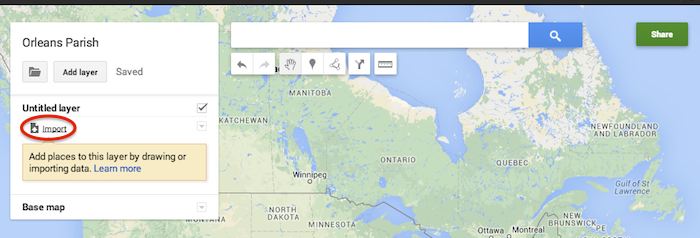
    Now that you’ve successfully prepared your KML file, in My Maps, click Import on the left and choose your KML file from your computer.

    Import A KML File To My Maps - Search Influence

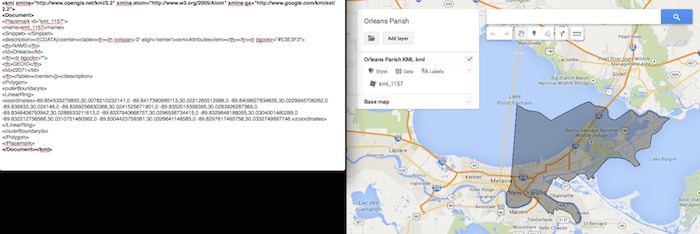
    See the screenshot below for an example of how your KML file should generally look if you’ve done it correctly. The screenshot shows the file for Orleans Parish of Louisiana in TextEdit and then what said file looks like imported into My Maps. (NOTE: In order to show a not so massive screenshot of the KML code, I removed about 3/4 of the coordinates. There are a massive amount of coordinates used to make up these detailed boundaries.)

    Preparing Viewing A KML File In Google My Maps - Search Influence

    How to Use New 2013 KMZ Files

    The U.S. Census Bureau also has the most up to date 2013 files, which are KMZ format (note the .kmz instead of .kml extension). This is essentially zipped KML files with a .kmz extension, but if you use a Mac like me, unzipping or unpacking the zipped file is not easily achieved. The 500k file contains the most detailed boundaries out of the 3 options.

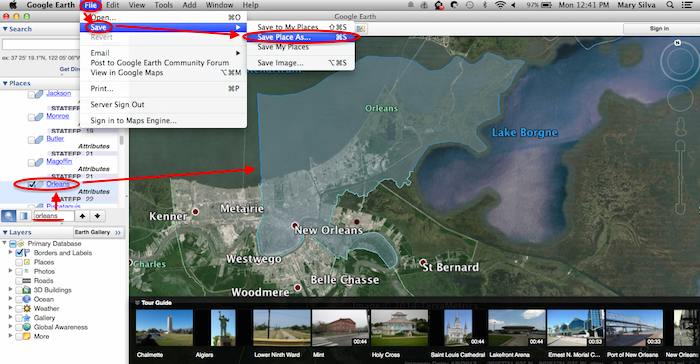
    So, the way I handle this KMZ file is to open the entire file in Google Earth and export just the KML file of the areas I want displayed. To do so you’ll use the search feature of Google Earth on the left at the bottom of the “Places” window to search for and select the areas you want displayed. Since many counties have the same name you’ll want to make sure it’s showing up in the state and location it’s supposed to. Also, note that if you’re trying to add multiple counties in the same state, the Attribute number to the right of the county will be the same for all counties within the same state. This should help you easily identify the counties you’re looking for when adding multiple.

    Once you’ve selected the geographic areas you want displayed on your map in the “Places” section, then save the file as a KML file by clicking File>Save>Save Place As….

    Saving A KML File from Google Earth for Google My Maps - Search Influence

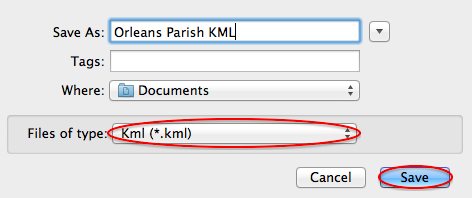
    My Maps will not accept a KMZ file, so make sure to save as a KML.

    Saving a Map in Google Earth As a KML File to Use in My Maps - Search Influence

    Once you’ve saved your file, follow the same steps mentioned above to import the KML file to My Maps. I’m not sure if the paid My Maps Pro is any different, but it appears to me that you cannot import multiple KML files to one My Map. So, in the event that you want to represent multiple service areas in one My Map, you’ll want to have all of the geographic area codes in one KML file.

    This Google Earth process can also be used instead of manually editing the older KML file codes as shown in the first instructional section in case you don’t want to delve into the coding via text edit. It’s definitely an easier route, but for me, Google Earth can sometimes run slow when trying to handle these files and I don’t mind manually editing code.

    Hopefully these steps and screenshots help out a fellow My Mapper!

  • Five For Friday: Backlinks Back, Alright! The Missing Linkjuice & More

    5PoolBallImage

    1. Blogs on Blogs
    – Moz

    Recently, Isla McKetta wrote an entry on The Moz Blog entitled “When Is a Blog the Right Form of Content Marketing?” Blogs have been championed as sure shots for improving online traffic and increasing a company’s influence. McKetta, however, argues that blogs are often overrated, and whether or not a business needs a blog depends on the type of business it is. The article provides concrete examples of when blogs are superfluous and marketing efforts would be better spent on other areas. It’s definitely worth reading.

    2. Link Trouble
    – Search Engine Land

    Julie Joyce wrote a piece on why a website might not be as “linkworthy” as it could be. It’s common knowledge within the SEO realm that having other websites link to yours is vital. There are many steps that can be taken to optimize your site’s linking potential. While some of Joyce’s examples are somewhat obvious, such as including social sharing buttons, there are some important points that could be overlooked. For example, if your site has “atrocious writing,” it’s very unlikely that anyone will link to it.

    3. Backlinks Matter
    – Search Engine Watch

    Adam Stetzer posted an article concerning why backlinks matter for small businesses. Stetzer argues that while small companies can’t afford to overlook backlinks when trying to rank higher on Google, they can’t take an easy way out either. According to Stetzer, low-cost deals offering “500 backlinks for $79” are actually dangerous for businesses because Penguin will view those links as spam and therefore suppress the business’ ranking. The article also discusses the relatively new concern of “Negative SEO” and how to avoid it.

    4. How to Verify Apple Maps Listings Faster
    – Mike Blumenthal

    It has happened to just about everyone working in Internet marketing – while trying to verify a listing on Google or Apple Maps you’re forced to spend extraneous amounts of time retrieving a verification code over the phone and enter it in online. It seems as if these directories are trying their hardest to prevent you from taking control of the listing. Arbitrary factors, such as using a specific phone number too many times, can delay this process from anywhere between 5 minutes to an hour. Luckily, Justin Moseback of blumenthals.com has a trick to curb your time (and anger) spent on getting this task done.

    5. Stuff: Where Should You Put it?
    – Matt Cutts

    TypingOnLaptopImage

    When working within SEO, copious amounts of data are used every day. Therefore, it’s important to know where and how to store it most effectively. Matt Cutts has posted an in-depth article that explores the pros and cons of various data ecosystems. Ultimately, it seems, the best option is the one that molds the best to your business’ needs. However, there are some very convincing arguments for a few of them!

    Image Sources:
    Thanks to Dricker94 for the #5 pool ball image, and to Ministerio TIC Colombia for the typing image.

  • The Hitchhiker’s Guide To The New Google My Maps: Coding 101

    So along with many other recent Google Maps enhancements, Google has finally done away with the “Classic” My Maps. On September 16, Google sent an email to many users stating that “Google My Maps [was] being upgraded.” Recently, you were able to continue using Classic, but if you wanted you could upgrade to new My Maps. At this point all of your maps once created in Classic My Maps should have transitioned to the new My Maps automatically. As of the past few days the classic My Maps version has officially phased out.

    For those of us who have become accustomed to the features of Classic My Maps, it’s easy to feel a little shell shocked by the changes.

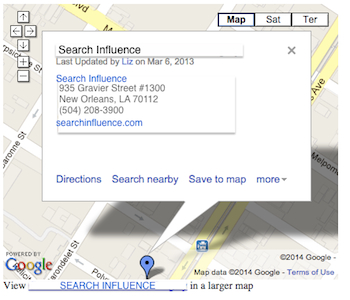
    Before we start delving into the new My Maps, here’s three examples of the different types of maps you could/can embed on your site.

    Old/Classic My Maps (EXTINCT) vs New My Maps – Respectively:

    Classic My Maps Embed - Search Influence New My Maps Embed - Search Influence

    Simple Google Maps Embed:

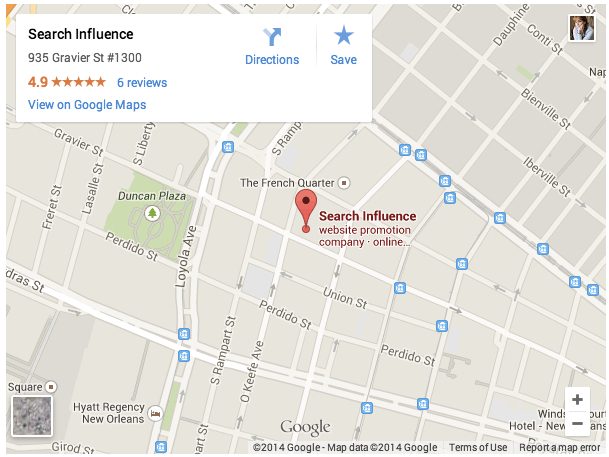
    Google My Business Embed Map - Search Influence

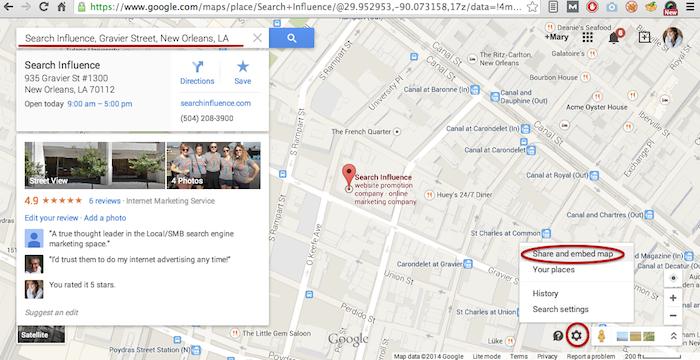
    My Maps should really only be created when you need a map with multiple business locations represented in one map or when you want to create maps with service area outlines. Otherwise, for single-location clients you should use the Google Maps embed feature as shown below:

    Google Maps Share and Embed Map - Search Influence

    In the new My Maps, making the My Map itself hasn’t changed really, the map interface is just a little prettier. You can still import KML files as well as search and add plus page pins to your map. I’m here to help you through the major changes ranging from the simple movement of where to access features to the extensive parameter codes breakdown with the loss of InfoWindows. So let’s get to it!

    New Tool, New Tricks:

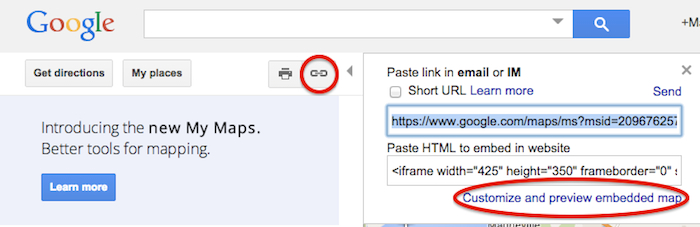
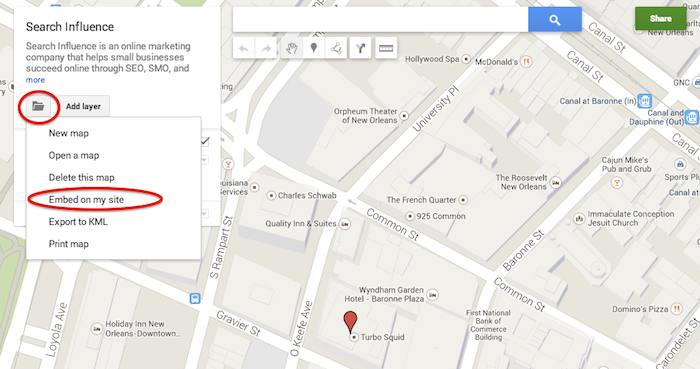
    First things first, where the heck did they move “customize and embed” button to get your embed code!? Well, as obscure and vague (to me at least) as it seems, it’s now housed in the folder icon on the left next to the “Add layer” button. It took me longer than I care to admit to sort that one out, so hopefully I save someone reading this that bit of time.

    Old Location to Grab the Embed Code:

    Old Google My Maps Embed Location - Search Influence

    NEW Location to Grab the Embed Code:

    New Google My Maps Embed Location - Search Influence

    Learn to love that new folder. It also houses the button to create a “New map” once you’re done creating your map or whenever you need to start a new map.

    IMPORTANT NOTE: You now have to share your My Map to make the map visible when you embed it, similarly to how you would share something from Google Drive. Click “Share” in the top right corner then I’d recommend to set access to “Public on the web – Anyone on the Internet can find and view.” The automatic setting when you choose “Public” is editable by the public. Unless you want to risk some strangers editing your maps, switch over to “view” only mode.

    New Product, New Parameters:

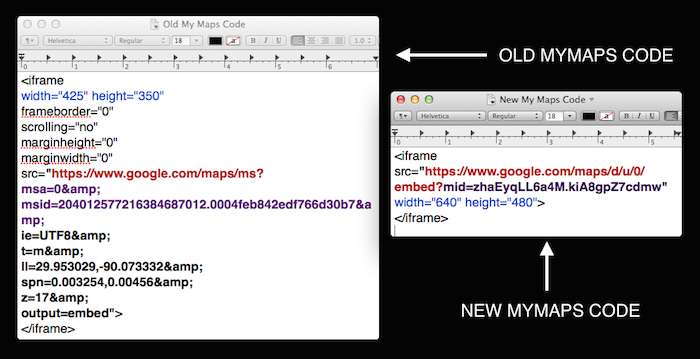
    Code Before and After:

    Google My Maps Embed Code Before and After - Search Influence

    So as you can see in the image above, they’ve removed a lot of previously provided parameters, making the source attribute a lot shorter and more concise. These parameters were responsive to and generated by the now extinct InfoWindow. The InfoWindow allowed you to preview and adjust the My Map before grabbing the code. As previously mentioned, these adjustments must now be done manually.

    First, for sake of knowing what we lost, we’ll cover all the attributes and parameters that were provided in the old My Maps codes.

    Size
    For the size of the maps, the InfoWindow used to let you choose Small, Medium, Large, or Custom.

    Here’s what old My Maps defaults gave you:
    Small: width=”300″ height=”300″
    Medium: width=”425″ height=”350″
    Large: width=”640″ height=”480″ (New My Maps is large by default)
    Custom: WHATEVER YOU WANT

    The parameters that adjust the source code are now separated by just “&” instead of the “&” parameter divider. I’m assuming that this change is a result of Google’s preference to save some characters.

    My Map ID
    First, you’ll notice that the parameters msa= and msid= have been replaced by mid=. The msa= parameter was used to set whether you were showing a particular, identified map (when set to 0) or showing other things like the My Map create form (when set to 2). Then when msa= was set to 0 to indicate that you were showing a particular map, you’d identify said map using the My Map identifier parameter msid=. It looks like the new identifier parameter, mid=, encompasses all you need.

    Input Character Encoding
    In the old code, ie= was used to set the input character encoding, which is typically set to Unicode 8 (UTF8).

    Terrain
    The type of terrain shown in the base of your My Map used to be set using t=. The following inputs will give you the respective results:
    t=m: normal map (think white cities, yellow street lines, green parks)
    t=k: satellite (the photographic, Google Earth look)
    t=h: hybrid (combination of normal and satellite, street lines and photographic)
    t=p: terrain (think atlas-type with shaded mountains)

    Latitude and Longitude
    To set the center point of the map, the code ll= would be used. Must be in decimal format and have latitude before longitude separated by a comma. Alternately, using sll= instead, with the same input formatting will set the latitude and longitude of the center point of the business.

    Span
    The parameter spn= was used to set the width and height for the geocoder to determine how many degrees of latitude and longitude will be shown.

    Zoom
    One of the most important parameters for My Maps in my opinion is the zoom adjusting z= parameter. Smallest input, 1, will show you all continents of Earth and the largest possible input (most zoomed in input) is 21.

    The only one I’ve needed is the zoom parameter so far, but any of the above will work. I think the terrain parameter might be helpful as well, but that can also be done by adjusting the terrain of your map directly in My Maps under “Base map”. Below is an example of the new My Maps code adjusted with a zoom parameter in bold.

    New Google My Maps Code With Zoom Parameter - Search Influence

    What about the popup window with all the dropped marker information!?

    Sadly, there is no longer a parameter to make the information of the My Map marker already visible on your map. This marker typically contains businesses’ location information. Viewers will now have to click the marker in the My Map to view this information.

    So, for single location businesses, the easiest way to get an embed code for your site, which shows your business info with the marker, is by using the simple “Share and embed map” feature already in Google Maps (see “Google Maps embed feature” screenshot above).

    Hopefully this will save someone having trouble adjusting to the new My Maps some time from scouring forums for this info. Stay tuned for my future post on how to use KML files for service area business maps!

  • Five For Friday: Amazon Gets Physical, Tinder Cleans Up, & G+ Asks, Am I Pretty?

    FiveForFridaysColorfulFive

    1. Google Testing New Local Interface In Web Search Results – Search Engine Roundtable

    Google is testing a new interface for showing the local web search results. Back in August, we saw that Google was showing the local carousel within the results, but this new interface is simply a list of the results and isn’t going to preview a map within the carousel.

    2. Tinder Spammers Move to SMS After Improvements To Dating App’s Security – Tech Crunch

    For awhile now, the dating app Tinder has been overwhelmed with spam bots, or accounts created to flirt with Tinder users and then direct them to adult sites. However, this summer, Tinder was called out by Symantec and therefore had to address the issue with an update. At first it appeared the update addressed the issue, but a new report is showing that the spammers have just moved to using SMS texts.

    3. Report: Amazon To Open New York Retail Store – Marketing Land

    Recept news reports say that Amazon is planning to open a Manhattan store just in time for holiday traffic. According to WSJ, the new store, opening at 7 West 34th Street, is to operate as a mini-warehouse of sorts, allowing returns and pickups. Others had reporting that this might be a place for Amazon to showcase it’s upcoming products such as new e-readers, the Fire Phone, or Fire TV. Either way, this could be a game changer for this e-commerce provider.

    4. Google Adds The Ability To Post Polls On Google+ – Marking Land

    As of October 9th, Google+ is giving users the ability create and share polls. This was a tool Facebook was offering back, but then pulled back in 2012 finding it redundant. This new feature in Google+ will on the web and Android versions within the next few days, and then eventually iOS.

    5. Google Makes Conversational Search Even More Intelligent – Search Engine Journal

    OpenTableLogoImageOn October 9th, Google announced an update to their conversation search functionality which should make it easier for planning. Overall the new features include, location-based searches, making reservations, and finding directions. These new features are now available on the Android and iOS app. What does this mean for businesses? It’s more even important to optimize your site for local search as well as to verify your Google+ local listing. If you own a restaurant, then you should ensure you are listed on OpenTable so you don’t miss out on potential customers!

  • 5 For Friday: Local Search, News, Advice, Measuring Success, and Penguin Refresh

    Five

    1. Local Businesses: Watch Out!
    – Search Engine Watch

    Apple’s newest gadget, the Apple Watch, is likely to have a major impact on local search. The expected increase in hyper-local searches means added pressure will be placed on businesses to ensure they can be found easily online. “Users will be able to search for locations via dictation or favorites, map out the routes and receive touch feedback at each turn – including different notifications to denote right or left turns” said Apple’s Vice President of Technology Kevin Lynch.

    2. SEO Success: Ranking #1 Isn’t What it Used to Be
    -Search Engine Land

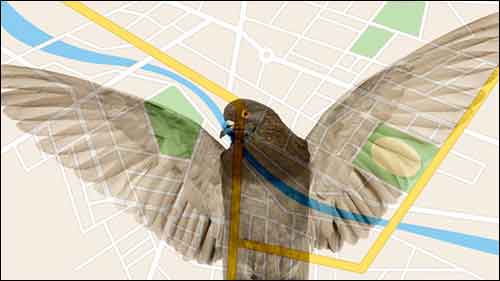
    Following “Pigeon”, Google’s latest algorithm update, it has become increasingly apparent that rankings do not equal success. Instead you should focus on the following 5 metrics to more effectively measure SEO success: organic traffic, organic landing pages, organic conversion sources, Google My Business impressions and clicks for driving directions.

    PigeonUpdateImage

    3. Awaiting the Penguin Refresh
    – Search Engine Watch

    Google’s John Mueller recently announced that a Google is working on a Penguin update that is expected to launch in the “reasonable future.” In the meantime, Muller encourages webmasters to “focus on cleaning up site issues and making sure the sites are as good as they can be in and of themselves rather than focusing on individual factors of individual algorithms.”

    4. Social Customer Service: Now More Important than Ever
    – Search Engine Watch

    The social media revolution has had countless impacts on the success and failure of businesses. Consumers have more power than ever before; therefore, it is crucial businesses are aware of their concerns. Tips for success include: taking complaints and issues offline as quickly as possible, responding in less than an hour, and creating content that helps the customer, while maintaining a positive attitude.

    5. App-sessed
    – Marketing Land

    A new study shows that users spent 21 percent more time on apps in the last year. The data revealed that users are spending the longest amount of time on music-related apps and the shortest (but also most frequent) amount of time on social networking apps.

    MobileAppImage

    Image Sources:

    Pigeon Update Image

    Social Media Apps Image


  • Five for Friday – Google Launches Click & Drag for Maps, A New Twitter Record, & Pinterest Gets Even Easier!

    FireworkFiveImageMarketing Land publishes new research on tweet indexing in Google search results. Google Maps rolls out handy “click and drag” update. Why your content needs images to get the attention of engaged readers. The most talked about World Cup game breaks a Twitter record. Big brands begin testing a new way to interact with Pinterest followers.

    1. Twitter A-Listers Are More Likely To Have Their Tweets Indexed In Google Search Results
    -Marketing Land

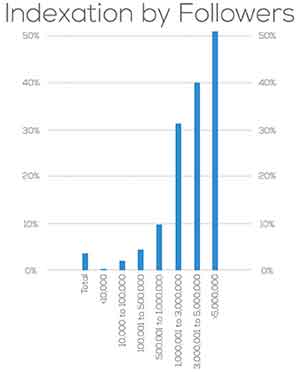
    It’s official: your tweet will never be on Google search.  A study by Stone Temple Consulting reveals that Google will likely only index your Tweets if you have over one million followers.  After analyzing 963 Twitter accounts, the study found that tweets from accounts with a million+ followers were indexed 30% of the time.  As the number of followers increased, so did the indexing percentage.  Although there were a very small percentage of tweets indexed by Google from accounts with fewer than a million followers, the amount is negligible compared to Twitter’s heavy hitters.

    On the bright side, we can all rest assured knowing the wit and wisdom of Kanye West in 40 characters or less is only a quick Google search away.

    IndexationByFollowersImage

    2. Click And Drag To Measure Distance In New Google Maps Update
    -Search Engine Journal

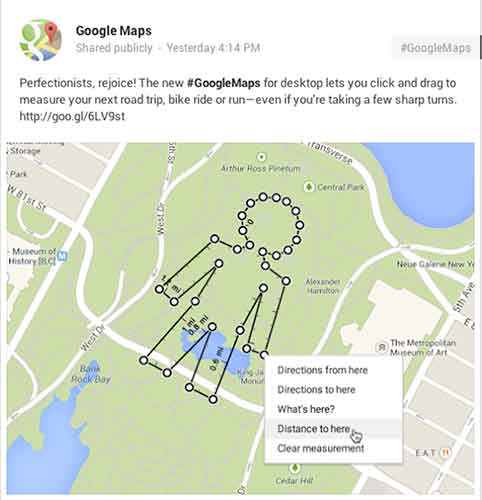
    Do you often take the road less traveled, only to be frustrated by not being able to measure just how far you’ve gone?  Relief has arrived!  Google announced a Google Maps update this week that allows users to click and drag to measure distances.

    Google might call me a perfectionist, but I’ve already thought of five practical applications for the new feature:

    1. Settle the argument whether you or your friend lives closer to your favorite hangout, and see if it’s truly in the middle (shortcuts finally included).

    2. Calculate how long it will actually take to detour from your road trip to see the world’s largest ball of twine.

    3. Get an accurate distance when Google’s driving directions fail because you know Maple Street is closed for repairs but it insists on sending you there anyway.

    4. Enjoy your next run (or bike or leisurely stroll) sans Nike app and still be able to calculate how far you went.

    5. Answer the age-old question: how far would it be if I wanted to walk in the shape of my name through this park?

    GoogleMapsMeasureDistanceImage

    3. Use Images (Not Just Words) to Turn Your Distracted Visitors into Engaged Readers
    -Copyblogger

    It’s an adage as old as time: a picture is worth 1,000 words. Pamela Wilson makes the very relatable analogy of the oversaturation of words in content marketing to an overstimulated child (if you don’t have kids, think about the one throwing a temper tantrum at the park last week).  We are visual people, so why aren’t we incorporating images while producing content online more often?

    Her tips vary from basic (remember to actually use images and not just words) to creative and insightful (doctor up a purchased stock photo to make it more unique).  Much like the sight of an image itself, lost in a sea of text, the blog is refreshing in its take on reaching your audience through content production.

    4. Germany’s Stunning World Cup Win Over Brazil Is The Most-Tweeted Sports Game Ever
    -TechCrunch

    The spirit of Brazil’s soccer team wasn’t the only thing broken after Tuesday’s World Cup match against Germany; the game was the subject of 35.6 million tweets, breaking the record for the most-discussed single sports game on Twitter. At the peak of the Twitter fury was Sami Khedira’s goal against Brazil to bring the score to 5-0 Germany, which resulted in 580,166 tweets per second.

    The record replaces this year’s Super Bowl, which garnered 24.9 million tweets.

    GermanyWorldCupImage

    5. Pinterest Makes It Easier to Follow E-commerce Brands
    -Adweek

    Pinterest has been busy working towards winning the title “Big Brand’s Best Friend.”  Following the release of its API in November, they’ve now tweaked the “follow” button to make it easier for consumers to connect with eCommerce sites.

    Currently being tested by Wayfair, Whole Foods, ModCloth, and GoPro, the new “follow” feature improves user experience by pulling in the company’s latest pins in a pop-up window instead of taking the shopper off-site.

    As a lover of Pinterest, I say bring it on!  Anything that lets me connect with my favorite brands quicker and more easily is a winner in my book.

  • Getting Hands On With The New Google My Business

    Today, Google launched Google My Business. This new, more intuitive Google Places serves as a one stop shop for small businesses to do the normal Google Places work like updating business info, adding photos, connecting with customers through Google Plus posting, and staying on top of reviews. They also launched an Android app for managing Business Tools on the go (with the promise of an iOS app launching soon). Watch Google’s introductory video to Google My Business here.

    Changes For Users New and Old

    All new businesses to Google will start in Google My Business. As for current Google Places users, a blog post from Google earlier today said, “We’re also upgrading current users of Places for Business and the Google+ Dashboard to this new experience.” For those who just sat through and are still cleaning up the mess that was the upgrade to the new Google Places, don’t worry! You won’t have to go searching for which dashboard your listings are in or anything like that. It seems that Google My Business is a mostly superficial change that has already happened and just means a newer looking dashboard and a few extra features and controls (like easy access to Youtube, AdWords, and Analytics).

    Google My Business, Game Of Thrones Gif - Search Influence

    Quick & Easy Editing

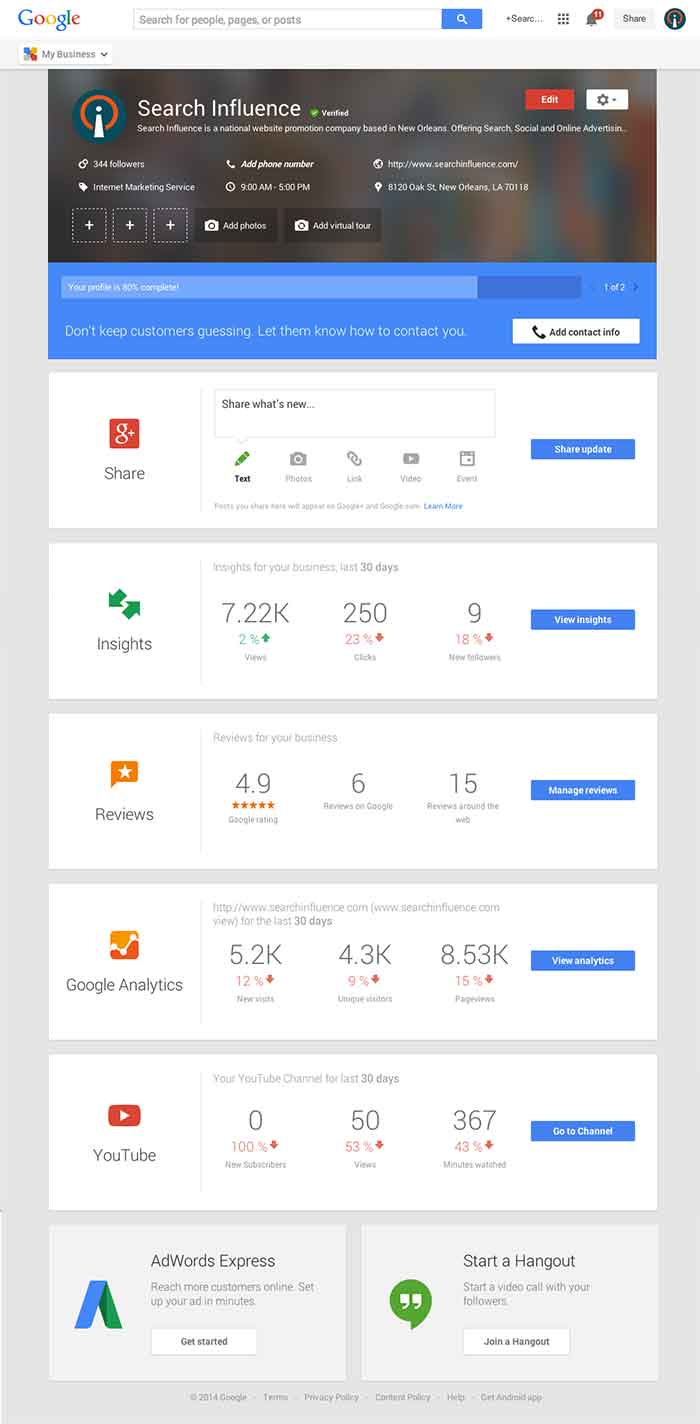
    These new features are pretty awesome. From your dashboard, first you’ll see the area for easily managing the individual aspects of your primary business information where previously you would have navigated through an “Edit Business Details” button. Connected to the bottom of this dialogue, there will be a blue box that allows you to edit the business information needed to get your profile to 100% complete. Google My Business has succeeded in using minor dashboard edits to make major usability improvements.

    Google My Business Dashboard Image - Search Influence

    Streamlined Sharing

    The next box is a basic G+ Share box for social posting to your business page. Share texts, photos, links, videos, and events easily all from one location. Side note: I recently found out, thanks to a post from Mike Blumenthal, that there is now an easy way to connect your business’ brand page to a location. So, if you have been posting socially from a Google Plus brand page for your business, you can now easily transfer that engagement into your verified local page.

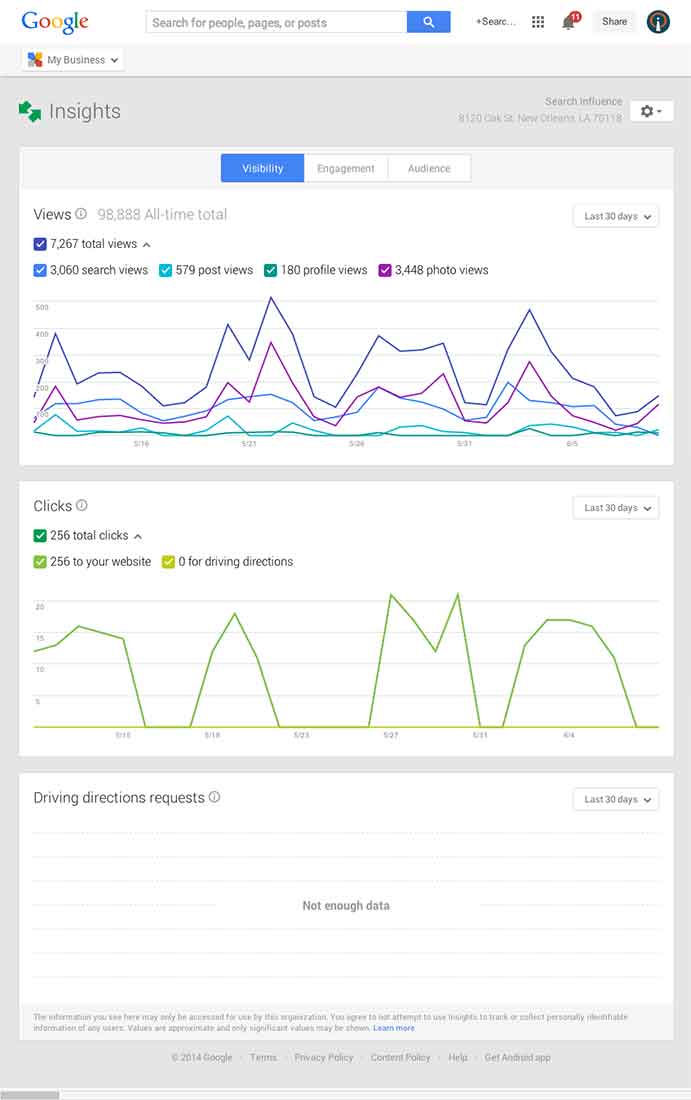
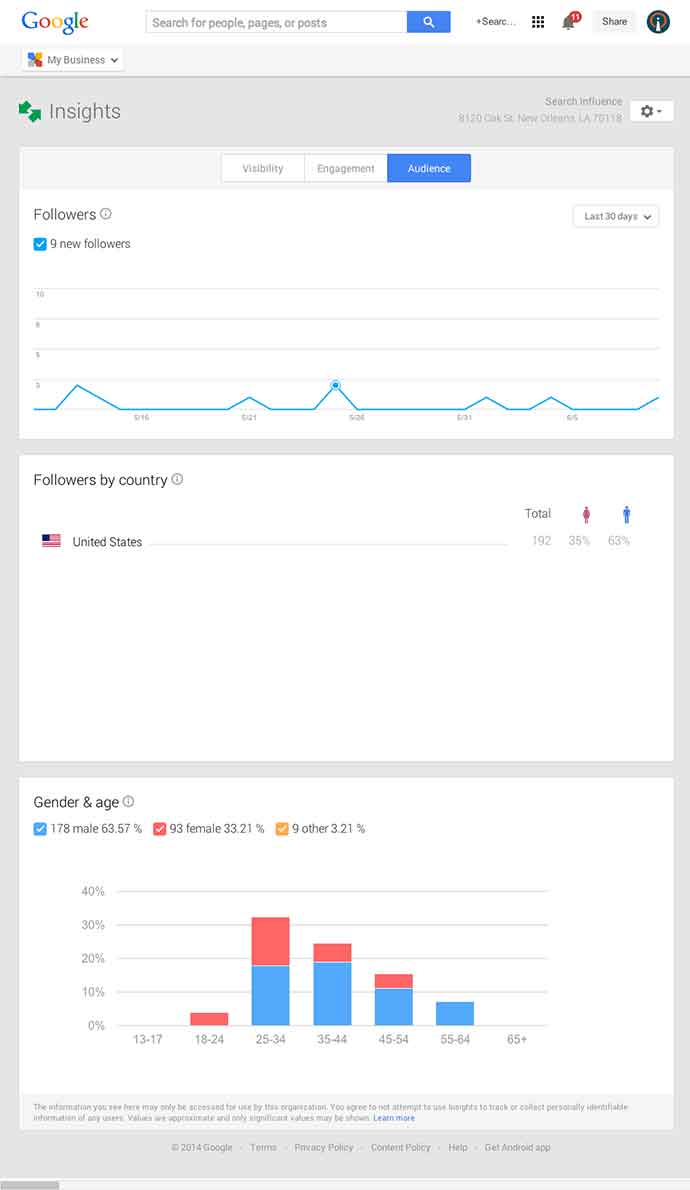
    Google My Business Insights Tool Image - Search Influence  Google My Business Insights Followers Image - Search Influence

    New Data & Graphs

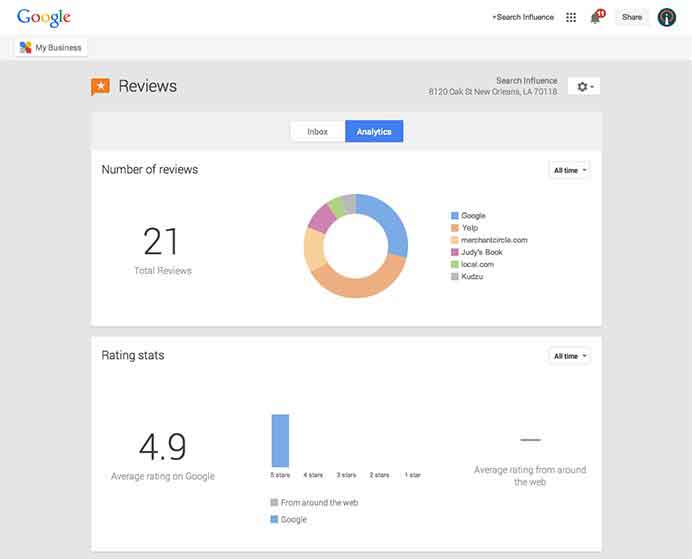
    Next, you’ll find the Insights Tool. Here, you can see how many views your G+ page has gotten over a period of time, how many clicks occurred, and where they went (either looking for Google Maps driving directions or directly to your website). The next feature (and my favorite addition to the Google My Business dashboard) is the reviews section. When you click into “Manage Reviews,” you’ll see your Google reviews as well as other business reviews from around the web. If you click “Analytics” at the top of this page, you can see a really streamlined graphical representation your review information or “Rating Stats” and where your business’ reviews come from.

    Google My Business Reviews Tool Image - Search Influence

    Additional Tools

    You will be able to see other tools like Google Analytics (if you have it installed on your site), YouTube (if you have a channel connected), and AdWords Express (again, if you use it). If you don’t use the above tools, they will still appear at the bottom of your dashboard with the option to “Get Started” if you want to use them! You’ll also see a place to “Join a Google Hangout” at the very bottom of your dashboard. All in all, the new Google My Business looks looks both beautiful and user friendly, presenting a new way to manage businesses’ online reputations through Google.