Last month, I sat in on a webinar with a few fellow Influencers about how to integrate PR into SEO strategy. Given that I used to work in PR and am constantly looking for ways to combine the two industries, attending this was a no-brainer.
Integrating SEO & PR Best Practices
Samuel Scott, Senior Director of SEO & Digital Marketing at The Cline Group in Tel Aviv, took us through how to best integrate SEO and PR best practices into a holistic, integrated marketing strategy. After all, traditional public relations is the best way to build brand awareness and earn quality, authoritative backlinks – the SEO dream.
Authoritative Link-Building
“If I had to choose between your average link builder and an expert PR professional, who knew how to approach and interact with media outlets and presented well on camera, I’d go for the public relations person any day of the week.” -Everett Sizemore, seOverflow.
Now obviously if you have to choose between your average anything and an expert, you’re going to choose the expert. What Everett is saying here is that good PR leads to optimal placements, and that placements lead to links.
PR+SEO In Action
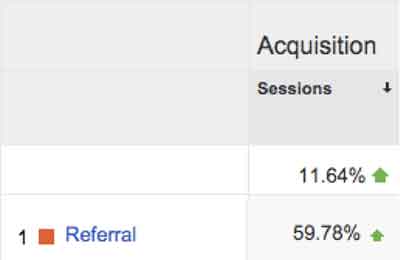
A press release we recently wrote for a client was picked up by WGCL-TV and Digital Journal, two sites with extremely high domain authorities (74 and 85, respectively). Without even really trying, we were able to build the client links on two very authoritative sites! In the week and a half following the press release, overall traffic to the client’s site increased by more than 10 percent and referral traffic increased by nearly 60 percent.
Working Together Makes Everything Better
There are a few things that SEO pros can learn from PR experts, and vice versa:
What PR can learn from SEO:
Which traffic from what outlets tend to convert the most and bounce the least?
Are PR efforts increasing branded searches?
What SEO can learn from PR:
From what outlets (and types of outlets) is it easiest to get coverage & links?
How are reporters and others are responding to the company’s online presence?
Both SEO and PR should utilize data such as placements, traffic, conversions and bounce rate to answer the questions above and further hone their strategies into a single streamlined, holistic, integrated strategy. It’s time to stop thinking about “traditional” and “online” marketing as two separate things – they’re quickly becoming just “marketing.”
If you take one thing from the Mozinar (Moz’s punny-but-cute name for webinar), let it be this: Don’t think about how to get links. Think about how to get coverage and publicity! The links will then come naturally as a result.
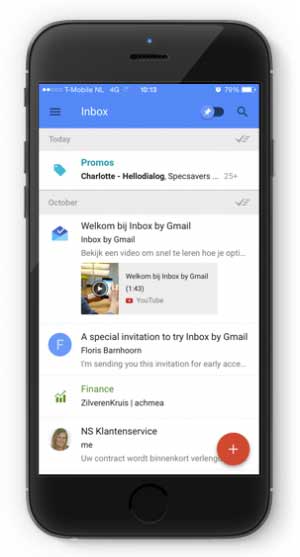
Always on a mission to improve user experience, Google recently released a fresh new look to “Inbox by Gmail.” This update provided additional labels for better organization of your inbox, reminders, snooze options, attachment previews, and more.
Invite Only
Recent buzz about Inbox by Gmail has circulated, especially during the first phase of the invite-only system. People are curious about Inbox by Gmail because they want to be part of this exclusive group. If you have yet to receive an invite, send an email to [email protected], and ask politely. Maybe Google will invite you in their next circulation.
Organize With Labels
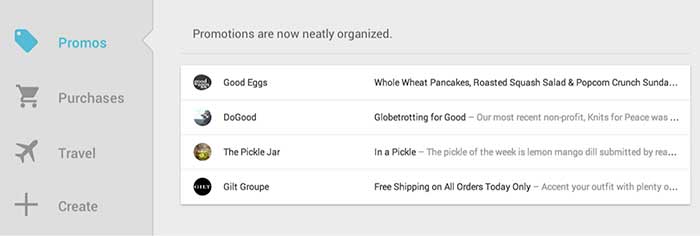
Google announced Inbox by Gmail “is a better way to get back to what matters.” For this reason, Google created more categories of labels to keep emails organized. Gmail currently bundles emails under tabs “Primary,” “Social,” and “Promotions.” Inbox by Gmail will have many more label tabs available, like “Updates,” “Finance,” “Purchases,” “Travel,” and “Forums.” You also will have the option to create your own labels. This exciting feature organizes emails for you before they arrive in your general inbox.
Timeline
Warning, your general inbox will look different. When an email belongs to a label, it will be automatically placed within its designated tab. In your general inbox, you will only see who sent the email. This way, you will have less emails showing in your general inbox.
Mark Your Mail
Other features: you can mark emails as “important,” as a “to do,” you can add reminders to emails (with extra information like phone numbers), and you can snooze an email to get it out of your inbox until you’re ready to view it.
More Features
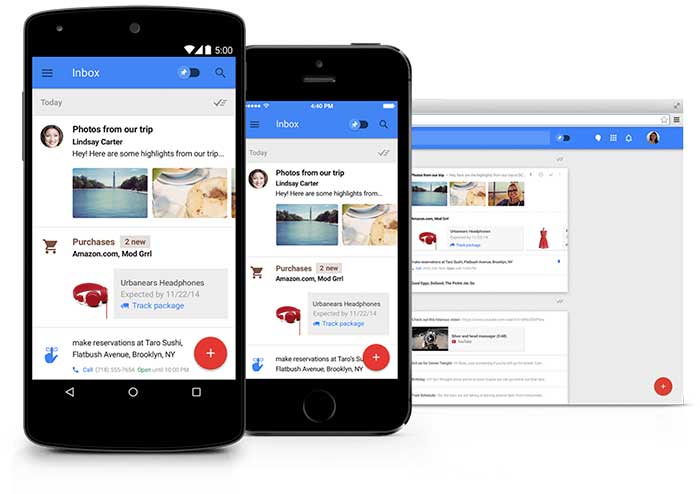
You can see the highlights of your email without opening the message. The new inbox previews reservation information, online orders, and pictures. You can also get real-time flight updates and speed dial a friend – all from your Gmail account.
Promotional Email
There are two reasons why I’m not excited as a professional, serving my clients who send the occasional promotional emails:
Promotional emails are now one click further away from the target audience. These types of emails are thrown under a tab and may never be seen.
In their general inbox people will only see a preview of all of your promotional emails. This will include the name of the person or business that sent the promotional email, but not the subject. This update will have a huge impact on the open rate of promotional emails.
Three tips for promotional email to pass the new application:
Address the email to the name of a person rather than a business so the email looks more personal.
People will scan the “Promotions” or “Social” inbox very fast, so you need to be unique and engaging to be noticed. Your subject line is extremely important. Perform some A/B testing to find out which type of subjects score best.
Be relevant – send people emails they would want to read.
Inbox By Gmail: Yes Or No?
For personal-use and some business purposes, this new update deserves a big resounding YES! For people or businesses who send promotional emails, this demographic echoes a big fat NO!
Get an invite and let us know by email what you think of Inbox by Gmail. Your email will end up in our label “VIM” – Very Important Mail.
As promised in my last blog about the new Google My Maps, I’m here today to teach you how to how to create My Maps for service area businesses (often referred to as SABs) that have highlighted boundaries of what counties or parishes they service.
Before we delve into this guide, let’s start with the basics like what exactly is a KML file. KML is the file format used to show geographic data in mapping programs. It is an XML based format and stands for Keyhole Markup Language. Now that you know what this file type is, let’s see how you can use it.
How to Use Old 2011 KML Files
Fun Fact: The U.S. Census Bureau holds kml files for all county guidelines here!
As you can see, they’re from December 2011, so any boundaries that have changed since then will be incorrect. In a very general sense however I’ve found these codes very useful in the past. Each file contains all county boundaries in one state, but the tricky part is that they don’t tell you what state it is in the file name. I went ahead and downloaded them all a long time ago and updated the file names to reflect the state they contain. It’s pretty closely in alphabetical order so if you just use a list of US states in alpha-order next to the list of files in numerical order it should match pretty closely.
Once you’ve figured out which file contains the state you’re looking for, find the county or counties that you want to display in your map, and move it’s entire code for each county (should start with “Placemark” attribute and end with the closing of the “Placemark” attribute) just below the “Document” attribute. Once you’ve moved the boundaries you want to keep to the top of the KML file, remove all the excess counties and leave the closing attributes for “Document” and “kml” at the bottom.
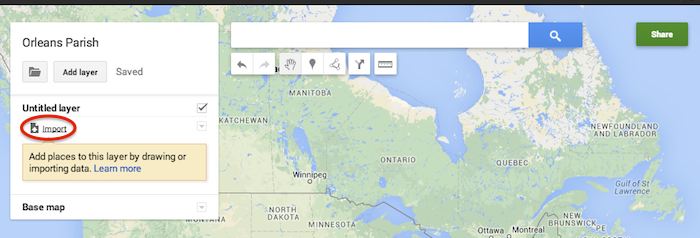
Now that you’ve successfully prepared your KML file, in My Maps, click Import on the left and choose your KML file from your computer.
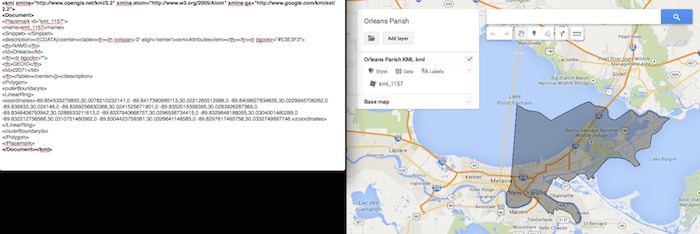
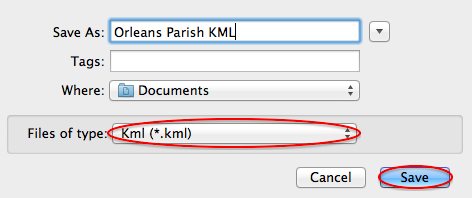
See the screenshot below for an example of how your KML file should generally look if you’ve done it correctly. The screenshot shows the file for Orleans Parish of Louisiana in TextEdit and then what said file looks like imported into My Maps. (NOTE: In order to show a not so massive screenshot of the KML code, I removed about 3/4 of the coordinates. There are a massive amount of coordinates used to make up these detailed boundaries.)
How to Use New 2013 KMZ Files
The U.S. Census Bureau also has the most up to date 2013 files, which are KMZ format (note the .kmz instead of .kml extension). This is essentially zipped KML files with a .kmz extension, but if you use a Mac like me, unzipping or unpacking the zipped file is not easily achieved. The 500k file contains the most detailed boundaries out of the 3 options.
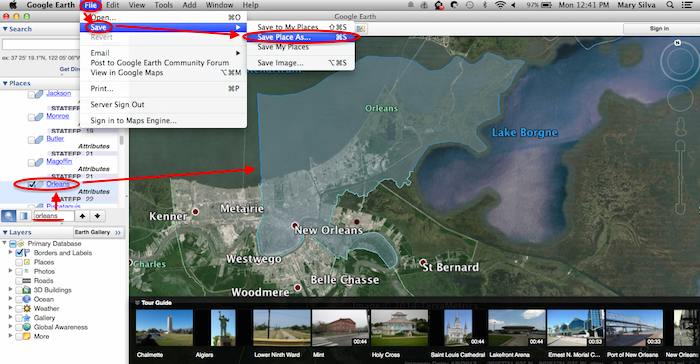
So, the way I handle this KMZ file is to open the entire file in Google Earth and export just the KML file of the areas I want displayed. To do so you’ll use the search feature of Google Earth on the left at the bottom of the “Places” window to search for and select the areas you want displayed. Since many counties have the same name you’ll want to make sure it’s showing up in the state and location it’s supposed to. Also, note that if you’re trying to add multiple counties in the same state, the Attribute number to the right of the county will be the same for all counties within the same state. This should help you easily identify the counties you’re looking for when adding multiple.
Once you’ve selected the geographic areas you want displayed on your map in the “Places” section, then save the file as a KML file by clicking File>Save>Save Place As….
My Maps will not accept a KMZ file, so make sure to save as a KML.
Once you’ve saved your file, follow the same steps mentioned above to import the KML file to My Maps. I’m not sure if the paid My Maps Pro is any different, but it appears to me that you cannot import multiple KML files to one My Map. So, in the event that you want to represent multiple service areas in one My Map, you’ll want to have all of the geographic area codes in one KML file.
This Google Earth process can also be used instead of manually editing the older KML file codes as shown in the first instructional section in case you don’t want to delve into the coding via text edit. It’s definitely an easier route, but for me, Google Earth can sometimes run slow when trying to handle these files and I don’t mind manually editing code.
Hopefully these steps and screenshots help out a fellow My Mapper!
So along with many other recent Google Maps enhancements, Google has finally done away with the “Classic” My Maps. On September 16, Google sent an email to many users stating that “Google My Maps [was] being upgraded.” Recently, you were able to continue using Classic, but if you wanted you could upgrade to new My Maps. At this point all of your maps once created in Classic My Maps should have transitioned to the new My Maps automatically. As of the past few days the classic My Maps version has officially phased out.
For those of us who have become accustomed to the features of Classic My Maps, it’s easy to feel a little shell shocked by the changes.
Before we start delving into the new My Maps, here’s three examples of the different types of maps you could/can embed on your site.
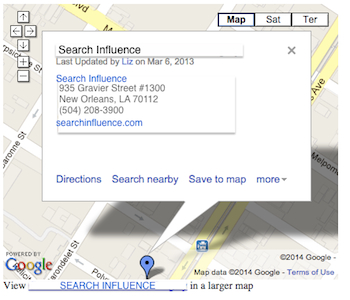
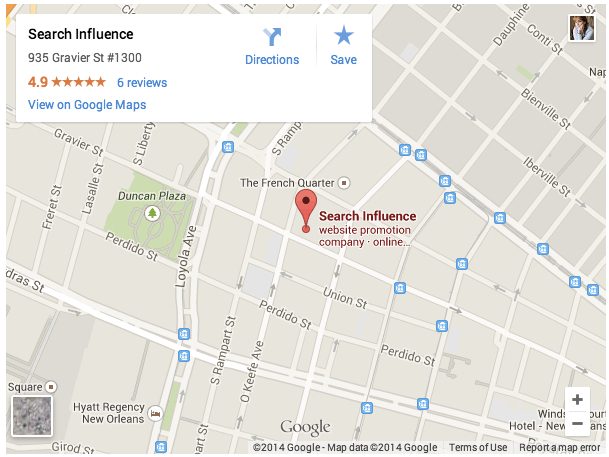
Old/Classic My Maps (EXTINCT) vs New My Maps – Respectively:
Simple Google Maps Embed:
My Maps should really only be created when you need a map with multiple business locations represented in one map or when you want to create maps with service area outlines. Otherwise, for single-location clients you should use the Google Maps embed feature as shown below:
In the new My Maps, making the My Map itself hasn’t changed really, the map interface is just a little prettier. You can still import KML files as well as search and add plus page pins to your map. I’m here to help you through the major changes ranging from the simple movement of where to access features to the extensive parameter codes breakdown with the loss of InfoWindows. So let’s get to it!
New Tool, New Tricks:
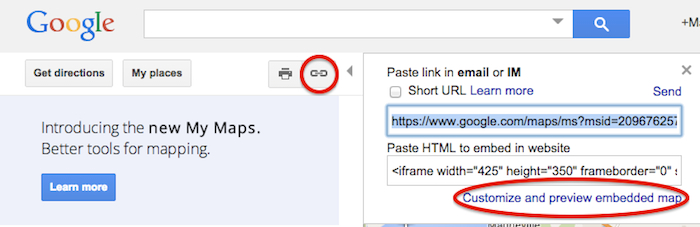
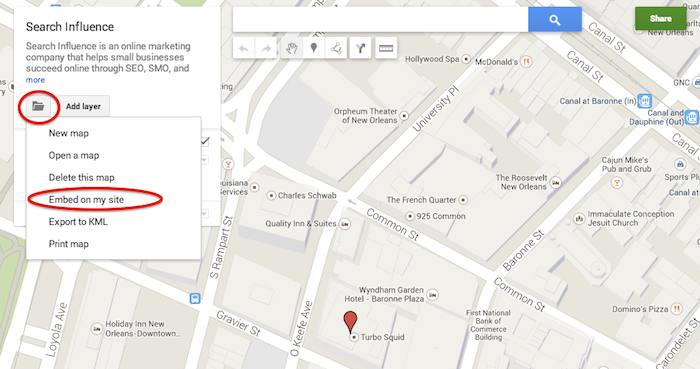
First things first, where the heck did they move “customize and embed” button to get your embed code!? Well, as obscure and vague (to me at least) as it seems, it’s now housed in the folder icon on the left next to the “Add layer” button. It took me longer than I care to admit to sort that one out, so hopefully I save someone reading this that bit of time.
Old Location to Grab the Embed Code:
NEW Location to Grab the Embed Code:
Learn to love that new folder. It also houses the button to create a “New map” once you’re done creating your map or whenever you need to start a new map.
IMPORTANT NOTE: You now have to share your My Map to make the map visible when you embed it, similarly to how you would share something from Google Drive. Click “Share” in the top right corner then I’d recommend to set access to “Public on the web – Anyone on the Internet can find and view.” The automatic setting when you choose “Public” is editable by the public. Unless you want to risk some strangers editing your maps, switch over to “view” only mode.
New Product, New Parameters:
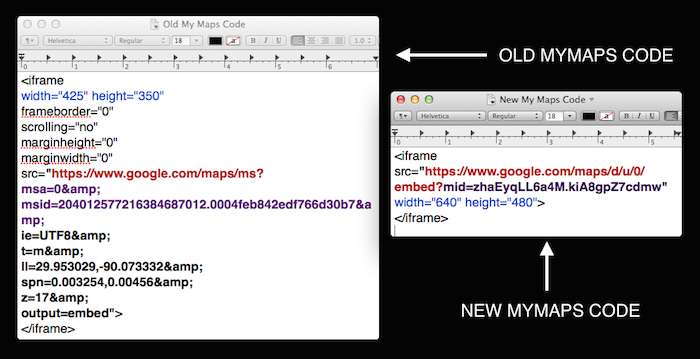
Code Before and After:
So as you can see in the image above, they’ve removed a lot of previously provided parameters, making the source attribute a lot shorter and more concise. These parameters were responsive to and generated by the now extinct InfoWindow. The InfoWindow allowed you to preview and adjust the My Map before grabbing the code. As previously mentioned, these adjustments must now be done manually.
First, for sake of knowing what we lost, we’ll cover all the attributes and parameters that were provided in the old My Maps codes.
Size
For the size of the maps, the InfoWindow used to let you choose Small, Medium, Large, or Custom.
Here’s what old My Maps defaults gave you: Small:width=”300″ height=”300″ Medium:width=”425″ height=”350″ Large: width=”640″ height=”480″ (New My Maps is large by default) Custom: WHATEVER YOU WANT
The parameters that adjust the source code are now separated by just “&” instead of the “&” parameter divider. I’m assuming that this change is a result of Google’s preference to save some characters.
My MapID
First, you’ll notice that the parameters msa= and msid= have been replaced by mid=. The msa= parameter was used to set whether you were showing a particular, identified map (when set to 0) or showing other things like the My Map create form (when set to 2). Then when msa= was set to 0 to indicate that you were showing a particular map, you’d identify said map using the My Map identifier parameter msid=. It looks like the new identifier parameter, mid=, encompasses all you need.
Input Character Encoding
In the old code, ie= was used to set the input character encoding, which is typically set to Unicode 8 (UTF8).
Terrain
The type of terrain shown in the base of your My Map used to be set using t=. The following inputs will give you the respective results: t=m: normal map (think white cities, yellow street lines, green parks) t=k: satellite (the photographic, Google Earth look) t=h: hybrid (combination of normal and satellite, street lines and photographic) t=p: terrain (think atlas-type with shaded mountains)
Latitude and Longitude
To set the center point of the map, the code ll= would be used. Must be in decimal format and have latitude before longitude separated by a comma. Alternately, using sll= instead, with the same input formatting will set the latitude and longitude of the center point of the business.
Span
The parameter spn= was used to set the width and height for the geocoder to determine how many degrees of latitude and longitude will be shown.
Zoom
One of the most important parameters for My Maps in my opinion is the zoom adjusting z= parameter. Smallest input, 1, will show you all continents of Earth and the largest possible input (most zoomed in input) is 21.
The only one I’ve needed is the zoom parameter so far, but any of the above will work. I think the terrain parameter might be helpful as well, but that can also be done by adjusting the terrain of your map directly in My Maps under “Base map”. Below is an example of the new My Maps code adjusted with a zoom parameter in bold.
What about the popup window with all the dropped marker information!?
Sadly, there is no longer a parameter to make the information of the My Map marker already visible on your map. This marker typically contains businesses’ location information. Viewers will now have to click the marker in the My Map to view this information.
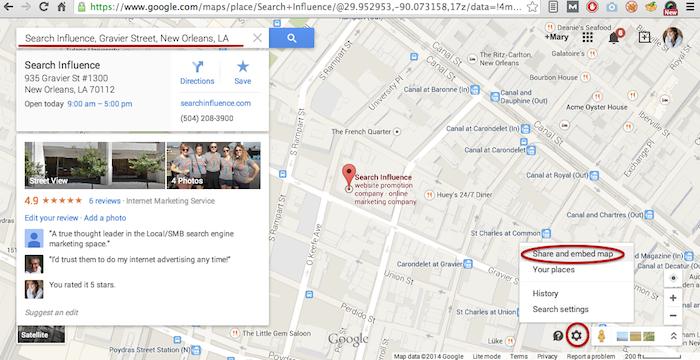
So, for single location businesses, the easiest way to get an embed code for your site, which shows your business info with the marker, is by using the simple “Share and embed map” feature already in Google Maps (see “Google Maps embed feature” screenshot above).
Hopefully this will save someone having trouble adjusting to the new My Maps some time from scouring forums for this info. Stay tuned for my future post on how to use KML files for service area business maps!
Google is a great keeper of secrets. They’re willing to share parts of demographic data captured from their users with potential advertisers. But, they keep their own personal data locked up pretty tight, or at least tight enough to keep anyone without a neurosis for data away.
About a month ago, I was trying to get an idea of URLs that existed on a client’s website. Due to their unfortunately dated decision to integrate a Flash-based navigation on their front page, I could not use a sitemap generator — software that crawls a site and outputs all URLs — to gather up a URL list.
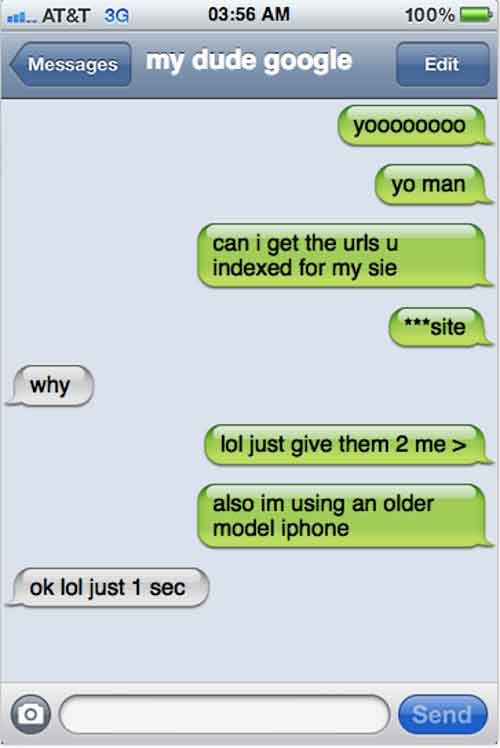
Because I’m pretty lazy, or some could argue resourceful, I decided to look into what Google indexed for that site. However, you can’t exactly text Google up to request the URLs be sent over.
It’s Up To You, My Dude
Although Google Webmaster Tools provides you with a lot of info about your site, including how many URLs are indexed, it does not tell you which URLs are indexed. So I did a little bit of digging, and I found this “bookmarklet” that easily captures the SERPs that appear on a given page of results, and lists them in an easy-to-import-into-Excel format.
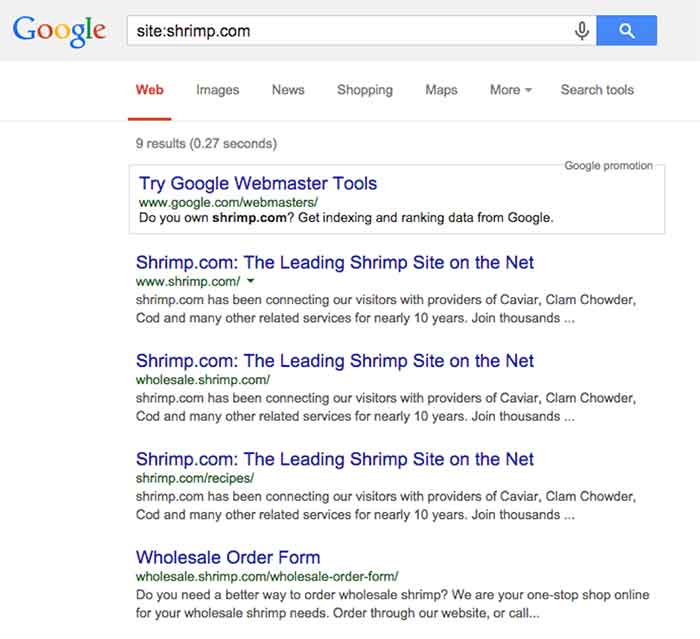
To see a list of URLs (or at least a partial list) Google has indexed for a specific domain name, query Google for “site:sitename.com.”
Here’s a reenactment of what I saw when searching for the indexed URLs:
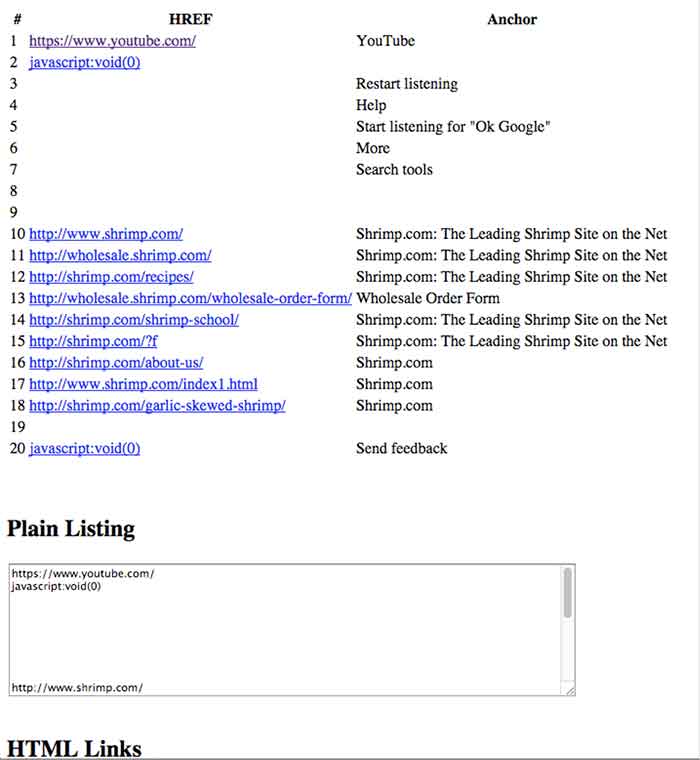
Once you have that bookmarklet added to your bookmarks bar (just drag and drop, as the instructions say), clicking it gives results like this in a new tab:
By visually filtering out the worthless stuff (JavaScript, a link to Youtube, and blank rows), I’m left with this tidy list of first page of results. Sadly, we find that there are only 9 pages indexed of shrimp.com, inclusive of its subdomains, within Google:
http://wholesale.shrimp.com/
http://shrimp.com/recipes/
http://wholesale.shrimp.com/wholesale-order-form/
http://shrimp.com/shrimp-school/
http://shrimp.com/?f
http://shrimp.com/about-us/
http://www.shrimp.com/index1.html
http://shrimp.com/garlic-skewed-shrimp/
For the purpose of finding the indexed URLs for my client, I just kept clicking “Next Page” and running this until I couldn’t get any more results.
And with that, I had a pretty good idea of URLs that were actually indexed by Google. Luckily, this was a reasonable amount of pages to parse through, but I could imagine this being particularly tedious process for larger sites.
Although you may want to take the results of these queries with a grain of salt, given the presence of Google’s filter bubble, its accessibility to non-technical users make it a helpful tool.
In my experience at Search Influence, we’ve had a few clients with indexing issues related to pages that are actually discoverable by search. We knew how many URLs were indexed, as well as how many we expected to be indexed, but we did not know which URLs were not part of their index. By cross-referencing a sitemap with all discoverable URLs versus the results of this manual URL scraping of Google’s index, we can have a clue into what the heck’s wrong, and start troubleshooting with more focus.
If you’re reading this blog you’re probably already aware that Google has been busy updating their algorithms. If you work in the Internet marketing industry you may be on edge, cowering at the very mention of any animal whose name begins with the letter P. Ever since the first Panda update in 2012, followed by the introduction of the infamous Penguin algorithm that laid waste to the search engine rankings of many a carefully formulated marketing campaigns, ended careers, crushed SEO companies, and changed the hierarchy of competing businesses across the globe, people have kept an ear to the ground for the approach of further updates.
Unfortunately, the secrets behind these algorithms are tightly guarded, and only general guidelines and information are provided to the public by the clandestine data giant, Google. So what are we to do? How can we avoid being penalized for our efforts and implement a lasting marketing strategy that won’t blow up in our faces like some Looney Toons derived Acme product?
Threading Through the Maze: Birth of the Search Engine
In search for the most strategic tactics to create a future-perfect website, I believe we must first visit the distant past, the primordial pre-digital world of 1945. Yes, its time for a flashback.
The heated global conflict of World War II has induced a brave new world of scientific development spurred on by allied nations sharing research to gain a technological edge in the war. In the wake of the conflict, a newly established international science community, having proven itself as an invaluable resource in every aspect of the war, is continuing to progress at an unprecedented rate. As the head of the U.S. Office of Scientific Research and Development, Vannevar Bush, has been coordinating between a broad range of scientific disciplines from all over the world since 1941. Frustrated with the inefficiencies involved with sharing massive amounts of data between specialized fields of study, namely the inability to quickly find pertinent information, Bush devised a solution that he described in his essay As We May Think.
“The summation of human experience is being expanded at a prodigious rate, and the means we use for threading through the consequent maze to the momentarily important item is the same as was used in the days of square-rigged ships.”
Bush’s vision was to create a system that more naturally indexed information by association, implementing “associative trails” allowing a person to further explore particular ideas within an article as opposed to having to put down one resource to take up the search for information anew. He envisioned the ability to view multiple articles on a single screen, with the ability to add comments that could be stored and recalled with the article thereafter and the creation of links between related articles, allowing users to map out a network of information easily accessed and built upon by future users.
Of course, in that day, the technology did not exist to implement Bush’s machine. Bush’s device, the “Memex”, he proposed would use every 60’s spy film’s favorite storage format — microfilm. His vision inspired further development within the scientific community that above all other things resulted in streamlining the exchange of information making exponential leaps and bounds in development and implementation of new science possible.
Back to the Future
So you’re probably thinking at this point. “Awesome. A guy back in the 1940’s thought up something vaguely search-engine like. Great. Maybe next time I need to change the oil in my Nissan you can tell me about the inception of the steam engine.”
Okay. I like nerding out about history. Guilty as charged, but this brief walk through the annals of history does have some significance to the modern webmaster. As much as technology changes and improves, the demands that drive development remain unaltered. The desire for an intuitive means to access a large network of information led to a series of advancements that reshaped modern society.
The entire history and continued development of search engines lies within the scientific community as an effective means to index and provide relevant information to those that are looking for it. Every search engine adheres to these concepts and despite the negative association with algorithm updates in the Internet marketing community these updates are, at the very least, intended to improve on Google’s ability to provide the most relevant and desirable information to the user.
For those looking to the future, bare in mind that Google isn’t just getting better at devising its algorithms and penalizing what it interprets to be undesirable marketing practices, Google also provides ever increasing access to information and incorporates more user behavior into how they determine the validity of a website. As the #1 search engine in the world, and largest provider of analytics solutions, Google has access to massive amounts of user data which is being actively used to determine search rankings. While you can fool search engine crawlers and automated ranking processes, Internet users of today are savvy, experienced, and don’t take kindly to spammy or misleading marketing practices.
Preparing for the Inevitable
The oversimplified answer to how to implement a website that will succeed on the search engines, and continue to do so, is one that embraces the ideals on which Bush’s Memex was based and all search engines were built — to put useful information into the hands of the people that are looking for it.
STEP 1: To best do this, the important first step is determining what information your clients need and want most. Don’t get tripped up analyzing at this part of the process. Think simple. If it’s a product you’re selling, generally a wealth of user reviews on the Internet will tell of the user’s opinions and desires. Tap into these for inspiration.
STEP 2: Next, create original, well-written and researched content. The content should provide users with the information they are looking for, clearly labeled and organized to enable a user to quickly find the tidbits that are most relevant to their search. Updating or adding to this information often is important. Keeping your site current and error-free will help continue visits to your site and an upward progression in ranks.
Step 3: In addition to text, it’s important to provide high-quality images, videos, and other media, and it’s even more important to label these properly. The more original media you provide the better.
Step 4: Established social media sites and Internet communities relevant to your industry are important places to have a presence in order to connect directly with potential clients and establish your site’s authority.
I know these tips are nothing new. These are the time-tested practices for Internet success that have barely changed since the genesis of the Internet.
I understand the general reaction to algorithm updates. It’s crushing to struggle up the ranks using all your know-how just to have those efforts ripped to pieces. And when battling for exposure in the dog-eat-dog world of marketing, many, if not most, will turn to any competitive advantage they can muster.
It’s important to realize, however, that with regular updates occurring that further marginalize the gains of shady marketing practices, anyone looking for more than a flash in the pan needs to embrace the ideals from which the search engine was born and connect people to the information they are looking for.
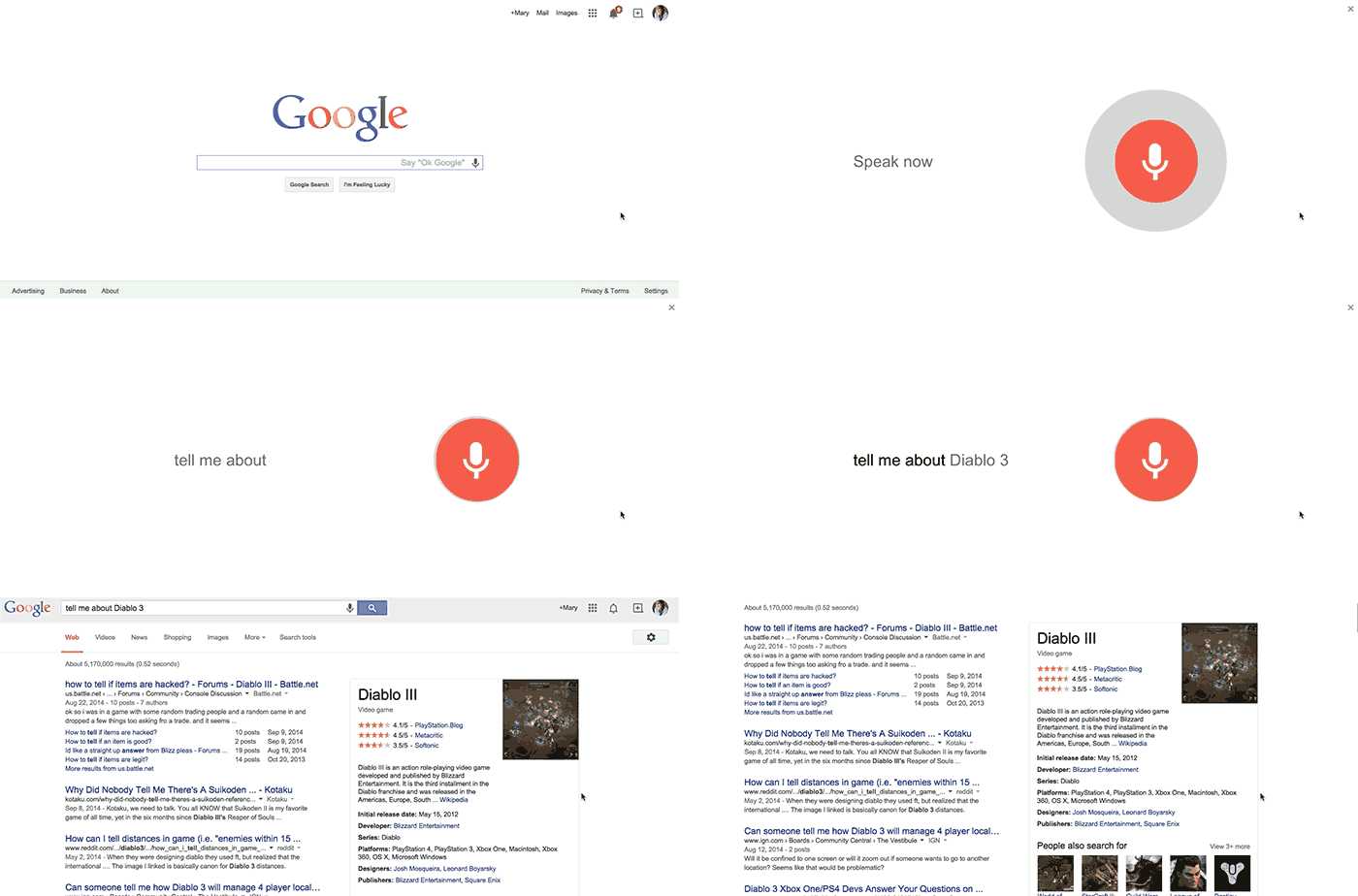
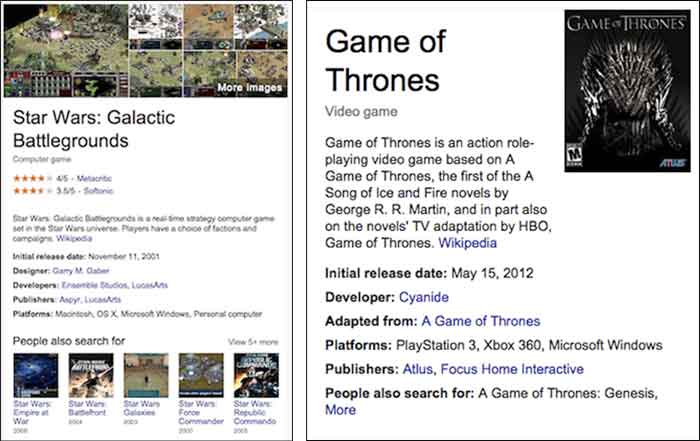
As of a couple days ago, Google’s Knowledge Graph now includes information about video games! For those of you unfamiliar with the Knowledge Graph, it’s the box that appears on the right side of search results usually for searches like famous people, books, movies, and businesses. It includes pertinent, concise information on the subject matter. Accessible through desktop, mobile, and voice searches, the Knowledge Graph is Google’s way of connecting “real-world things” to provide “more meaningful results.”
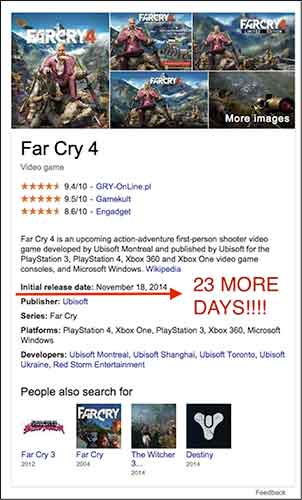
With video games, there are a few basic information points that users typically look for when searching for video games. With this addition to the Knowledge Graph, Google has created basic title information for video games, like release date, rating, developer, platform, and publisher, among other things, easy for users to find.
In the past, when I wanted to find the release date for a new video game it would take a bit of clicking around on various sites (usually Wikipedia or IGN) to locate that information. Now I can find out when Far Cry 4 is coming out just by searching “Far Cry 4,” which to me is pretty amazingly convenient!
Another exciting feature for gamers is the “people also search for” section, which enables you to easily discover a new game! It is worth noting, however, that it seems (at least for now) in this section, games in a series are plagued by their previous or original titles. To me, that’s wasted space. I’d obviously know to check out Far Cry 1-3 if searching for Far Cry 4 and would like to see a more varied selection.
I did a test to see if some of my all-time favorite games would also show up in a search (even if they’re much older games). Diablo II, Game of Thrones (the RPG) and the lesser-known Star Wars: Galactic Battlegrounds all passed! As suspected, however, it seems like the less recognized games, like Game of Thrones, miss out on some of the listed data, such as game photos, ratings, and a “people also search for” section. As an avid gamer, I know better than to judge a game purely based off ratings, but it’s still great data to have, now made easily accessible to searchers via the Knowledge Graph.
For more information on this awesome update, check out VentureBeat’s article including direct info from a Google spokesperson.
In the past, the only way you could edit Apple Maps listing was through user feedback on the mobile app. Recently, with our company’s big move from Uptown to the CBD New Orleans, the best way to go about getting our address updated in Apple Maps at that time was to email the whole company and have them mass-submit user feedback about the address change. (P.S. it worked!) These kind of mass-effort cleanup requirements made editing your business information as difficult as crossing The Narrow Sea in Game of Thrones. Thankfully, with the release of Maps Connect from Apple, you can now claim, verify, and edit your Apple Maps listing via mapsconnect.apple.com without the hassle of the above process.
While the data provided to Apple Maps still primarily comes from Yext and major data feeds, such as Localeze, Factual, and Acxiom, the new Maps Connect allows businesses to be in direct control of their Apple Maps information. Businesses no longer have to rely on data feeds to change their information.
While it’s a pretty intuitive and user friendly process, I’m going to walk you through it!
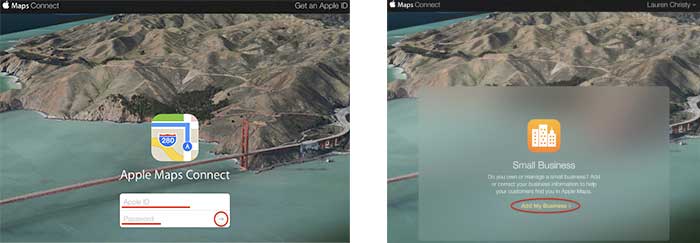
Step 1:
Click “Add My Business” to get going.
Step 2:
Log in with your Apple ID or create a login if you don’t already have one.
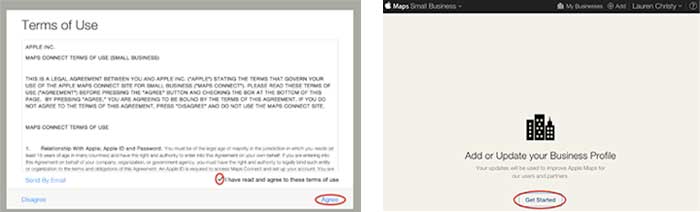
Step 3:
Read the “Terms of Use,” check “I have read and agree to the terms of use,” then click “Agree.”
Step 4:
Click “Get Started” to finally start the actual claiming process.
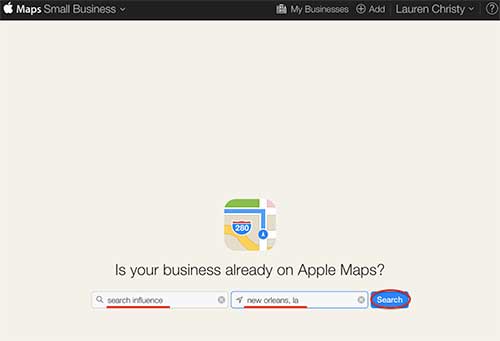
Step 5:
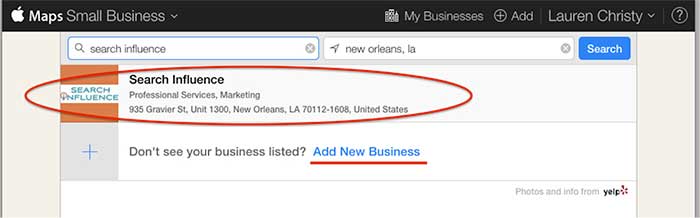
Search to see if your business is already on Apple Maps by entering your business name, city, and state in the respective fields, then click “Search.”
Step 6:
Based on the results you get, either click on your pre-existing listing to claim it, or click “Add New Business” if yours is not already on Apple Maps.
NOTE: You should always try searching for truncated versions and any possible variations of your business name before assuming it’s definitely not in a directory.
Step 7a:
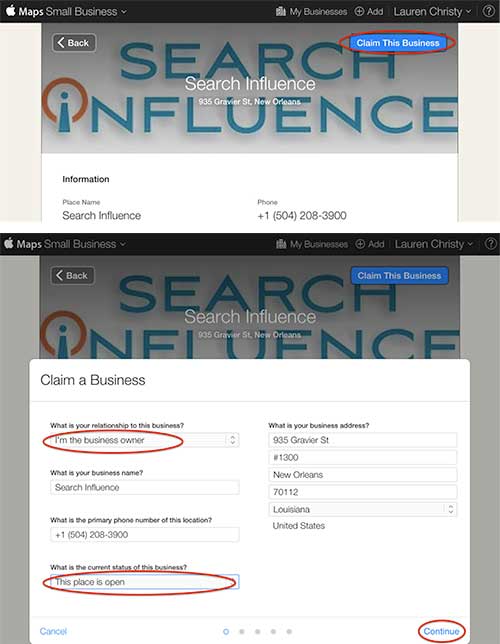
If claiming a pre-existing listing, you’ll be taken to the live listing of your business where you can click “Claim This Business” in the top right-hand corner. Then you’ll choose your relationship to the business, change any of the business information that is inaccurate, choose the status of the listing, and click “Continue.”
Step 7b:
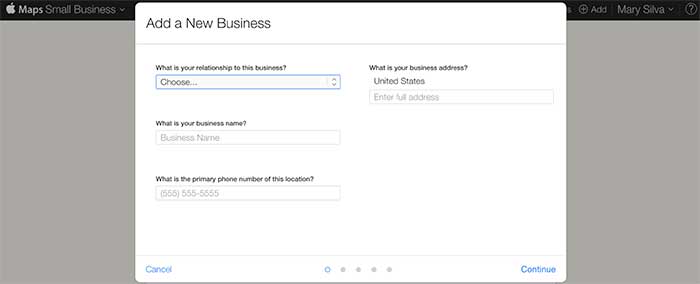
If creating a new listing, you’ll be taken to a screen to fill out your businesses NAP (Name, Address, Phone Number) and your relationship to the business.
Step 8:
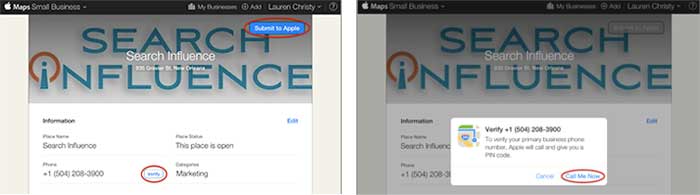
In either case, the last step is a phone verification. By clicking “Submit to Apple” in the top right corner or “Verify” next to your number, you’ll be taken to a screen to verify your phone number by clicking “Call Me Now.”
Much like other higher-level directories (think Google, Yahoo, Bing,and Yelp) this phone verification is an immediate, real-time call to the business number to relay a pin. If the phone call with the code doesn’t work the first time, much like Apple’s process for bad pin-code entries on products like the iPhone and iPad that have passcode locks, you have to wait 1 minute to try again, then 5 minutes the next try, and 25 minutes after that. You can circumvent the wait time, however, by logging out of Maps Connect and logging back in.
Since this is an automated process, businesses like ours with phone tree systems will suffer the inability to phone verify for now. I reached out to Apple Support to see if there’s an option to request a manual phone call to verify or some kind of domain-email verification. Within 24 hours the replied that they “manually reviewed and approved [our] profile” which I assume was because of our domain email being used in our account. Hopefully they’ll take a tip from from Google, Bing, and Yahoo and eventually allow a postcard verification option. Maps Connect is also currently only available to U.S. businesses.
According to the folks at Search Engine Land, “Updates or new listings will show up within a week or could show up more quickly depending on the situation and whether the listing was flagged and/or there’s additional verification required. Beyond this, Apple has additional fraud prevention measures in place, but didn’t discuss them extensively.” So be patient when making any updates or edits.
Saints season is underway as our boys in black and gold try to bring another Super Bowl win back to the Bayou. Fall season isn’t just a time to enjoy football accompanied by ice cold bevs, a few Lit’l Smokies, and a seven-layer dip, it’s also the best time to ask yourself if you’re getting the most out of schema – one of the most untapped resources in online marketing.
QUARTER ONE – SCHEMA, BUT WHAT IS IT?
First off, Who Dat. Secondly, schema is an HTML markup that you can add to web pages to make them more easily readable by search engines. Schema is essentially a type of label similar the numbers on a player’s jersey. Schema gives the crawler an idea of what the content on a page can be categorized as, sort of like how numbers on a jersey can tell you what position a player is (btw, go number 9!!! #breesus).
QUARTER TWO – OKAY…SO, WAIT, WHAT?
Trust me, schema is great. Still don’t believe me? According to a Searchmetrics case study, pages with schema.org integration on average rank four positions higher compared to pages without schema. Not to mention Google officially recognizes schema in the same way that coors light Bud Light is recognized as the official beer of the NFL.
HALFTIME – STAND UP & GET CRUNK!
Also, time to dispose of a few soft pretzels and tray of N’awlins Nachos.
QUARTER THREE – I AM PRETTY FULL, BUT WHISTLE MONSTA IS HERE, SO LET’S DO THIS.
Now that you are all in on the schema bandwagon, you need to figure out what kind of schema you should be using. This is where you need to develop your schema playbook. There is an incredible amount of schema out there – and that is an understatement. To get started, try checking out the local business schema on schema.org. If you have reviews on your page, another good starting place may be schema.org/Review.
QUARTER FOUR – CLEAR HIERARCHY, FULL HEARTS, CAN’T LOSE
Time to implement schema and bring home that elusive win. Schema markup is added within HTML tags on site pages. Both HTML and the schema are structured according to a clear hierarchy, which is important to remember when choosing which schema properties to use for markup.
0:00 4TH QTR – FINAL SCORE: SAINTS WIN! SAINTS WIN!!!!
And most importantly, you win too. Schema is often misunderstood, but if used correctly, it can be one of the most powerful tools in an online marketer’s arsenal. Thanks for reading, and GO SAINTS!
Take a more in-depth look at schema with this blog from SI web developer, David Fransen.
As you may or may not have noticed, prevalence of Google’s answer boxes among search results has increased dramatically. Google’s algorithm updates have always pushed the search engine to more closely mirror the human searchers, aiming to provide the best answer to each question. With the collection of Google’s Knowledge Graph (their personal database of information and the interconnectivity of ideas), they have announced their goal of transforming from an “Information Engine” to a “Knowledge Engine.”
From Google’s Knowledge Graph, a new item has emerged in search results: the answer box.
If you haven’t seen them (and have no idea what I am talking about), let me back up. According to Moz, Google now displays a direct answer in 3.5% of search results, as opposed to the standard 10-pack of results, sprinkled with some PPC ads.
These direct answer results have been around for well over a year (I found posts introducing them in August of 2013). However, answer boxes are being seen in 44% more search results after the rollout of Panda 4.1. So, more people are seeing them and more people are talking about them!
Answer Box 1.0
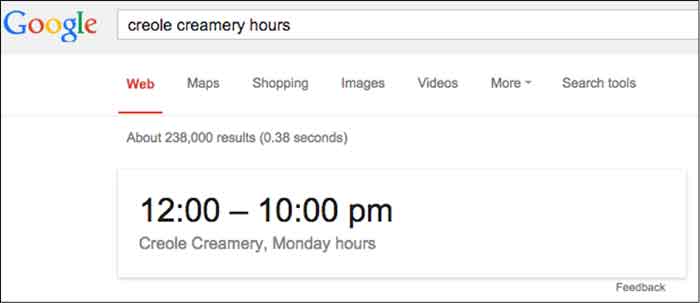
The first generation answer box was a Google SERP feature. These early answer boxes provided short, direct snippets of information that were concise and, ultimately, limiting. Below is a perfect example that still holds this early answer box format:
Dr. Peter J. Meyers provides 101 other examples of early answer boxes in this blog. Quickly scrolling through them, you’ll notice they all look pretty similar and pretty boring.
Answer Box Evolution
Over time, the answer box has drastically evolved. Google quickly realized that it could not index every possible answer to every possible question. Spoiler alert, Google doesn’t like to be limited. So, instead, Google used its vast index of the Internet to pull results from sites, creating a completely different answer box that looks more like:
This, however, can pose problems. Sometimes, Google pulls answers from long-outdated websites, which can provide an incorrect or inappropriate answer.
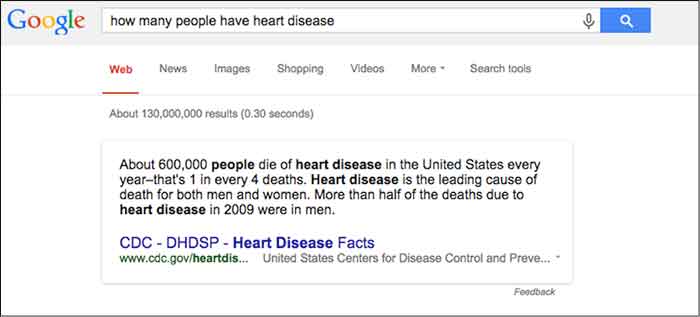
There are going to be instances where Google provides an insufficient or incorrect answer. When this happens, rejoice because even Google is imperfect. One example (and, yes, I’m being excruciatingly picky here) cropped up while I was doing research for one of our clients.
Initially, my reaction was “Cool, that’s some information that I could use,” but then I realized it wasn’t the information I was looking for.
Nice try Google. I was looking for how many people have heart disease, not how many people die from heart disease.
But, you’ll notice that there is this handy “Feedback” button at the bottom. Here, you can write a personal message to Google telling them to get their act together. Yes, you can be a part of the Google movement.
Other issues can occur when Google pulls from sites that are out-of-date. So be on the lookout, and when you find inaccuracies provide concise feedback, and be on your merry little way.
Other Answer Box Speciation
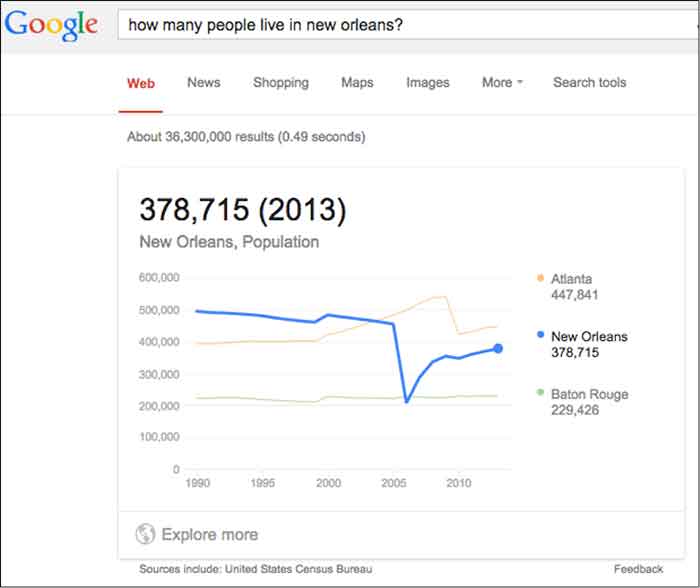
Population – This one is actually interactive and will show the population anywhere along the measured domain.
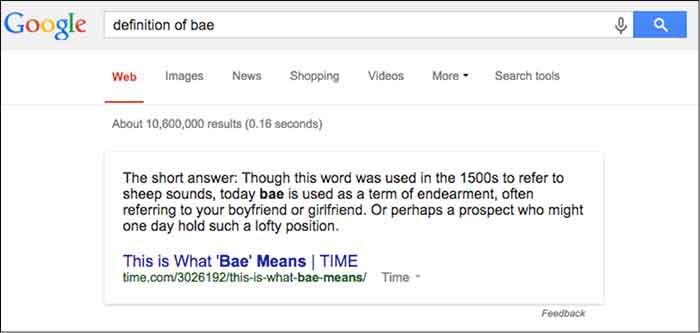
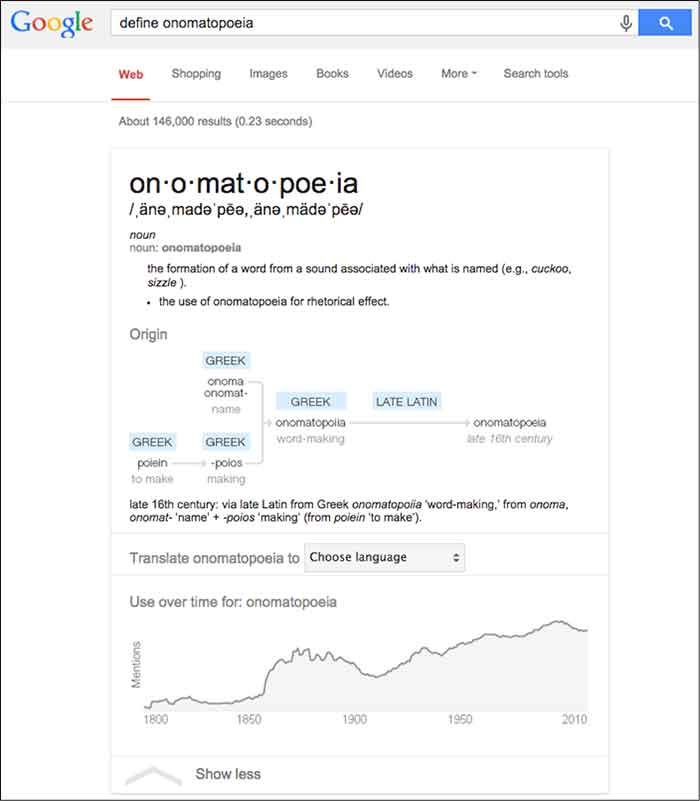
Etymology & Definition – As a copywriter, this is a personal favorite of mine. I imagine this will do wonders for future linguists and English majors as they can find definition and historical context, all in one search.
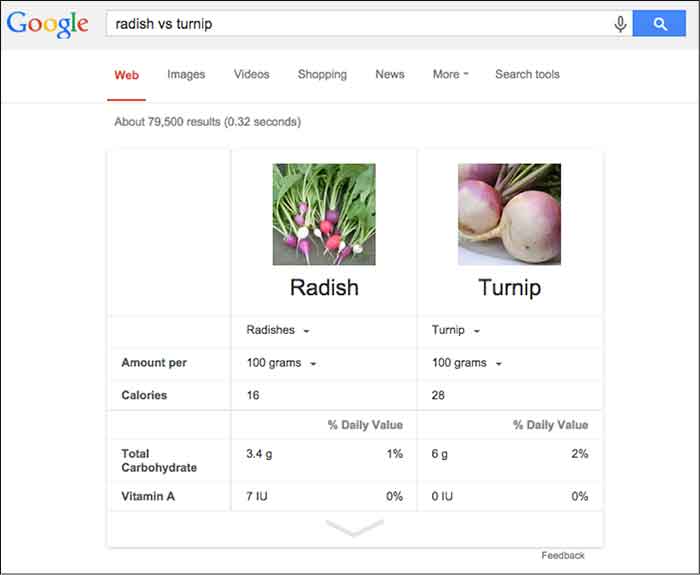
General Knowledge – What is a thing? Compare and contrast objects or see a specific object defined across a wide array of variables.
These are just a few examples of an infinite amount of possibilities and I expect Google to only further diversify its answer boxes as its Knowledge Graph continues to expand. However, you’ll notice that, in general, the newer answer boxes seem much more comprehensive, colorful, and engaging. It seems fairly certain the we will continue to see these answer boxes more often as Panda stays on patrol.
Why Now, Google?
Plain and simple: mobile search is on the rise. Mobile users already account for more than half of all site traffic. The percentages are even more staggering for social sites such as Facebook and Twitter. Google is in tune with the mobile trend.
The mobile searcher is a completely different animal than the traditional laptop user. Personally, when I am searching on my phone, I am looking for something very specific. That could mean any number of things — hours of operation, contact info, a trivial fact… The point is, I’m not in the mood to sift through a second layer to find that information. Google appeals to the mobile user in all of us with these answer boxes.
Also, Google’s answer boxes are another push for clear, concise, valuable information. Google is, afterall, a search engine. Users are searching for information. Google continually updates its algorithms to effectively provide the best possible information.
On its own site, Google says, “Get answers no matter where you search. Information from the Knowledge Graph is available on your desktop, tablet, and smartphone. So wherever you search on Google, you’ll find that answers and discovery are at your fingertips.”
What Does This Mean For Your Site?
In theory, if you’ve earned enough authority points from Google, your site could be a source included in the answer box. Unfortunately, unless you are the CDC or Times.com, this is highly unlikely for broad searches. To get pulled into more localized questions, there are things you can do to signal to Google, “Hey, this is an important piece of information.”
One such way is schema, which classifies bits of information so that it is easier for search engines to digest. You can learn loads more about schema here and in an upcoming blog post.
What kinds of answer boxes have you seen? Have you come across any issues with terrible (or terribly funny) Google answers? What do you think of them? Let us know!
Image Source:
Thanks to Tina Grimes for sharing the Star Wars mind trick gif.
 Last month, I sat in on a webinar with a few fellow Influencers about how to integrate PR into SEO strategy. Given that I used to work in PR and am constantly looking for ways to combine the two industries, attending this was a no-brainer.