Author: Search Influence

  • Five For Friday: Do You Like Your Friends, Busting SEO Myths, and More

    1. You’re Doing It Wrong: This App Tells You If You Actually Have Friends – Tech Crunch

    Ever wonder if you actually like your friends? There’s now an app for that. The app, called “pplkpr,” monitors your heart rate through a wristband and sends you text message updates about your relationships. It even helps you schedule time to hang out with people it deems “better friends.” So next time you want to bail on plans to sit around and watch Netflix, just say “My app thinks I shouldn’t hang out with you.”

    2. Is Google Making You Dumber? – Mashable

    By keeping your browser homepage set to the default page, usually Google, you’re missing out on the opportunity to see something new every day. Changing your homepage to a more engaging site could allow you to learn a new word every day or to expand your horizons through photos. There are no limits on what page you set it to, and this article offers some great options if you’re looking for a daily knowledge boost.

    3. …But When Will I Get My Robot Butler? – Tech Crunch

    When Siri plays Hall & Oates instead of finding the nearest Walgreens, it makes me wonder if it’s even possible to build functioning, humanoid robots. Though constantly portrayed in popular culture, robots that mimic humans might never be a reality. Issues with artificial intelligence and voice recognition hold us back from being able to send a robot to take the trash out. Till large advances are made, it looks like I’m still going to have to do my chores myself.

    4. A Special Set of Skills: How to Not Let Your Phone Get “Taken” – CNet

    Though you might not need Liam Neeson to get your device free, hackers are taking phones hostage at alarming rates. By hiding ransomware links or apps, hackers can threaten to encrypt your device or lock your phone entirely unless you pay up. If you keep to reputable app sites and stay away from sketchy links, you can avoid having your phone “taken” right in your very hands.

    5. Myths Busted! 5 SEO Myths That Need to Be Debunked – Search Engine Watch

    SEO is always changing and updating (with the help of “P” named animals). With such a fast-paced industry, misconceptions easily find their way into common thinking. These myths can encourage unrealistic goals and set impossible standards. By demystifiying these myths, we set ourselves up for greater success and more satisfied customers. After all, the best place to hide a dead body is on the second page of Google results…

    Image Sources:

    Bye Felicia Image

  • Old Google Plus Guidelines Go Out Of Business

    bowing to google - search influenceTwo nights ago, on December 1st, Google updated the business guidelines for pages in Google My Business (aka Google Plus). I’m here today to walk you through what’s changed and to give examples of good and bad practices of these new guidelines. It’s important to note, however, that these tips aren’t standalone. Having a thorough understanding of the “Guidelines for representing your business on Google” is essential to using this blog to your advantage.

    Descriptors in the Business Name Are NOT Allowed

    Back at Pubcon last year, I heard a lot about how to use descriptors and why you should be using them. While in theory it’s a great idea, when asked if we should be using this in house, my thought was that it ruins the principle of NAP (Name, Address, Phone Number) consistency across the web and that Google probably wouldn’t stick with it. Sure enough, this was one of the changes two nights ago.

    Before:

    In addition to your business’s real-world title, you may include a single descriptor that helps customers locate your business or understand what your business offers.

    Now:

    Your name should reflect your business’ real-world name, as used consistently on your storefront, website, stationery, and as known to customers. Any additional information, when relevant, can be included in other sections of your business information (e.g., “Address”, “Categories”).

    Note the word “consistently” in the new guidelines. The examples Google gives in the new guidelines say you can’t include the following in your business name:

    • taglines
    • store codes
    • trademark signs
    • unnecessary all caps
    • hours info
    • phone numbers or websites
    • special characters (e.g. %&$@/”) or legal terms (e.g. LLC Ltd) – unless part of your real name
    • services or products
    • location information

    My advice is to pick an official business name and stick to using it everywhere. Avoid punctuation if possible, because it just provides another opportunity for inconsistency.

    BAD: Starbucks Downtown

    GOOD: Starbucks

    Importance of Name & Category Consistency for Chains & Brands

    Now:

    All business locations within the same country must have the same name for all locations.

    All locations of a business must share the one category that best represents the business.

    Along the same lines of not using unique descriptors, if your business has multiple locations, the name and categories of their pages should reflect the same information. Note that there are instances of when variances are acceptable to Google that you can read more about within the guidelines.

    BAD: Location #1 – Name: The Search Influence, Location #2: Search Influence

    GOOD: All Locations – Name: Search Influence

    BAD: Search Influence Page #1 – Category: Advertising Agency

    Search Influence Page #2 – Category: Internet Marketing Service

    GOOD: All Search Influence Pages – Category: Internet Marketing Service

    Categories Must Be As Specific As Possible

    Before:

    Select at least one category from the list of available categories.

    Now:

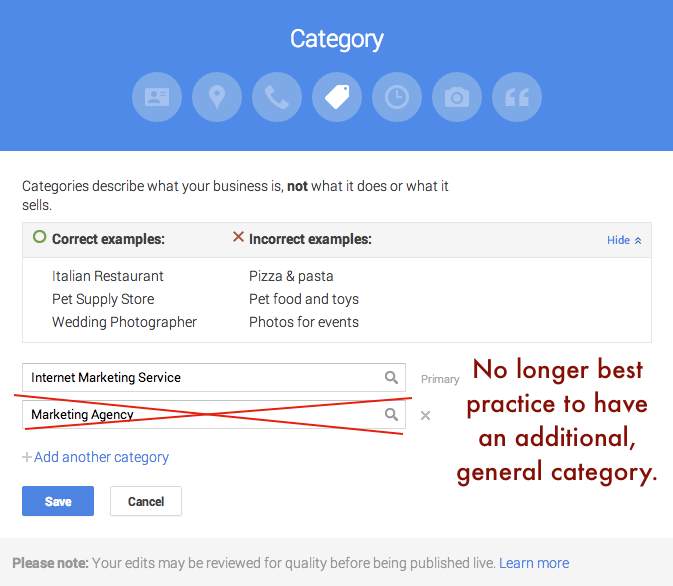
    Use as few categories as possible to describe your overall core business from the provided list. Choose categories that are as specific as possible, but representative of your main business.

    This is one that will mostly affect major niches like doctors and lawyers, as there are a lot of general terms that could apply to these types of businesses. In the example above where I showed Search Influence with the categories Advertising Agency and Internet Marketing Service, our more specific category would be the latter. Adding Advertising Agency as an alternate would not be best practice.

    BAD: NOLA Hospital – Categories: Hospital, Children’s Hospital, Doctor, Surgeon

    GOOD: NOLA Hospital – Categories: Children’s Hospital
    Google Plus Categories Guidelines - Search Influence

    Departments Within One Location Must Have Unique Categories

    Before:

    Departments within businesses, universities, hospitals, and government buildings may be listed separately. These departments must be publicly distinct as entities or groups within their parent organization, and ideally will have separate phone numbers and/or customer entrances. Businesses that operate in a service area, as opposed to a single location, should not create a page for every city they service.

    Now:

    Publicly-facing departments that operate as distinct entities should have their own page. The exact name of each department must be different from that of the main business and that of other departments. Typically such departments have a separate customer entrance and should each have distinct categories. Their hours may sometimes differ from those of the main business.

    If you choose to represent the various departments of your business through multiple pages in Google My Business (e.g. Hospitals, Schools), each page should have a unique department. Also, as per normal Google guidelines for multiple pages at one location, each page should have some unique location identifier, which would be either a unique suite number/address or a unique phone number.

    BAD: NOLA University – Category: College

    NOLA University Cosmetic Surgery Department – Category: College

    GOOD: NOLA University – Category: College

    NOLA University Graduate School – Category: Graduate School

    Multiple Brands At One Location Must Choose ONE Name

    Now:

    If your business location combines two or more brands, do not combine the brand names into a single page. Instead, pick one brand’s name for the page. If the brands operate independently, you may use a separate page for each brand at this location.

    The examples Google gives for this update seem to pertain to places like fast food restaurants where, for example, a KFC and Taco Bell are in the same building. In that instance, a page called “KFC / Taco Bell” would not be acceptable, and they would have to have two separate pages if they’d like to represent both business names.

    At first, I thought this might affect car dealerships that use multiple business names for multiple pages but are at the same location. However, as long you have separate pages for multiple “brands” at the same location, you should be fine. It is important to note that multiple businesses at the same location need at least one form of unique location identifiers, whether it be a different phone number for each brand at the one location or a different suite number for each brand at the one location.

    BAD: Page #1 – Name: KFC / Taco Bell

    GOOD: Page #1 – Name: KFC Page #2 – Taco Bell

    BAD: Page #1 – Mary’s Jeep, 935 Gravier Street, New Orleans, LA (504) 208 – 3900

    Page #2 – Mary’s BMW, 935 Gravier Street, New Orleans, LA (504) 208 – 3900

    GOOD: Page #1 – Mary’s Jeep, 935 Gravier Street #1300, New Orleans, LA (504) 208 – 3900

    Page #2 – Mary’s BMW, 935 Gravier Street #1301, New Orleans, LA (504) 208 – 3900

    No Practice Name in Practitioner Names of Multi-Location Practices

    Now:

    If the practitioner is one of several public facing practitioners at this location:

    The organization should create a page for this location, separate from that of the practitioner.

    The page for the practitioner should be titled with name of the practitioner only, excluding that of the organization.

    The reason the now improper formatting is bad practice is that it impedes the user experience and could prevent someone from finding the page they’re looking for if practitioners with the practice name in their name are showing up in practice search results. This needs no further explanation in my opinion, so straight to examples.

    BAD: NOLA Cosmetics: Mary Silva

    GOOD: Mary Silva

    Solo Practitioner Name Formatting

    Now:

    If a practitioner is the sole public-facing one at this location and represents a branded organization, the practitioner page should not be separate from the organization’s page. Instead, create a single page, titled using the following format: [brand/company]: [practitioner name].

    Along the same lines of the last guideline, to help users find this type of business, practitioners who own a branded practice and are the only practitioner of said practice should have just one page that combines their name with the branded name.

    BAD: Page #1 – NOLA Cosmetics Page #2: Mary Silva

    GOOD: ONE PAGE – Nola Cosmetics: Mary Silva

    What Happens If I Get This Wrong?

    Some of these guidelines appear to be less enforceable than others, in my opinion. So I’d say it’s best to adhere to them and get your pages fixed as soon as possible. If it’s something like pages that appear to be duplicates because there are multiple businesses at the same location with matching info (matching category or matching phone and address), it might get flagged by Google’s algo as a duplicate page violation, but only time will tell how strictly these changes will be enforced.

    If you’d like to see the old version of the guidelines to compare them to the new, my way of doing this was to use the Internet Archive Wayback Machine and look at the guidelines page on November 30, 2014. Also, Mike Blumenthal provided a concise, comprehensive list of these updates in his blog!

    Hope my thoughts and these examples help. Good luck in all of your Google My Business endeavors! Also, thank you to Amanda DiSilvestro at business2community.com for the bowing to Google image.

  • Don’t Be Afraid To Stop & Ask For Directions: Making Google My Maps for SABs

    As promised in my last blog about the new Google My Maps, I’m here today to teach you how to how to create My Maps for service area businesses (often referred to as SABs) that have highlighted boundaries of what counties or parishes they service.

    Before we delve into this guide, let’s start with the basics like what exactly is a KML file. KML is the file format used to show geographic data in mapping programs. It is an XML based format and stands for Keyhole Markup Language. Now that you know what this file type is, let’s see how you can use it.

    How to Use Old 2011 KML Files

    Fun Fact: The U.S. Census Bureau holds kml files for all county guidelines here!

    As you can see, they’re from December 2011, so any boundaries that have changed since then will be incorrect. In a very general sense however I’ve found these codes very useful in the past. Each file contains all county boundaries in one state, but the tricky part is that they don’t tell you what state it is in the file name. I went ahead and downloaded them all a long time ago and updated the file names to reflect the state they contain. It’s pretty closely in alphabetical order so if you just use a list of US states in alpha-order next to the list of files in numerical order it should match pretty closely.

    Once you’ve figured out which file contains the state you’re looking for, find the county or counties that you want to display in your map, and move it’s entire code for each county (should start with “Placemark” attribute and end with the closing of the “Placemark” attribute) just below the “Document” attribute. Once you’ve moved the boundaries you want to keep to the top of the KML file, remove all the excess counties and leave the closing attributes for “Document” and “kml” at the bottom.

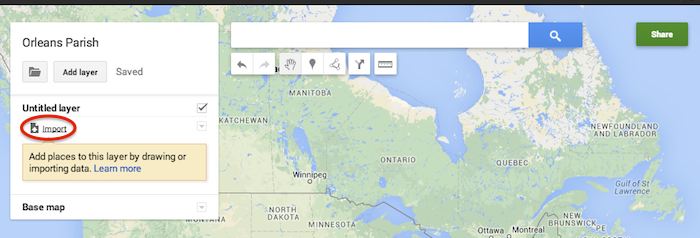
    Now that you’ve successfully prepared your KML file, in My Maps, click Import on the left and choose your KML file from your computer.

    Import A KML File To My Maps - Search Influence

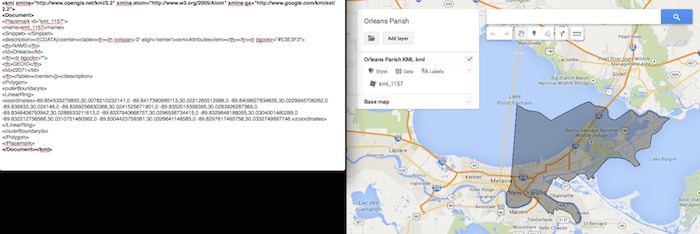
    See the screenshot below for an example of how your KML file should generally look if you’ve done it correctly. The screenshot shows the file for Orleans Parish of Louisiana in TextEdit and then what said file looks like imported into My Maps. (NOTE: In order to show a not so massive screenshot of the KML code, I removed about 3/4 of the coordinates. There are a massive amount of coordinates used to make up these detailed boundaries.)

    Preparing Viewing A KML File In Google My Maps - Search Influence

    How to Use New 2013 KMZ Files

    The U.S. Census Bureau also has the most up to date 2013 files, which are KMZ format (note the .kmz instead of .kml extension). This is essentially zipped KML files with a .kmz extension, but if you use a Mac like me, unzipping or unpacking the zipped file is not easily achieved. The 500k file contains the most detailed boundaries out of the 3 options.

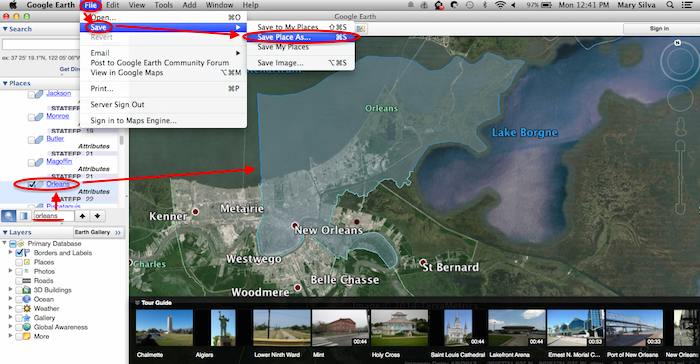
    So, the way I handle this KMZ file is to open the entire file in Google Earth and export just the KML file of the areas I want displayed. To do so you’ll use the search feature of Google Earth on the left at the bottom of the “Places” window to search for and select the areas you want displayed. Since many counties have the same name you’ll want to make sure it’s showing up in the state and location it’s supposed to. Also, note that if you’re trying to add multiple counties in the same state, the Attribute number to the right of the county will be the same for all counties within the same state. This should help you easily identify the counties you’re looking for when adding multiple.

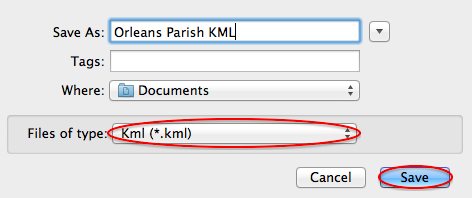
    Once you’ve selected the geographic areas you want displayed on your map in the “Places” section, then save the file as a KML file by clicking File>Save>Save Place As….

    Saving A KML File from Google Earth for Google My Maps - Search Influence

    My Maps will not accept a KMZ file, so make sure to save as a KML.

    Saving a Map in Google Earth As a KML File to Use in My Maps - Search Influence

    Once you’ve saved your file, follow the same steps mentioned above to import the KML file to My Maps. I’m not sure if the paid My Maps Pro is any different, but it appears to me that you cannot import multiple KML files to one My Map. So, in the event that you want to represent multiple service areas in one My Map, you’ll want to have all of the geographic area codes in one KML file.

    This Google Earth process can also be used instead of manually editing the older KML file codes as shown in the first instructional section in case you don’t want to delve into the coding via text edit. It’s definitely an easier route, but for me, Google Earth can sometimes run slow when trying to handle these files and I don’t mind manually editing code.

    Hopefully these steps and screenshots help out a fellow My Mapper!

  • The Hitchhiker’s Guide To The New Google My Maps: Coding 101

    So along with many other recent Google Maps enhancements, Google has finally done away with the “Classic” My Maps. On September 16, Google sent an email to many users stating that “Google My Maps [was] being upgraded.” Recently, you were able to continue using Classic, but if you wanted you could upgrade to new My Maps. At this point all of your maps once created in Classic My Maps should have transitioned to the new My Maps automatically. As of the past few days the classic My Maps version has officially phased out.

    For those of us who have become accustomed to the features of Classic My Maps, it’s easy to feel a little shell shocked by the changes.

    Before we start delving into the new My Maps, here’s three examples of the different types of maps you could/can embed on your site.

    Old/Classic My Maps (EXTINCT) vs New My Maps – Respectively:

    Classic My Maps Embed - Search Influence New My Maps Embed - Search Influence

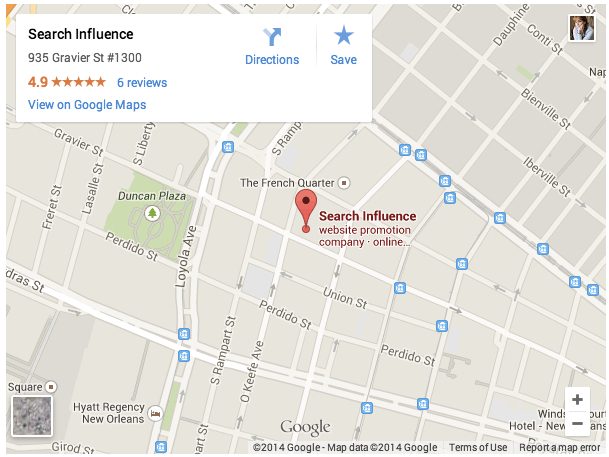
    Simple Google Maps Embed:

    Google My Business Embed Map - Search Influence

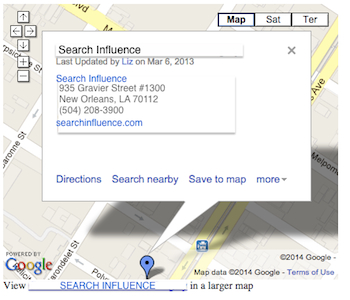
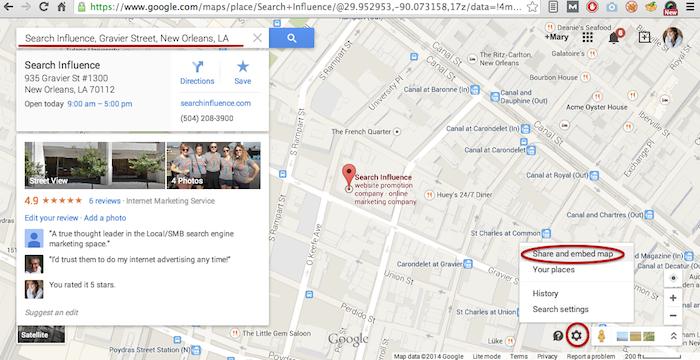
    My Maps should really only be created when you need a map with multiple business locations represented in one map or when you want to create maps with service area outlines. Otherwise, for single-location clients you should use the Google Maps embed feature as shown below:

    Google Maps Share and Embed Map - Search Influence

    In the new My Maps, making the My Map itself hasn’t changed really, the map interface is just a little prettier. You can still import KML files as well as search and add plus page pins to your map. I’m here to help you through the major changes ranging from the simple movement of where to access features to the extensive parameter codes breakdown with the loss of InfoWindows. So let’s get to it!

    New Tool, New Tricks:

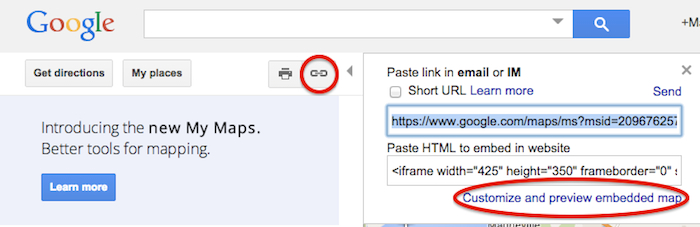
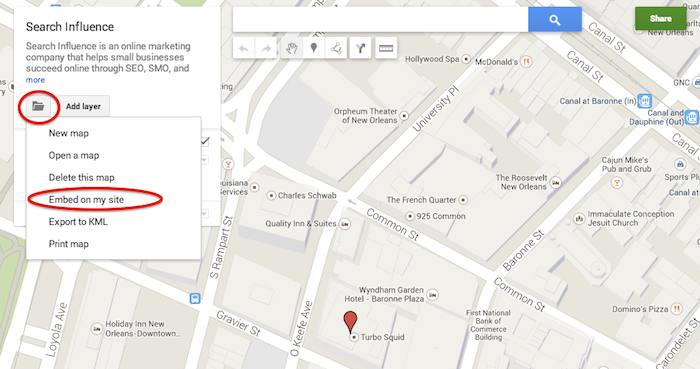
    First things first, where the heck did they move “customize and embed” button to get your embed code!? Well, as obscure and vague (to me at least) as it seems, it’s now housed in the folder icon on the left next to the “Add layer” button. It took me longer than I care to admit to sort that one out, so hopefully I save someone reading this that bit of time.

    Old Location to Grab the Embed Code:

    Old Google My Maps Embed Location - Search Influence

    NEW Location to Grab the Embed Code:

    New Google My Maps Embed Location - Search Influence

    Learn to love that new folder. It also houses the button to create a “New map” once you’re done creating your map or whenever you need to start a new map.

    IMPORTANT NOTE: You now have to share your My Map to make the map visible when you embed it, similarly to how you would share something from Google Drive. Click “Share” in the top right corner then I’d recommend to set access to “Public on the web – Anyone on the Internet can find and view.” The automatic setting when you choose “Public” is editable by the public. Unless you want to risk some strangers editing your maps, switch over to “view” only mode.

    New Product, New Parameters:

    Code Before and After:

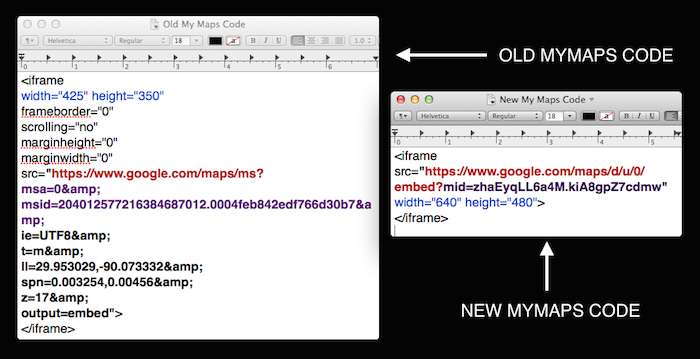
    Google My Maps Embed Code Before and After - Search Influence

    So as you can see in the image above, they’ve removed a lot of previously provided parameters, making the source attribute a lot shorter and more concise. These parameters were responsive to and generated by the now extinct InfoWindow. The InfoWindow allowed you to preview and adjust the My Map before grabbing the code. As previously mentioned, these adjustments must now be done manually.

    First, for sake of knowing what we lost, we’ll cover all the attributes and parameters that were provided in the old My Maps codes.

    Size
    For the size of the maps, the InfoWindow used to let you choose Small, Medium, Large, or Custom.

    Here’s what old My Maps defaults gave you:
    Small: width=”300″ height=”300″
    Medium: width=”425″ height=”350″
    Large: width=”640″ height=”480″ (New My Maps is large by default)
    Custom: WHATEVER YOU WANT

    The parameters that adjust the source code are now separated by just “&” instead of the “&” parameter divider. I’m assuming that this change is a result of Google’s preference to save some characters.

    My Map ID
    First, you’ll notice that the parameters msa= and msid= have been replaced by mid=. The msa= parameter was used to set whether you were showing a particular, identified map (when set to 0) or showing other things like the My Map create form (when set to 2). Then when msa= was set to 0 to indicate that you were showing a particular map, you’d identify said map using the My Map identifier parameter msid=. It looks like the new identifier parameter, mid=, encompasses all you need.

    Input Character Encoding
    In the old code, ie= was used to set the input character encoding, which is typically set to Unicode 8 (UTF8).

    Terrain
    The type of terrain shown in the base of your My Map used to be set using t=. The following inputs will give you the respective results:
    t=m: normal map (think white cities, yellow street lines, green parks)
    t=k: satellite (the photographic, Google Earth look)
    t=h: hybrid (combination of normal and satellite, street lines and photographic)
    t=p: terrain (think atlas-type with shaded mountains)

    Latitude and Longitude
    To set the center point of the map, the code ll= would be used. Must be in decimal format and have latitude before longitude separated by a comma. Alternately, using sll= instead, with the same input formatting will set the latitude and longitude of the center point of the business.

    Span
    The parameter spn= was used to set the width and height for the geocoder to determine how many degrees of latitude and longitude will be shown.

    Zoom
    One of the most important parameters for My Maps in my opinion is the zoom adjusting z= parameter. Smallest input, 1, will show you all continents of Earth and the largest possible input (most zoomed in input) is 21.

    The only one I’ve needed is the zoom parameter so far, but any of the above will work. I think the terrain parameter might be helpful as well, but that can also be done by adjusting the terrain of your map directly in My Maps under “Base map”. Below is an example of the new My Maps code adjusted with a zoom parameter in bold.

    New Google My Maps Code With Zoom Parameter - Search Influence

    What about the popup window with all the dropped marker information!?

    Sadly, there is no longer a parameter to make the information of the My Map marker already visible on your map. This marker typically contains businesses’ location information. Viewers will now have to click the marker in the My Map to view this information.

    So, for single location businesses, the easiest way to get an embed code for your site, which shows your business info with the marker, is by using the simple “Share and embed map” feature already in Google Maps (see “Google Maps embed feature” screenshot above).

    Hopefully this will save someone having trouble adjusting to the new My Maps some time from scouring forums for this info. Stay tuned for my future post on how to use KML files for service area business maps!

  • Game On! Google’s Knowledge Graph Now Shows Video Games

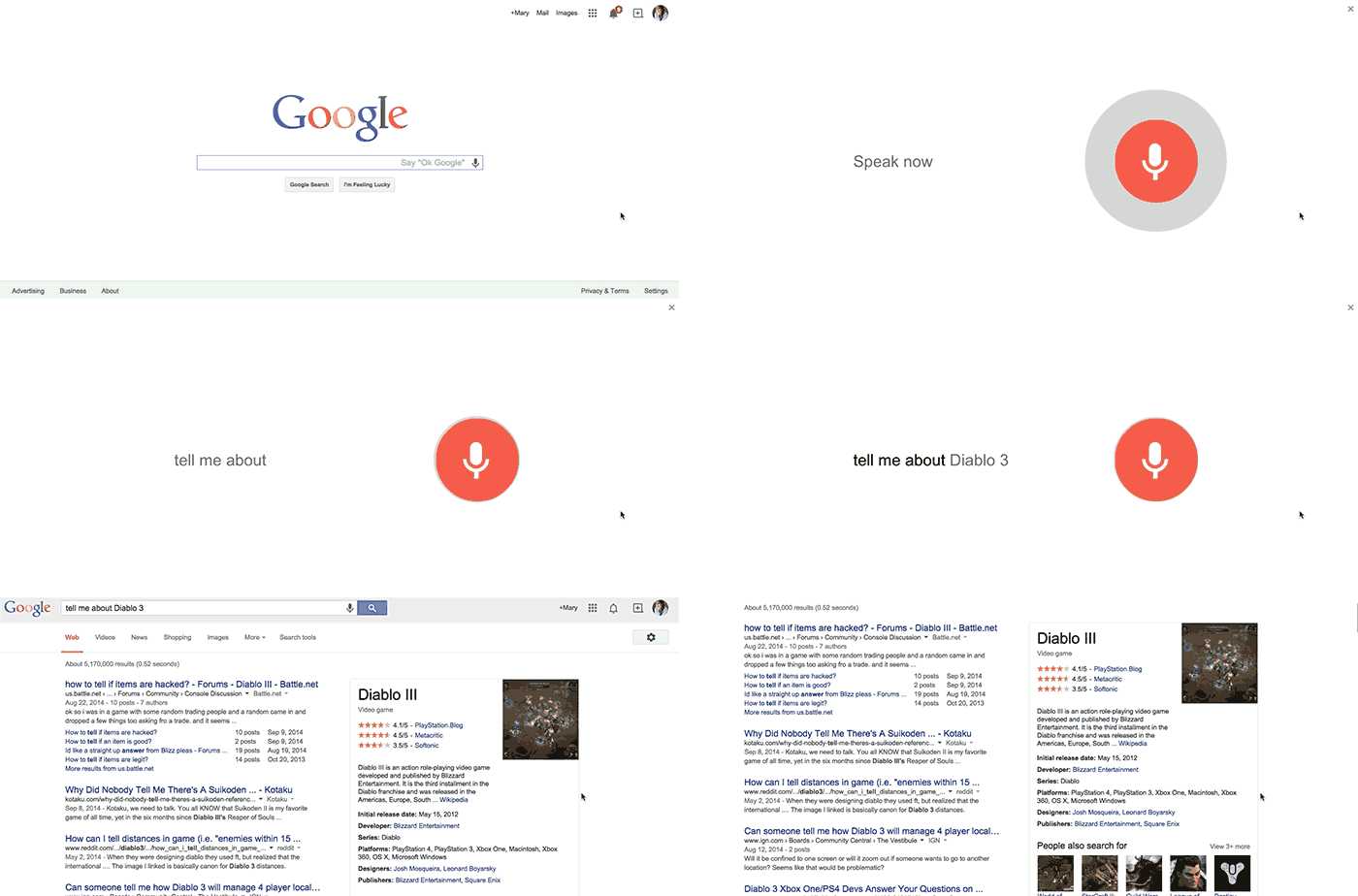
    As of a couple days ago, Google’s Knowledge Graph now includes information about video games! For those of you unfamiliar with the Knowledge Graph, it’s the box that appears on the right side of search results usually for searches like famous people, books, movies, and businesses. It includes pertinent, concise information on the subject matter. Accessible through desktop, mobile, and voice searches, the Knowledge Graph is Google’s way of connecting “real-world things” to provide “more meaningful results.”

    OK-GOOGLE-TELL-ME-ABOUT-DIABLO-3

    With video games, there are a few basic information points that users typically look for when searching for video games. With this addition to the Knowledge Graph, Google has created basic title information for video games, like release date, rating, developer, platform, and publisher, among other things, easy for users to find.

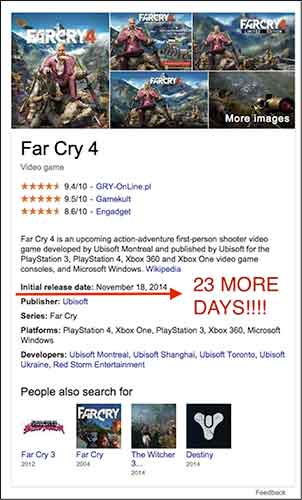
    FarCry4KnowledgeGraphImage

    In the past, when I wanted to find the release date for a new video game it would take a bit of clicking around on various sites (usually Wikipedia or IGN) to locate that information. Now I can find out when Far Cry 4 is coming out just by searching “Far Cry 4,” which to me is pretty amazingly convenient!

    Another exciting feature for gamers is the “people also search for” section, which enables you to easily discover a new game! It is worth noting, however, that it seems (at least for now) in this section, games in a series are plagued by their previous or original titles. To me, that’s wasted space. I’d obviously know to check out Far Cry 1-3 if searching for Far Cry 4 and would like to see a more varied selection.

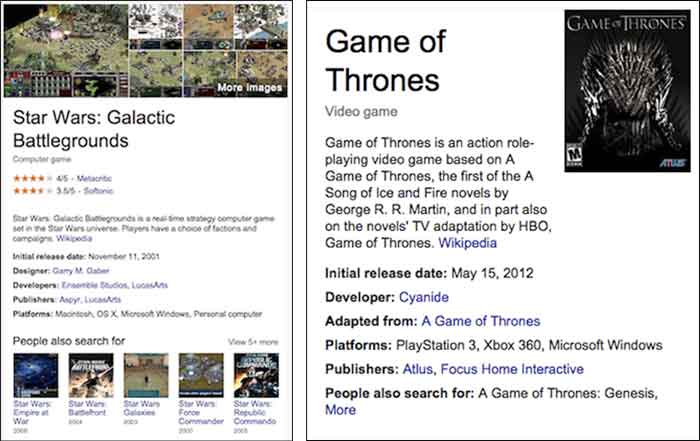
    I did a test to see if some of my all-time favorite games would also show up in a search (even if they’re much older games). Diablo II, Game of Thrones (the RPG) and the lesser-known Star Wars: Galactic Battlegrounds all passed! As suspected, however, it seems like the less recognized games, like Game of Thrones, miss out on some of the listed data, such as game photos, ratings, and a “people also search for” section. As an avid gamer, I know better than to judge a game purely based off ratings, but it’s still great data to have, now made easily accessible to searchers via the Knowledge Graph.

    StarWarsGameOfThronesKnowledgeGraphImage

    For more information on this awesome update, check out VentureBeat’s article including direct info from a Google spokesperson.

  • Avoid Detours: Claim and Edit Your Apple Maps Listing with Maps Connect!

    In the past, the only way you could edit Apple Maps listing was through user feedback on the mobile app. Recently, with our company’s big move from Uptown to the CBD New Orleans, the best way to go about getting our address updated in Apple Maps at that time was to email the whole company and have them mass-submit user feedback about the address change. (P.S. it worked!) These kind of mass-effort cleanup requirements made editing your business information as difficult as crossing The Narrow Sea in Game of Thrones. Thankfully, with the release of Maps Connect from Apple, you can now claim, verify, and edit your Apple Maps listing via mapsconnect.apple.com without the hassle of the above process.

    While the data provided to Apple Maps still primarily comes from Yext and major data feeds, such as Localeze, Factual, and Acxiom, the new Maps Connect allows businesses to be in direct control of their Apple Maps information. Businesses no longer have to rely on data feeds to change their information.

    While it’s a pretty intuitive and user friendly process, I’m going to walk you through it!

    Step 1:

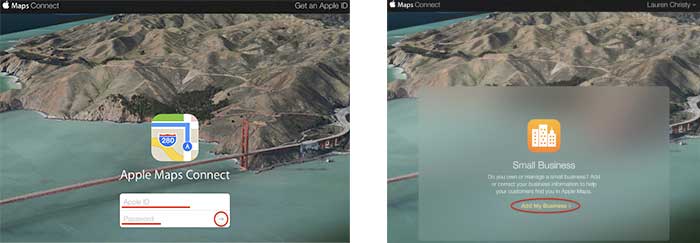
    Click “Add My Business” to get going.

    Step 2:

    Log in with your Apple ID or create a login if you don’t already have one.

    AppleMapsConnectImage

    Step 3:

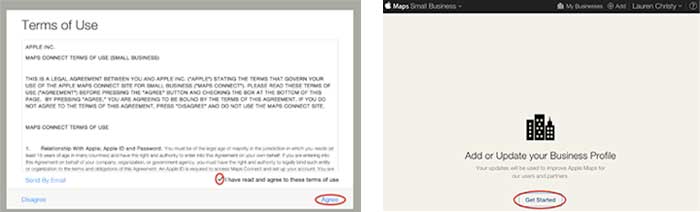
    Read the “Terms of Use,” check “I have read and agree to the terms of use,” then click “Agree.”

    Step 4:

    Click “Get Started” to finally start the actual claiming process.

    GetStartedAddorUpdateBusinessProfile

    Step 5:

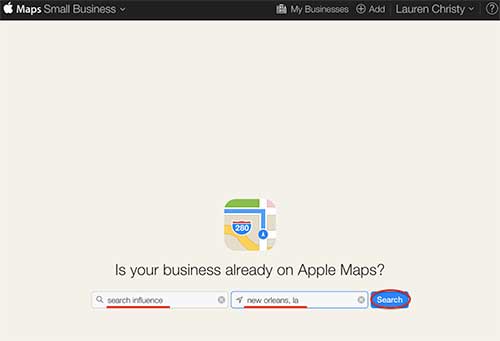
    Search to see if your business is already on Apple Maps by entering your business name, city, and state in the respective fields, then click “Search.”

    IsYourBusinessonAppleMapsImage

    Step 6:

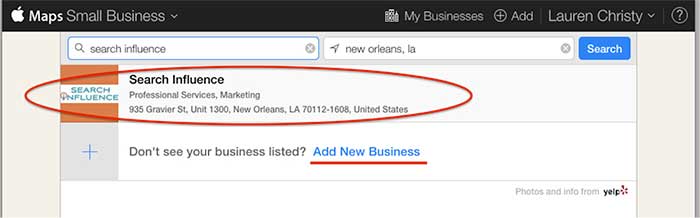
    Based on the results you get, either click on your pre-existing listing to claim it, or click “Add New Business” if yours is not already on Apple Maps.

    NOTE: You should always try searching for truncated versions and any possible variations of your business name before assuming it’s definitely not in a directory.

    AddNewBusiness

    Step 7a:

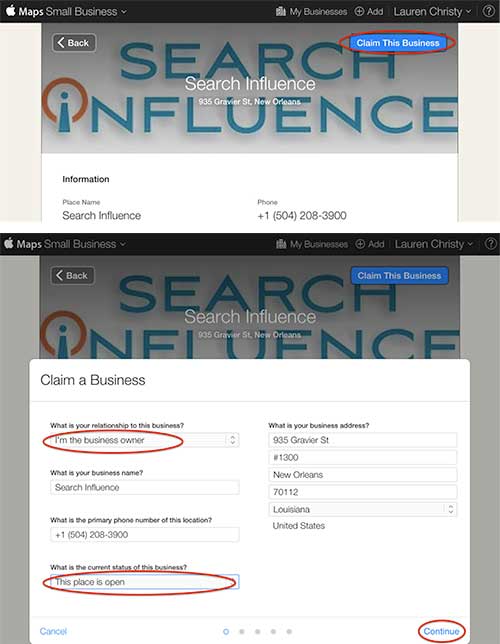
    If claiming a pre-existing listing, you’ll be taken to the live listing of your business where you can click “Claim This Business” in the top right-hand corner. Then you’ll choose your relationship to the business, change any of the business information that is inaccurate, choose the status of the listing, and click “Continue.”

    ClaimThisBusiness

    Step 7b:

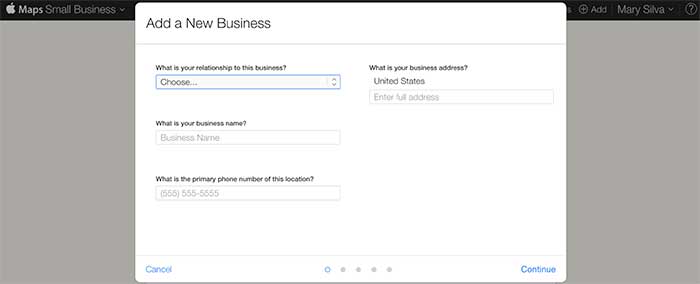
    If creating a new listing, you’ll be taken to a screen to fill out your businesses NAP (Name, Address, Phone Number) and your relationship to the business.

    FillOutBusinessNAP

    Step 8:

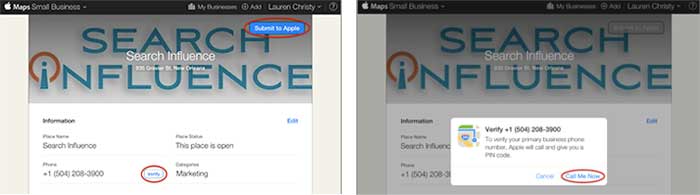
    In either case, the last step is a phone verification. By clicking “Submit to Apple” in the top right corner or “Verify” next to your number, you’ll be taken to a screen to verify your phone number by clicking “Call Me Now.”

    SubmitToApple

    Much like other higher-level directories (think Google, Yahoo, Bing,and Yelp) this phone verification is an immediate, real-time call to the business number to relay a pin. If the phone call with the code doesn’t work the first time, much like Apple’s process for bad pin-code entries on products like the iPhone and iPad that have passcode locks, you have to wait 1 minute to try again, then 5 minutes the next try, and 25 minutes after that. You can circumvent the wait time, however, by logging out of Maps Connect and logging back in.

    Since this is an automated process, businesses like ours with phone tree systems will suffer the inability to phone verify for now. I reached out to Apple Support to see if there’s an option to request a manual phone call to verify or some kind of domain-email verification. Within 24 hours the replied that they “manually reviewed and approved [our] profile” which I assume was because of our domain email being used in our account. Hopefully they’ll take a tip from from Google, Bing, and Yahoo and eventually allow a postcard verification option. Maps Connect is also currently only available to U.S. businesses.

    According to the folks at Search Engine Land, “Updates or new listings will show up within a week or could show up more quickly depending on the situation and whether the listing was flagged and/or there’s additional verification required. Beyond this, Apple has additional fraud prevention measures in place, but didn’t discuss them extensively.” So be patient when making any updates or edits.

  • The Beheading of Google Authorship

    So unless you’ve been living under a rock, you already know, or at least have an idea, of what happened to Google Authorship. Back in June, we saw the ominous sign that Google removed Authorship circle count and photos from search results. Between its low implementation rates and high error of implementation, Google Authorship was simply proving not to be a strong search signal. Google’s continual changes are almost always driven by the goal to improve usability and to make search results more relevant to users.

    Why?

    So, why, after 7 years, is Google getting rid of this feature, and why did they even have it in the first place?

    In 2007, Google patented Agent Rank (aka Author Rank) with the idea of creating a search signal to improve the rankings of authoritative, reputable authors. They understood the power of personal connection and the desire for people to connect with other people online. As the years went on, rel=”author” was rolled out to webmasters everywhere, and with the start of Google+, the Authorship project came full circle. This was, at the time, a solid way to prove authenticity of writers for those searching for trusted results.

    However, as time went on, it became apparent that the use cases of Authorship markup were either limited or done incorrectly. In a study performed by Stone Temple Consulting, which sampled 500 authors over 150 different major media sites, it was found that 70% of authors didn’t even try to connect their content and authorship to one another, and that 72% of sites that did attempt markup, had errors.

    Google’s research also found that providing author information in search results didn’t help users, and if anything, distracted from search results.

    Now What?

    GPlusGifFirst, this doesn’t mean that Google is diminishing the value of markup in general, just this particular type of markup. In a post on his Google+ page, John Mueller said, ”Going forward, we’re strongly committed to continuing and expanding our support of structured markup (such as schema.org).”

    It is clear, that in their ideal world, Google will find a better way to come back to this Authorship feature. According to Mark Traphagen, Sr. Director of Online Marketing for Stone Temple Consulting, this is far from the end of authorship. Google just needs to have the ability to more confidently determine who the voices of a niche are without relying on markup. In Mark’s words, “author authority is going to have to be based on much more sophisticated means of machine-based identification and understanding,” which, as you can imagine, we are a long way away from.

    Moving forward, I think it is important for authors to continue using the best Authorship practices, because Authorship still exists, just with a lesser role in search results. And there is no evidence that having a strong Authorship presence won’t influence your results in a more indirect way. Also, quality content will always be a strong ranking factor, and providing multiple, non-spammy ways to access said content across the web (like through the “Contributor to” section of your Plus page), will always be a good practice.

    ThumbsUpImage

    Image Source:
    Thumbs Up Gif

  • 5 For Friday – War Of The Week’s 5 Kings: Apple, BTC, Google, Pinterest, & IG

    1. It’s Gold, It’s Gold Baby: The New iPad Air, That Is – Business Insider

    Apple is releasing a gold version of the iPad Air with the new launch. With the iPhone 6 being launched next week, the next Apple event in line will be in October. According to MacRumors, the new iPad Air 2 is suspected to include some features similar to the iPhone 5s: fingerprint recognition and an 8MP rear camera.

    Fingers crossed everyone can get gold iPads that match their gold iPhones just in time for the holidays!

    2. KnCMiner Throws A Lasso Around The Moon For Bitcoin – TechCrunch

    Since last December, KnCMiner has made some hard core ASIC systems to move BTC markets shortly after deployment. Now they’ve announced “a $14 million Series A to help build out new mining chips along with hosted mining services.” This ASIC chip upgrade is expected to come on-stream next year.

    As a company that doesn’t actively look for funding, their miners generally sell out immediately at the commence of pre-order periods. In the past, this has allowed them to fund the entire venture independently, but they plan to look for $70 million in funding for future upgrades to a Series B to grow in capacity along with the appreciation of Bitcoin’s price.

    BitcoinOnTheMoonImage

    3. Google Crushing and How to Survive Q4 With Intense Competition – Search Engine Watch

    No, this isn’t about our awesome Google+ Crush infographic (although it should be).  Mary Weinstein of Search Engine Watch posted 4 things that you can do to improve your e-commerce strategy.

    1. Improve Brand Perception using Google Special Offers, Seller Ratings, and Product Ratings.

    2. Make Feed Changes to optimize your AdWords campaigns.

    3. Optimize Big Data by using Google data for Google Shopping campaigns.

    4. Leverage Search Trends, such as the growth of the mobile e-commerce segment to do location targeting.

    4. Pinterest Becomes The Ultimate Creeper – Marketing Land

    This past week, social bookmarking network, Pinterest, sent emails to some of its users congratulating them on upcoming weddings, even some who aren’t actually planning a wedding at the moment. Talk about poor targeting.

    The nature of a site like this is that a lot of people create “dream” and “inspiration” boards without the intention of following through with their pinned desires. So naturally, there are a lot of “dream wedding” boards out there for people who aren’t even remotely close to a wedding day. Luckily, the improperly emailed users mostly found it amusing and took no offense.

    Amusingly enough, Pinterest came out with a funny statement to New York Magazine’s Daily Intelligencer saying that they email these category-specific boards to users every week. This one was meant for those simply interested in wedding content and not just those getting married. They ended the statement with, “We’re sorry we came off like an overbearing mother who is always asking when you’ll find a nice boy or girl.” In my opinion, that’s a great way to turn it around.

    5. Spring 2015 Fashion Week Is Upon Us, You NEED To Follow Some Designer Instagrams – Huffington Post

    You might not be cool enough to intern for a designer or be backstage for all of Fashion Week’s best shows, but you are totally cool enough to know where to look to find your fashion fix.

    Thanks to Huffington Post’s 60 designers to follow, there’s an easy way to keep up with the fashion world. Some of my faves from the list are @zac_posen (designer), @stellabugbee (editorial director of The Cut), and @chloenorgaard (model). One of my personal favorites who didn’t make the list is the fashion photographer Jamie Beck @annstreetstudio.

    InstagramFashionWeekImage

    Image Sources:

    Bitcoin On The Moon

    Instagram Fashion Week

  • Google Instant Verification Passes The Sentence & Swings The Sword

    On July 31st, Google rolled out an instant verification option for local businesses that have already verified their websites with Google Webmaster Tools.

    WaitInstantVerificationImage

    There is, however, very specific cases. As the Google support page linked above states, it’s important to note “that some business categories may not be eligible for instant verification.”

    OneDoesNotSimplyVerifyAListingImage

    Webmaster tools verification option won’t work for your business if:

    • You’re creating a new listing
    • The pre-existing listing is already claimed by another user and your business has to request ownership
    • You have to change the website on the pre-existing listing you want to claim
    • Webmaster Tools isn’t verified BEFORE you claim the listing
    • Webmaster Tools isn’t verified in the same account that you are claiming your business listing in
    • Your company’s “My Business” category is not one of the Google approved categories eligible for this verification.

    “My Business” pages we tested:

    Car dealership: Claimed in account with pre-existing listing in need of claiming – worked

    Heating supplies provider: Had ALL ideal criteria. Listing had correct site and was available to claim, and WMT was already verified in the account. – didn’t work (So this business must have a category problem that makes it ineligible.)

    Real Estate: Created new listing- didn’t work

    Basically, if it’s possible, Google will automatically verify your business on its own when you claim your business in Google My Business. Google skips giving you any verification options altogether and just auto-verifies the listing.

    Assuming this new Google My Business feature is a work in progress on Google’s end, maybe once we see more categories accepted, it will become more doable and the qualifications may not be so restrictive. Even then, with the stipulations currently, it would be a rare occurrence.


  • Survive Your Serving of Google’s Pigeon Pie

    Late last week, influencer Erika Karas wrote an informative blog about Google’s algorithm update, Pigeon. The new Pigeon update might make it more difficult for individual businesses to rank among sites that Google deems more useful and relevant to local searchers’ results. Most local directories received a boost in rankings thanks to Pigeon. It makes sense if you consider the fact that when most people search for things like “pizza New Orleans,” they want to see a list of their options along with reviews, making sites like Yelp and Zagat more relevant than just a link to one pizza place in the area.

    So, how can you make sure you stay relevant with this in mind? First, search for common phrases that your targeted audience looks for. Next, see what sites Google is ranking highest and get your business on there with detailed and correct information.

    In the research I’ve done since the algorithm update, these are the sites I’ve found most often: Yelp, Zagat, Urbanspoon, Thumbtack, TripAdvisor, and Yellowpages. For obvious reasons, Google Plus is the first place your listings should be claimed and optimized. Yellowpages and Yelp are also great places to start, because they both have backend business portals that make it easy to claim and update your listings. They also require phone verifications by the business, which makes them more authoritative and trusted by Google. It’s best to provide as much information as possible in these listings and be consistent in the information you provide. Your name, address, phone number, website, and hours of operation should all be the same on your listings as they are on your website.

    Also, look out for categorical sites like HealthGrades, RateADentist, HomeAway, and the like that are relevant to your industry. You might want to look into getting your business on these industry sites, as they will also play a key role in rankings post-Pigeon. In some of my Pigeon research, I noticed our golf and dental clients were affected the most. These clients were pushed down in rankings in favor of categorical sites like RateADentist and GolfNow.

    Although these tips aren’t guaranteed to aid your rankings, they will help keep you relevant and appearing among industry-specific results.