
Tag: tips

  • SEO Automation: How I Built an AI-Powered Question Discovery System with Make.com

    SEO Automation: How I Built an AI-Powered Question Discovery System with Make.com

    SEO Automation: How I Built an AI-Powered Question Discovery System with Make.com

    I recently automated an SEO process that used to take our team hours of manual work. 

    It now runs in 5 minutes. This isn’t about replacing experts. It’s about getting them out of spreadsheets so they can actually solve strategic problems and get creative with content. 

    Here’s how I built it using Make.com, Google Search Console, Semrush, and People Also Ask data from AlsoAsked, and why every SEO team should be doing this.
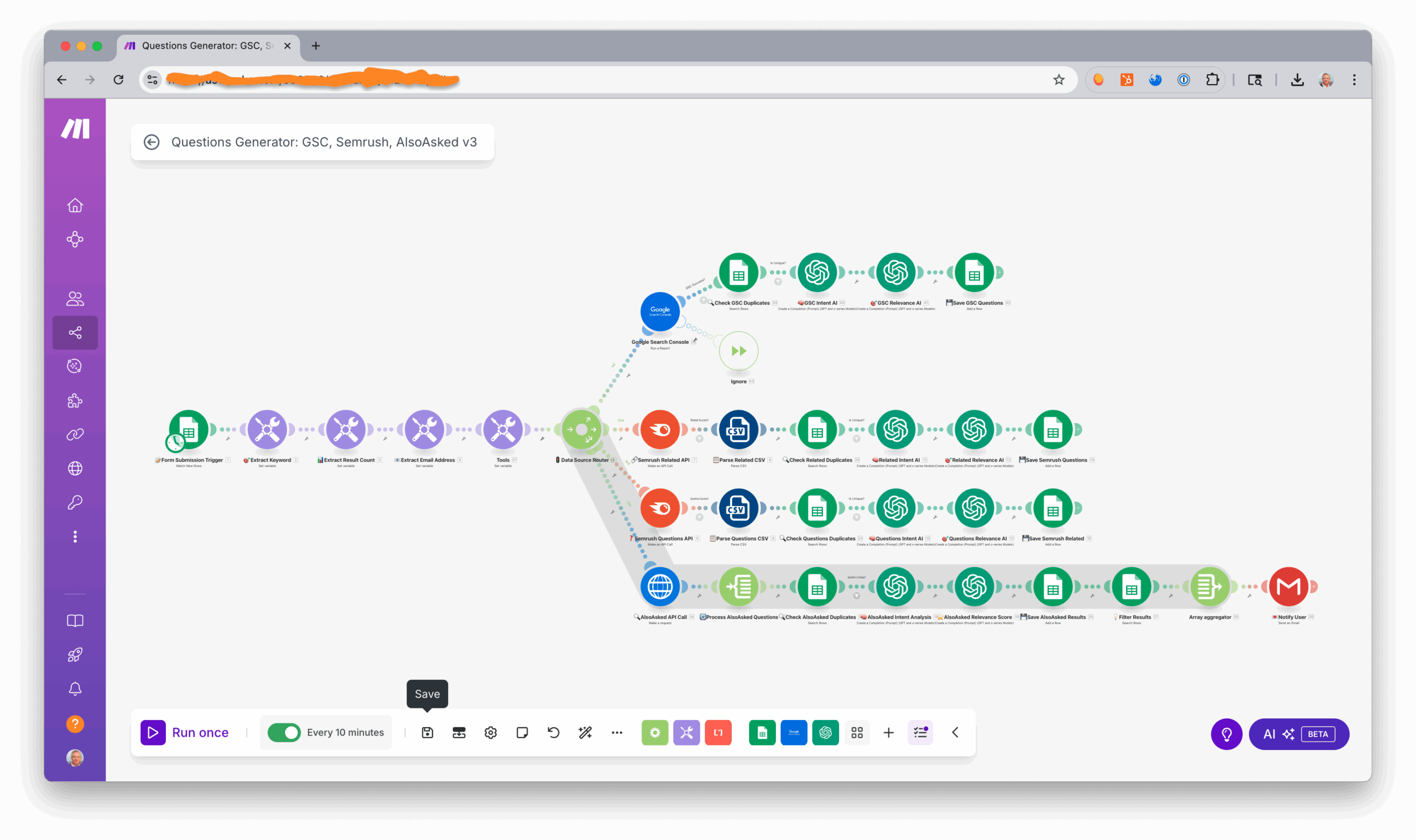
    SEO Automation: How I Built an AI-Powered Question Discovery System with Make.com

    The Manual Question Discovery Process We Had to Kill

    Here’s what our question discovery automation process looked like before implementing SEO automation with Make.com:

    1. Google Search Console Export: Pull search queries for specific URLs and domains
    2. Semrush Research: Cross-reference GSC data with broader keyword opportunities
    3. People Also Ask Research: Manually collect AlsoAsked questions for FAQ optimization
    4. AI Search Analysis: Hunt through competitor frequently asked questions for AI Overviews
    5. Related Topic Research: Expand into connected topics for broader search visibility
    6. Relevance Assessment: Manually score questions for content fit and business value

    This took 2-3 hours per analysis. Multiply across clients, pages, and team members, and you’re wasting 15-20 hours weekly on work that doesn’t require strategic thinking.

    The turning point came when I realized our senior strategists were spending more time pulling data than actually optimizing for the things that matter – like getting featured in Google’s AI Overviews and other search features that are reshaping SEO.

    How to Build Your Own SEO Automation with Make.com

    I built the SEO automation in Make.com to actually analyze, not just move data around. The workflow connects Google Search Console, Semrush, and People Also Ask into one system. If a URL has enough data in GSC, it pulls questions from there. If not, it automatically looks at the whole domain for context. Then it grabs related questions from People Also Ask, pulls keyword data from Semrush, and uses AI to score every question based on what you’re actually trying to accomplish with that page.

    High-Traffic Pages: Get laser-focused questions with direct GSC processing, plus related questions from People Also Ask for thorough FAQ development.

    Newer Content: Enhanced with domain-wide context and AI question discovery to find content gaps and optimization opportunities.

    Strategic Analysis: Semrush integration helps us spot competitive keyword opportunities and find gaps in the market.

    AI Search Optimization Through Automated Question Discovery

    Raw question data from Google Search Console and Semrush tells you what people search for. AI-powered analysis tells you what’s relevant for AI search optimization and FAQ schema implementation.

    The automation looks at two things most tools completely ignore:

    Page Context: What’s this page actually trying to accomplish? Is it a service page, blog post, product page? What’s already covered in FAQs? What could work better for AI search?

    Business Context: What industry you’re in, who you’re targeting, and what actually matters for your goals.

    Then it scores each question on several factors: how relevant it is to your page topic, whether the search intent matches what your page does, how likely it is to show up in AI Overviews, whether it’s good for FAQ sections, and how much business value it could drive.

    This isn’t search volume analysis—it’s contextual intelligence that considers what you’re actually trying to accomplish with AI search optimization and semantic SEO.
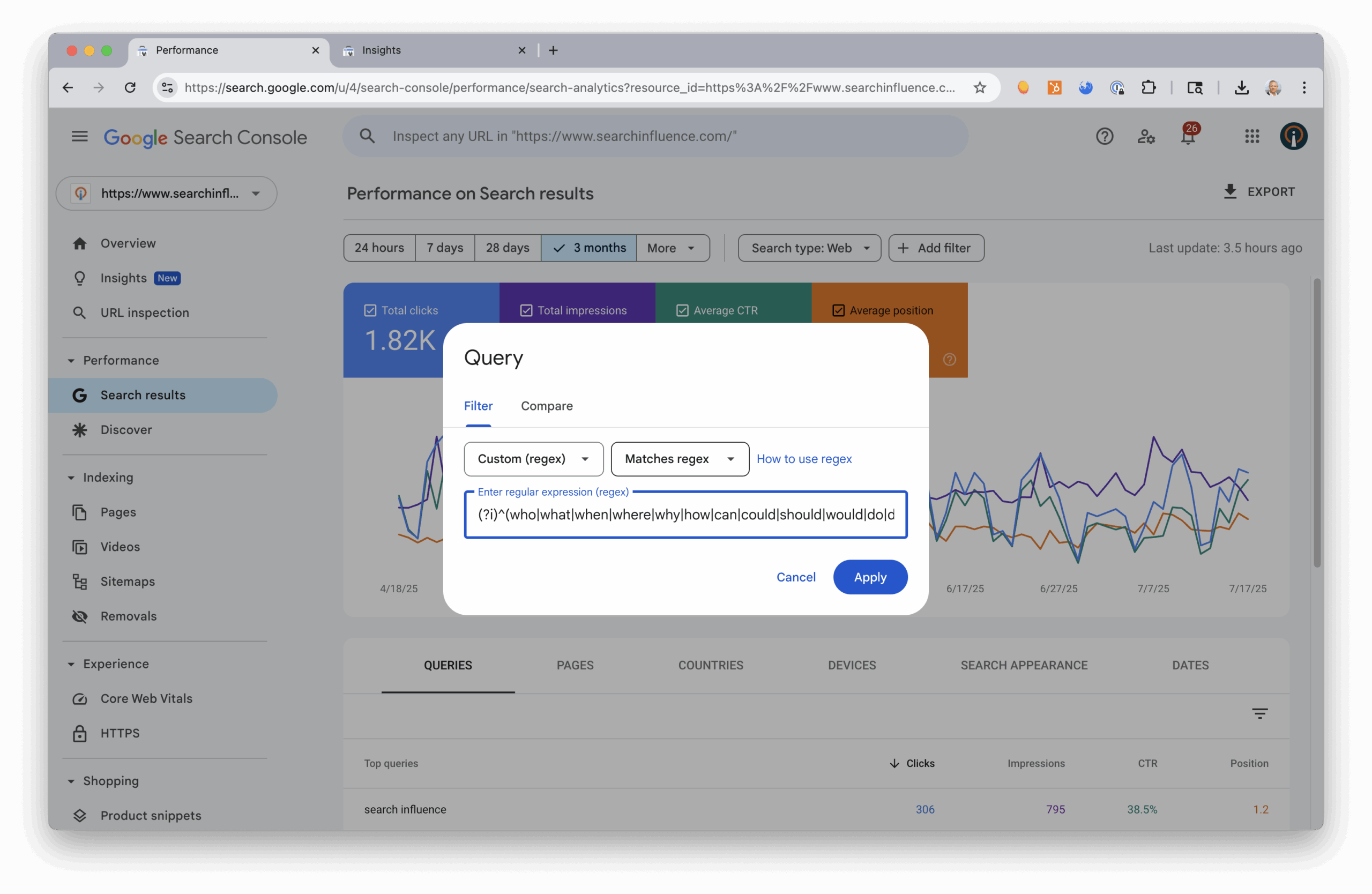
    Benefits of SEO Automation for AI Search Optimization

    The real value of question discovery automation isn’t the 20 hours we save weekly. It’s consistency in AI search optimization. Automation doesn’t cut corners or make mistakes when deadlines are tight. It looks at opportunities with the same care every time, and it’s specifically built to work with AI Overviews, People Also Ask boxes, and FAQ schema markup.

    More importantly, the Make.com automation handles all the grunt work so the team can focus on what actually requires human expertise: figuring out why competitors are winning, developing content strategies that align with business goals, and solving complex technical SEO problems.

    As Google’s AI Overviews and other AI search features change how people find content, having good answers to specific questions matters more than ever. The teams that will win are those using automation for data collection while putting human expertise toward strategy and execution.

    Here’s something important: Google’s AI search features literally pull answers from web content to populate results. If your content answers the questions people are actually searching for, you show up. If it doesn’t, you don’t. The automation helps identify exactly which questions your content should answer to get maximum visibility in these new search features.

    Implementing SEO Automation: Make.com Blueprint for Question Discovery

    I made the complete blueprint open source because everyone should be doing this instead of manual data collection. Everything you need—the Make.com workflow, Google Search Console setup, Semrush integration, and People Also Ask automation—is at https://github.com/willscott-v2/get-questions.

    What took us months to build, you can set up in an afternoon. The blueprint has everything: smart routing logic, AI scoring for relevance, People Also Ask automation, Semrush workflows, plus optimization features for AI search.

    The automation can also help with FAQ schema markup, How-To schema, and other structured data that search engines love.
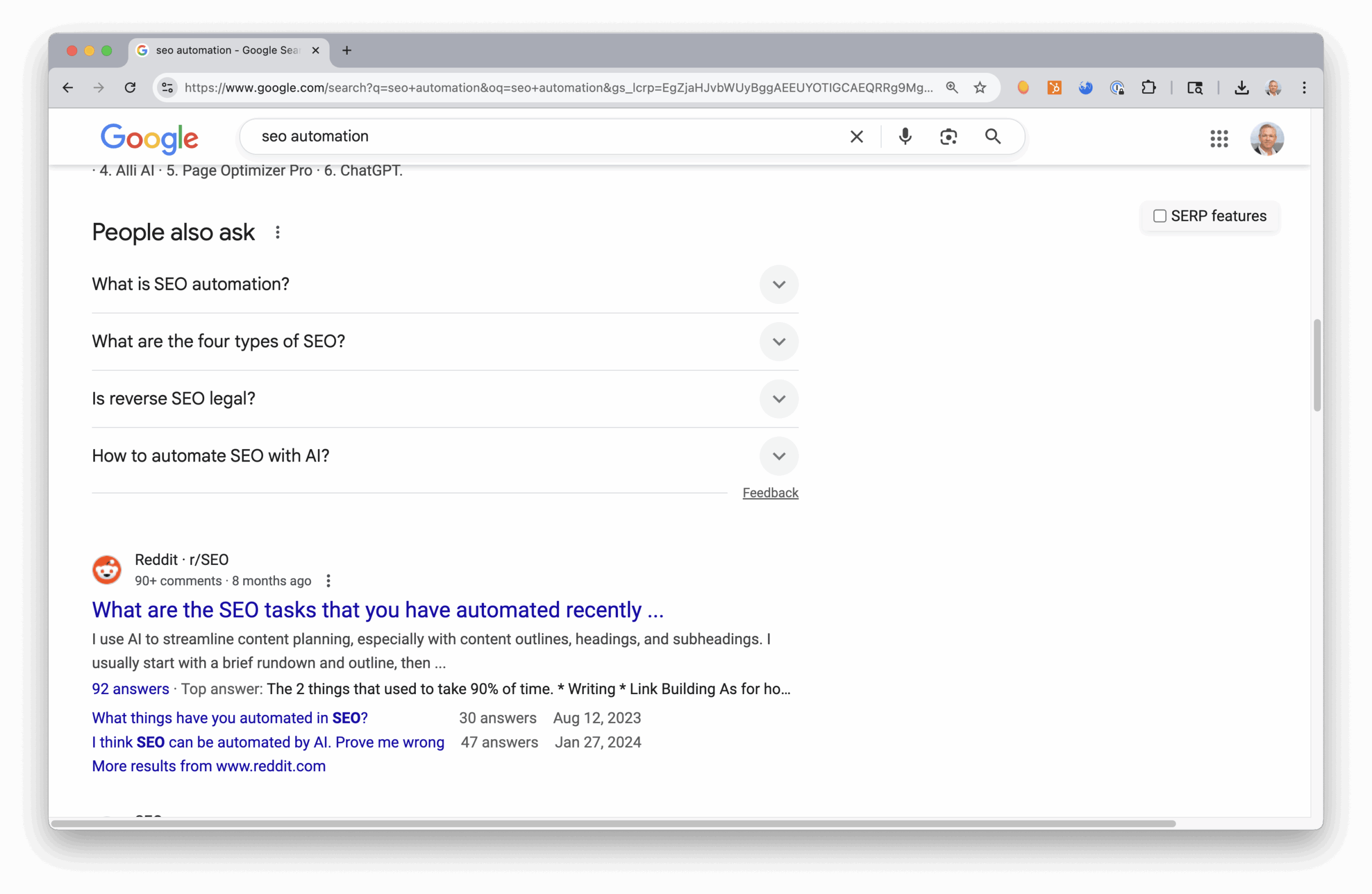
    Strategic Advantage: Human Creativity Unlocked Through SEO Automation

    If your team is still spending time manually sourcing questions for FAQ optimization and AI search, you’re losing strategic ground in AI-driven SEO.

    As AI search and Google’s AI Overviews continue to change search, the choice is simple: let your best people do work that Make.com automation can do better, or free them to do the strategic work that actually wins in AI search optimization.

    SEO automation isn’t about doing less work—it’s about doing different work. The kind that requires creativity, strategic thinking, and industry knowledge that machines can help with but can’t replace.

    Every hour spent manually pulling questions is an hour not spent on competitive analysis, content strategy, or optimizing for AI search features. The tools exist to fix this trade-off.

    The complete SEO Automation blueprint is available on GitHub, including setup guides, People Also Ask integration, Semrush workflows, Google Search Console automation, and FAQ optimization features.

    You like it? Link to it. Link to this post, please: SEO Automation, or AI Search Optimization.

     

  • Best Apps for Mardi Gras in New Orleans

    Mardi Gras in New Orleans is one of the most exciting times of the year! But with all of that excitement comes a bit of preparation. Make sure you’ve got these top apps downloaded on your phone so that you optimize your Mardi Gras experience.

    Listen to our radio interview covering some of these tips on WWNO New Orleans Public Radio.

    WDSU Parade Tracker car riding in Mardi Gras Parade in New Orleans, LA

    Parade Tracking Apps

    WDSU Parade Tracker | WWL Eye on Carnival Mardi Gras Parade Tracker

    Parade tracking apps are ESSENTIAL for Mardi Gras in New Orleans! These local apps provide real-time tracking of the parades so you’ll know exactly where they are on the route.  So how does it work? There’s a GPS tracker located in a vehicle at the front of the parade, so you’re able to see exactly where the beginning of the parade is at any given time.  

    It’s especially helpful for finding out if there are any delays along the route. Also, if you’re out parading and don’t want to miss anything, you’ll want to know how much time you have between parades to use the restroom or grab some food. Other nifty features include:

    • Parade schedules: See how many parades roll each day and what time they start.
    • Parade route maps: Find your spot and see where you are on the route.
    • Parade float count: See how many floats are in each parade. This is an indicator of how long it’ll last.
    • Weather info: Plan out what you need to wear. Weather during Mardi Gras tends to be pretty volatile—it can go from hot during the day to freezing at night, to raining, so you gotta make sure you’ve got the right attire!
    • Notifications: Real-time notifications for weather, parade starts, and delays.

    WDSU iOS | Android  WWL iOS | Android

    Transportation Apps

    Uber | Lyft

    These are the most popular for helping you get to and from the parade route without the dreaded headache of parking. It’s especially good for ride-sharing with friends or others who are going to the parade. It makes it easy because you don’t have to worry about spending extra time driving out to the parade and searching for a place to park, or even paying to park; and if you’re planning on drinking, you definitely shouldn’t be driving!

    Uber  iOS | Android  Lyft iOS | Android

    Blue Bikes

    If you’re a local, biking is one of the easiest, and sometimes even the fastest way to get around the city during Mardi Gras. Even if you already have your own bike, Blue Bikes are especially helpful for when you’ve got friends or family visiting from out of town that don’t have their own bike.

    Getting set up for this bike-sharing program is quick and easy. Simply download the mobile app and register for an account through the app. There’s a $5 sign up fee and pricing is either pay-as-you-go (10 cents/minute), or pay a monthly fee ($15/month). Through the app, you can find Blue Bikes and Blue Bike stations across the city, reserve bikes, and even see your trip history and miles ridden.  Using the bikes are even easier! When you’re ready to ride, you’ll enter your six digit account number and four-digit PIN into the keypad on the back of the bike to unlock it. Then ride it to wherever you need to go and return it to the nearest Blue Bike station, or you can lock it at a public bike rack for an additional fee.

    Transit Tracker – New Orleans RTA

    One good way to get downtown during Mardi Gras is public transportation. The French Quarter is typically closed off to drivers from Friday evening until midnight Tuesday, so driving there is impossible. Even if you try, you likely won’t be able to find a place to park.

    With Transit Tracker, you put in your starting location and destination and it will show you which streetcar or bus to take and where you will need to walk. There’s also real-time GPS data on the streetcar/bus locations. It does rely on the RTA keeping the trackers in working conditions, so this could be hit-or-miss.

    iOS only

    Waze

    If you decide to drive out to the parade route, we highly recommend using Waze to help you navigate. This GPS app is typically the most reliable for getting driving directions because it uses user-submitted road and traffic data, such as accident reports, police traps, closed roads, and other hazards along the way. It’s especially helpful during Mardi Gras in order to know which routes to avoid due to traffic (within or coming into the city) or to indicate which roads are closed because of the parade routes.

    iOS | Android

    Mardi Gras parade float in New Orleans, LA

    Location Apps

    Google Maps

    Google Maps is one of the most used and trusted location apps. It comes in handy during Mardi Gras for travelers and locals alike! Cell service can be pretty spotty when you’ve got a concentrated crowd of people, so if you’re trying to get in touch with someone to meet up, you can easily share your location by dropping a pin. Also, if you decide to drive out to the parade route and park, there’s a good chance you’ll need help remembering where you parked. Simply drop a pin and save it.

    Depending on where you are, restaurants may have different hours during Carnival, so if you’re hungry and need a quick bite, it’s great for finding what restaurants are open in the area around you.

    iOS | Android

    Find My Friends

    It’s essential to stay in touch with your fellow parade buddies during Mardi Gras. This app allows you to easily locate friends and family using your iPhone. Just install the app and share your location with your friends by choosing from your contacts. When you share your location, your friends can start following your location immediately and easily share their locations back to you so that you’re both in the loop. It’s easy to get lost in a crowd during the festivities, so if you’ve got a large group of people that want to stay together or find one another, this app is key.  

    iOS | Android

    Food Delivery

    Instacart

    Make sure you’re stocked up on snacks and drinks for the parades! If you live near or on the parade route and you’re having people over, you definitely want to make sure you’ve got food for yourself and all those visitors. Shopping at grocery stores during Carnival time can get a little crazy, so you can save yourself the headache of fighting the crowds and use an online grocery shopping and delivery service.

    iOS | Android

    Uber Eats | Grubhub | Waitr

    If you forgot to pack food and want a meal delivered to you while you’re out on the parade route, all of these services can deliver food to you from your favorite restaurant. Additional fees vary. There’s usually a $4.99 flat fee + additional fees depending on the distance from the restaurant. Good news, there is a promo code for first-time users!

    Uber Eats iOS | Android GrubHub iOS | Android  Waitr iOS | Android

    Mardi Gras partiers hanging out on Frenchman Street in New Orleans, LA

    Mardi Gras Attire

    While we always encourage shopping local to find your unique Mardi Gras attire, the convenience of shopping online sometimes can’t be beat.

    Amazon

    Amazon is one of the top online shops for buying any and all of your Mardi Gras attire: wigs, makeup, costumes, glitter, fanny packs, YOU NAME IT! The best part? Quick two-day shipping with Amazon Prime for those of you who waited until the last minute.

    iOS | Android

    eBay

    It’s not just used items! It’s essentially a ton of virtual stores and sellers, and not everything is an auction. Many sellers offer the “Buy It Now” option, so you can easily filter that way if you’re in a time crunch to get your items. eBay is a great place for finding unique attire and pieces to build your costume.

    iOS | Android

    Etsy

    If you’re not the craftiest person, but you want something unique that you can’t just buy off the rack, this is the place to look. It’s a mecca for finding awesome, vintage, and handmade items like headpieces. There are also numerous thrift stores that have their shop online, so you can find some really unique and funky pieces for your costume. Not to mention, tons of vintage sequin tops! If you’re into personalized cups, koozies, t-shirts, etc., they’ve got tons of sellers that make these.

    iOS | Android

    Most importantly, don’t forget to bring a portable charger with you so that your battery doesn’t run out after using all these helpful apps during Mardi Gras. Our team at Search Influence is in full preparation mode for Mardi Gras! Learn more about our digital marketing experience throughout the Greater New Orleans area and around the country. Even if you’re not celebrating in the Big Easy this year, don’t let Mardi Gras be just any other Tuesday.

    Images:

    Blue Bikes

    Parade Float

    Frenchman

  • You Talk Pretty Today: Drop Crutch Words To Improve Your Communication Skills

    You know, talking to clients and colleagues can be really, like, intimidating, right? That’s why, like, crutch words are sometimes used by, um, people who are nervous or, like, looking for the right words to use.

    Although the above sentence looks odd written out, almost everyone is guilty of using crutch words in everyday speaking. Whether you are caught up in your words when speaking to a client on the phone or nervous about speaking in front of a group, you’ve probably heard yourself using crutch words as you speak. Follow the tips below to break the habit!

    What are crutch words?

    Everyone has different words that they use in conversation when they need time to gather their thoughts. These words, called crutch words, include placeholders such as um, like, definitely, really, uh, etc. While you wouldn’t normally use these words in writing, people tend to rely on them more heavily when speaking.

    Crutch words are most commonly used when people are thinking of the best or most appropriate answer to a question. However, using these words can be distracting to your listener, and it can also make you seem less knowledgeable. Clients may not trust what you’re saying because the crutch words can make it seem as though you’re not confident about what you have to contribute. There are much better alternatives to using like, um, uh, etc. when pulling your thoughts together.

    Break the Habit

    What is our #1 tip for getting rid of your crutch word habit? Take a breath and pause before speaking! Quickly go over what you want to say in your head, take a breath, and then speak confidently. Your thoughts will come across much more clearly to your audience than they would if you stumble over your words and sound shaky or unsure.

    Practice this habit of pausing in your everyday life. Once it becomes a habit at home, you will be able to use it much more naturally at work in situations where you would normally use a crutch word while you gather your thoughts.

    Still stuck on a question? If the pause is a bit long, say something like, “That’s a great question…” before continuing. This tactic gives you a few more moments to think of an appropriate answer to the question at hand.

    More Useful Tips to Improve Your Spoken Communication

    • Use voice inflections. This conveys what is important in your message, and it also helps keep your listener more engaged. No one wants to hear a monotonous speaker who puts no inflection on the important aspects of what they have to say.
    • Avoid using casual language. Exclamations like “awesome!” or “totally!” can make you sound young and less authoritative to your audience. Although these words may be in your everyday vocabulary, work on limiting your use of them in a professional setting.
    • Avoid using ma’am or sir (to a client or colleague). This is a Southern staple (thanks, Louisiana!), but try to avoid using these words to address clients or coworkers. It can make you seem young and inexperienced, rather than an equal to your peers. Still use it when you go see grandma and grandpa, though!
    • Avoid over-explaining. We tend to try to explain things over and over again, continuing around the same circle while the question at hand has been long answered. Answer the question as best as you can without backtracking and wait for feedback from your listener. If they need more clarification, they will let you know.
    • Know your audience. Are you speaking with the decision-maker of the company, or are you speaking to a secretary? Your communication will differ based on the person you’re communicating with. The CEO of a company will want to hear about the bottom line, while a secretary might want more detailed information to pass along to whomever she’s reporting to.

    Effective communication is an important skill to learn, regardless of what industry you work in. We hope these tips help you improve your spoken communication and break the crutch word habit!

    Image Sources:

    Office Space Gif

  • The Secret Life of Gmail (Part 1)

    Part of my everyday is sorting through ~150 emails, which can be quite taxing if you don’t have a good system in place. We use GMail for our email system at SI. I know most small businesses probably have their email system already figured out, but if you don’t, I would HIGHLY RECOMMEND using GMail as it has lots and lots of great features that make emailing less painful. I have learned some great tricks offered within Gmail- far too many for just one blog post. This first post is about organizing and archiving your email account. Part two will be geared towards writing and scheduling emails. I hope you find this helpful!

    1. Priority Inboxes

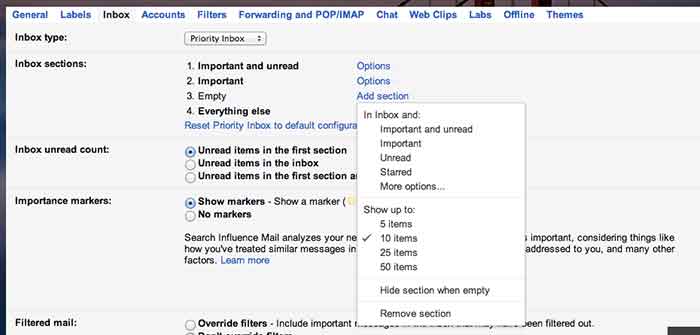
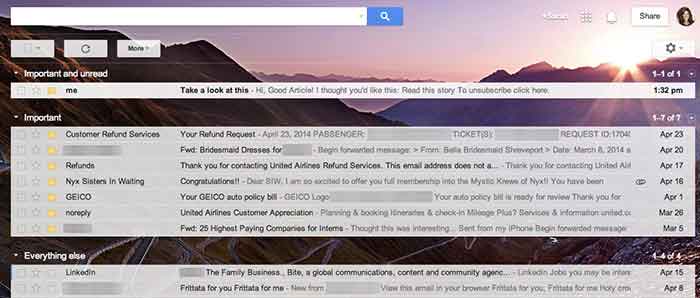
    Priority inboxes are a great way to organize your inbox if you have trouble figuring out what’s important and what is actually relevant to you. This setting is very customizable, and you can set the number of emails you wish to see or have visible per section. I have mine set up as Important and Unread, Important, and Everything Else. Important and unread is exactly what it says- all messages that are marked as important or all messages that are unread. Important is everything that I have read and marked as important, but I haven’t necessarily responded to or handled the particular issue yet. Everything else is compilation of things I just need to file away or delete (because they’re not applicable to me).

    GmailSettings

    2. Important Arrows

    These are great in combination with the Priority Inbox. If you use these, Google will start to learn what is and is not  important to you. It will learn to sort them in the priority inboxes accordingly.  When I get an email in my Important and Unread, Google knows to put it there because it has the important arrow. If I receive an email in my Important and Unread section that is actually not applicable to me, I uncheck the arrow. That way, the next time I get a similar email (with that same subject or from that same person), Google puts it in my Everything Else inbox. It works the other way too- if I see something in my Everything Else Inbox is actually important, I put the important arrow with it, and Google moves it into my Important and Unread Inbox. It learns these habits over time, so your Inbox for the most part really does become organized.

    Gmail-Inbox

    3. Filters

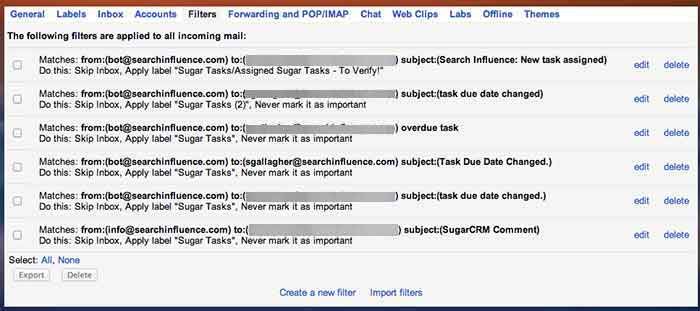
    Do you find yourself receiving emails that you don’t ever need to read or open? We get emails from our CRM system all the time, but I never look at them because, frankly, I receive way too many other emails a day that are much more important. So, I have set up a filter so the emails I receive from that recipient are automatically filed away into my “CRM” folder. They never actually show up in my inbox! To set up a filter, go to settings, filters, and then create new filter at the bottom. You can perform a search function by email recipient addressed to you with a certain subject line, etc. You can set it so GMail will either automatically apply a label or archive it into the folder you have identified. This will save a lot of filing time if you have emails similar to this coming to you everyday.

    GmailFilters

    4. Unread Messages Icon

    This is a Lab in the settings. If you’re like me and you leave your email open all day in a tab (I know I shouldn’t, but hey- we all have our vices), you can enable this feature so you can monitor your email as you are working on other tasks. My recommendation is if you get more than 10 new messages, you should probably hop back over to your email just to check and make sure nothing SUPER important needs to be tended to.

    GmailInboxTab

    5. Mute Button

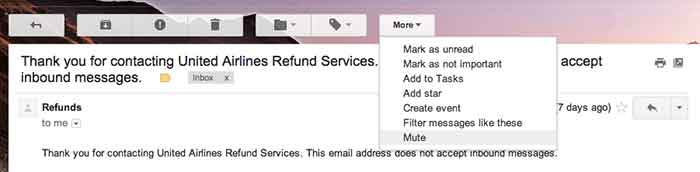
    This is a great feature that you can use to mute conversations if they keep popping up in your inbox. I get a lot of emails that are not related to me, so I often put a “Not Mine” label on them. If that same conversation pops up again in my inbox, I’ll see the “Not Mine” label on it, realize that it is not for me, and press the mute button. This will make it so if anyone else responds on this email strand, the conversation will no longer come to my inbox, but it will stay filed away in its folder. BRILLIANT STUFF HERE!

    Gmail-MuteEmail