Tag: organization

  • New Gmail Inbox Has It All, But Can It Separate Naughty From Nice?

    Always on a mission to improve user experience, Google recently released a fresh new look to “Inbox by Gmail.” This update provided additional labels for better organization of your inbox, reminders, snooze options, attachment previews, and more.

    Invite Only

    Recent buzz about Inbox by Gmail has circulated, especially during the first phase of the invite-only system. People are curious about Inbox by Gmail because they want to be part of this exclusive group. If you have yet to receive an invite, send an email to [email protected], and ask politely. Maybe Google will invite you in their next circulation.

    InboxByGmailImage

    Organize With Labels

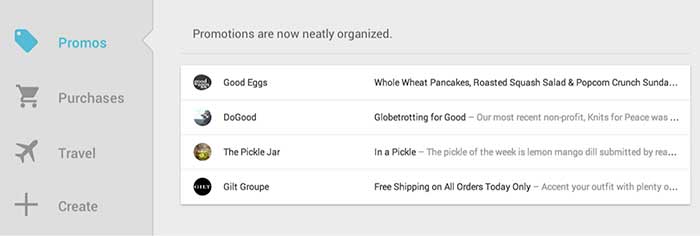
    Google announced Inbox by Gmail “is a better way to get back to what matters.” For this reason, Google created more categories of labels to keep emails organized. Gmail currently bundles emails under tabs “Primary,” “Social,” and “Promotions.” Inbox by Gmail will have many more label tabs available, like “Updates,” “Finance,” “Purchases,” “Travel,” and “Forums.” You also will have the option to create your own labels. This exciting feature organizes emails for you before they arrive in your general inbox.
    InboxByGmailPromotionsImage

    Timeline

    Warning, your general inbox will look different. When an email belongs to a label, it will be automatically placed within its designated tab. In your general inbox, you will only see who sent the email. This way, you will have less emails showing in your general inbox.

    Mark Your Mail

    Other features: you can mark emails as “important,” as a “to do,” you can add reminders to emails (with extra information like phone numbers), and you can snooze an email to get it out of your inbox until you’re ready to view it.

    More Features

    You can see the highlights of your email without opening the message. The new inbox previews reservation information, online orders, and pictures. You can also get real-time flight updates and speed dial a friend – all from your Gmail account.
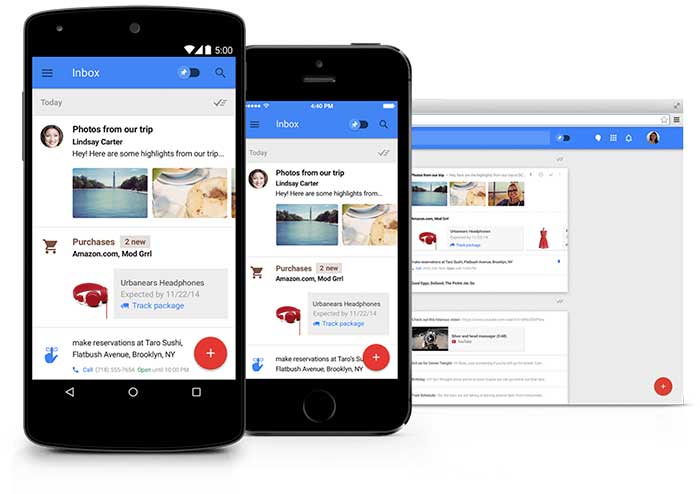
    InboxByGmailSmartphoneImage

    Promotional Email

    There are two reasons why I’m not excited as a professional, serving my clients who send the occasional promotional emails:

    1. Promotional emails are now one click further away from the target audience. These types of emails are thrown under a tab and may never be seen.
    2. In their general inbox people will only see a preview of all of your promotional emails. This will include the name of the person or business that sent the promotional email, but not the subject. This update will have a huge impact on the open rate of promotional emails.
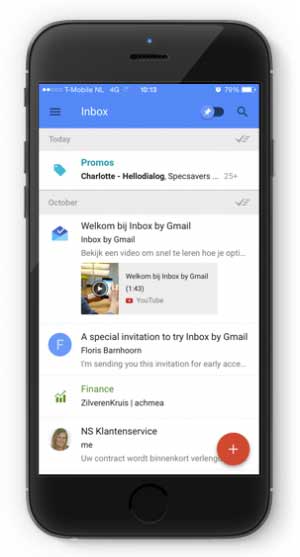
    InboxByGmailPromotionsPreviewImage

    Three tips for promotional email to pass the new application:

    1. Address the email to the name of a person rather than a business so the email looks more personal.
    2. People will scan the “Promotions” or “Social” inbox very fast, so you need to be unique and engaging to be noticed. Your subject line is extremely important. Perform some A/B testing to find out which type of subjects score best.
    3. Be relevant – send people emails they would want to read.

    Inbox By Gmail: Yes Or No?

    For personal-use and some business purposes, this new update deserves a big resounding YES! For people or businesses who send promotional emails, this demographic echoes a big fat NO!

    Get an invite and let us know by email what you think of Inbox by Gmail. Your email will end up in our label “VIM” – Very Important Mail.
  • De-stress and Prioritize: How to Keep Your Day-To-Day Organized

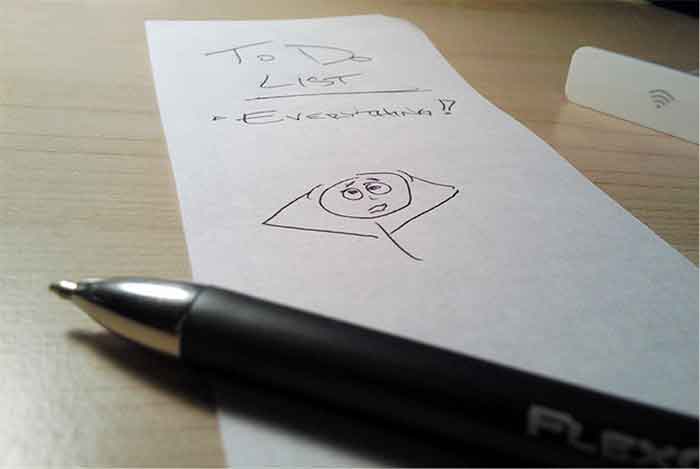
    ToDoListImage

    Everyone manages their time differently. With client meetings, calls, internal meetings, and day-to-day tasks, it sometimes gets hard to manage and prioritize what needs to get done.

    Since I’ve started working here in January, I have perfected my system of de-stressing and prioritizing my work so I can always be the efficient.

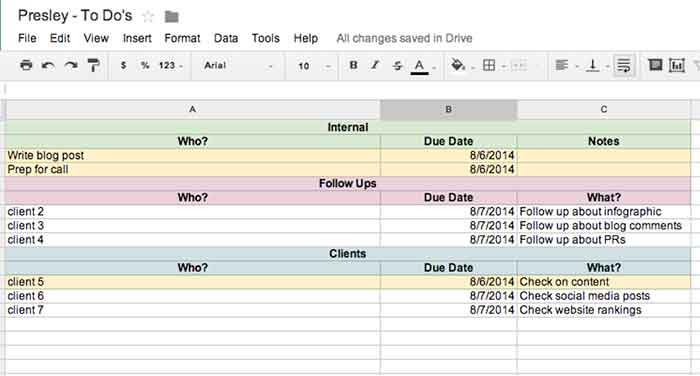
    I don’t know about you, but I work best off of lists. The to-do list that I use each day keeps me organized with internal to-dos, client to-dos, as well as follow ups that need to happen. From this one list, I keep my day-to-day organized!

    PresleysToDoListImage

    Step 1: Check Emails & Do Your Follow Ups

    The very first step of my day consists of checking all emails and replying as needed. Once you’re done with an email, file it away to keep your inbox organized. Also, doing your follow-ups at the same time is helpful because you can get everything out of the way at one time. My follow-up to-do list (see above) is where I go to see what clients I need to follow up on and what the follow up is regarding.

    Step 2: Check Your List & Prioritize

    Check your to-do lists (client and internal) to figure out what needs to get done that day. Give yourself due dates based on the priority of the project, even if the project doesn’t necessarily have a real due date. I highlight each project or follow up that needs to get done that day so it is easy for me to see.

    Step 3: Start On A Project

    Now you can actually start on a project! Pick the project that needs to get completed first based on the due dates you gave yourself. Although I like to finish projects before starting on another one, that is not always possible. Do as much as you can before you have to move on. If you must, set a time limit on each project to ensure you can get everything done that is needed.

    Step 4: Don’t Get Caught Up In Your Emails

    It can be tough seeing your inbox fill up while working on other important things that need to get done. However, don’t get caught up in your emails! Reply back to things that need immediate attention, but continue working on your priority project before starting another round of email replies. Once you’re done with what you are doing, then you can go back to your email if needed.

    Step 5: Re-Date Projects

    If you aren’t done with everything that you assigned for yourself to do that day, redate for the next day and start all over again!

    Of course everyone has their own ways of staying organized, but this system has helped me, and I hope it helps you too!

  • Gmail Reveals Its Hottest Secrets (Part 2)

    I wrote a blog post about a week ago about several hidden, secret features in GMail. Most of that was about organizing your inbox. This post is more about the secrets and great features you can use as you are writing emails. Let me know if you have any additional helpful features in the comments below!

    (numbers 1-5 in part 1 of this series)

    6. Canned Responses

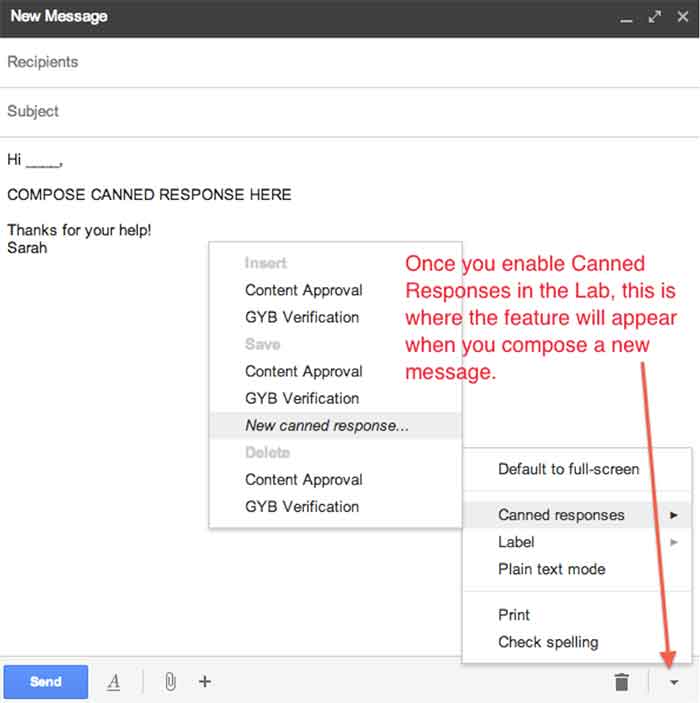
    Do you find yourself composing the same email several times a day? If so, you should enable canned responses. Canned responses are drafts or email templates that you can save in your settings when you go to compose a new message. They will not show up automatically, so you need to go to the Labs in the settings of GMail, and enable this feature. There will be an arrow at the bottom right of a new message, and that is where you will find the feature once it has been enabled. This saves so much time for me and my colleagues, so I highly recommend it.

    01-CannedResponses

    CannedResponse

    7. Reply from the same address the message was sent to

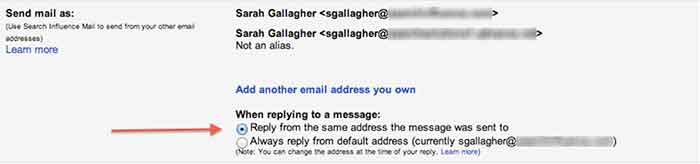
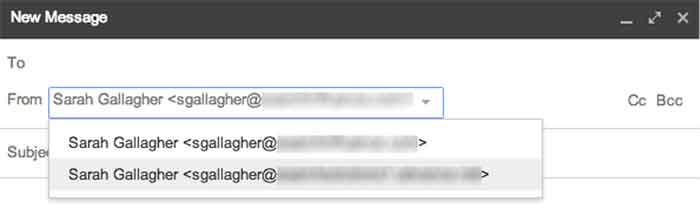
    If you have multiple email addresses you use in your workplace, it’s important to make sure that you reply with the appropriate email. When I compose an email, I have to switch the email address of who it is coming from (which also changes my email signature). However, you can automatically set it so that when you press reply on an email thread, it replies from the email address the original email was sent to.


    03-SendMailAs

    04-NewMessageFrom


    8. Undo Send

    Have you ever forgotten to include something in an email?  Attach something? Sent an email to the wrong person? Misspelled something? Addressed the wrong person? (that one’s really bad)!

    THIS SETTING IS A LIFE SAVER!!

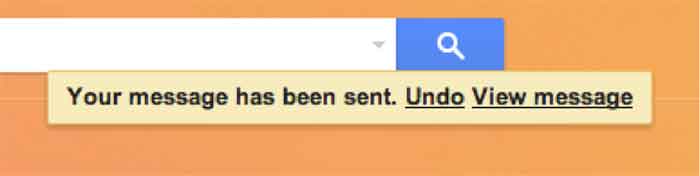
    It can be enabled under the General settings. You can select how long you have to undo a message once you press the send button. I have selected up to 30 seconds, which is the longest time possible. Once you send an email, you’ll get a notification at the top of your email account saying you can undo send or see the message you just sent. Please note that this is the only place where you will be able to undo the send. If you archive the message, click to your inbox, or somewhere else within GMail, the undo send option will not be available.

    05-UndoSend

    06-UndoSendAlert

    9.Boomerang

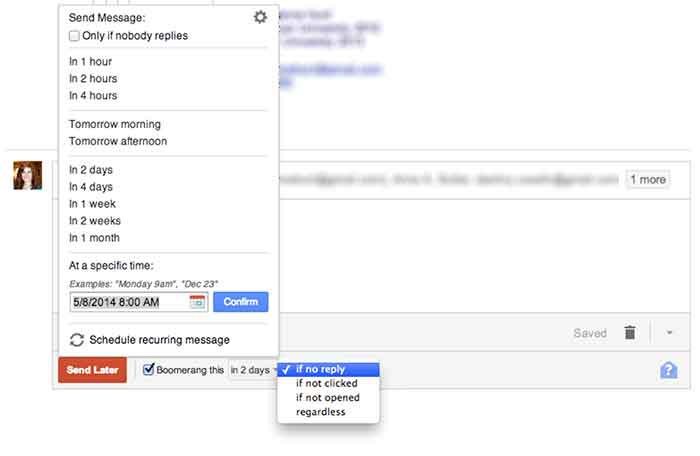
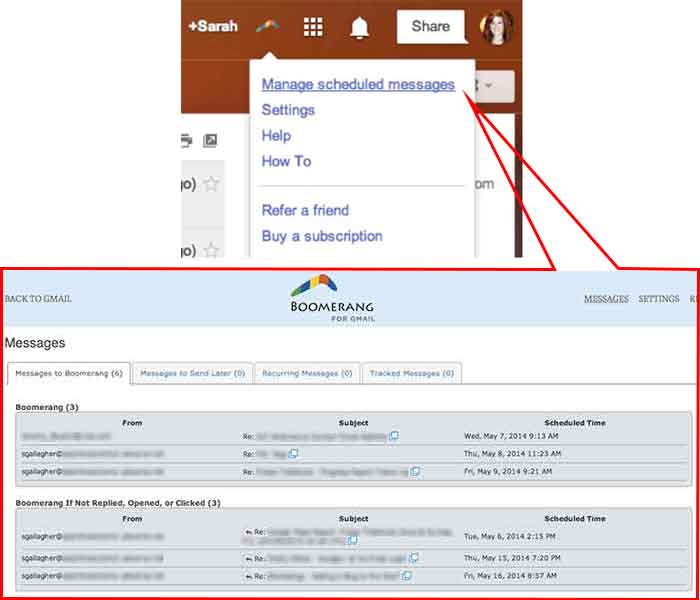
    Boomerang is a great tool to use for scheduling emails and following up with people. Often, I work late nights, but I don’t want to send emails that late mainly so the person who receives it won’t know I work until 9:00 at night. I can compose an email and schedule it to be sent anytime in the future. You can also set it to “boomerang” back into your inbox if someone does not reply or open the email you sent. You also have the ability to manage and edit any of your scheduled messages. Boomerang allows you to schedule or return up to 10 messages per month. If you find yourself needing it more than that, there is a subscription available for purchase.

    07-SpecificSendTime

    08-BoomerangSettings

    10. Rapportive

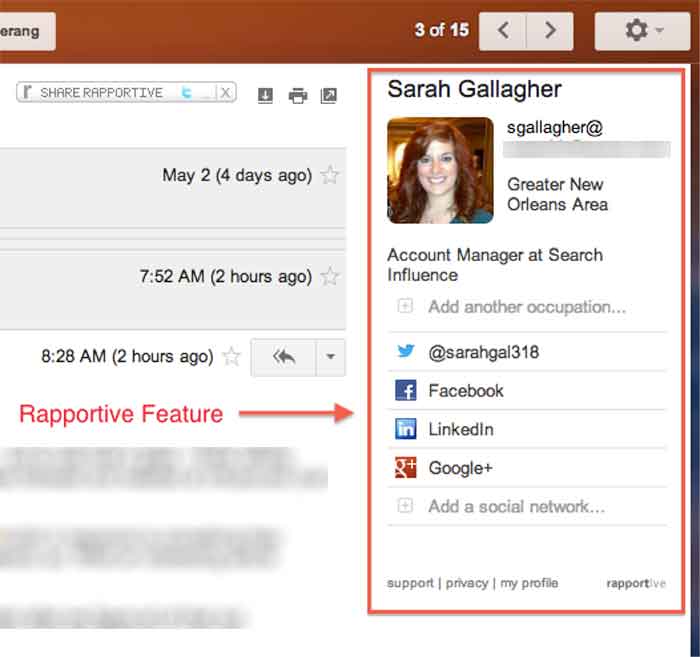
    Rapportive is a feature that shows information about your contacts right in your inbox. They “combine what you know, what your organization knows, and what the web knows,” to display this information in the right sidebar of your email. I like this because it’s an easy way to connect with those people on social media (ie: put your great stalking tendencies to work 😉

    09-Rapportive

  • The Secret Life of Gmail (Part 1)

    Part of my everyday is sorting through ~150 emails, which can be quite taxing if you don’t have a good system in place. We use GMail for our email system at SI. I know most small businesses probably have their email system already figured out, but if you don’t, I would HIGHLY RECOMMEND using GMail as it has lots and lots of great features that make emailing less painful. I have learned some great tricks offered within Gmail- far too many for just one blog post. This first post is about organizing and archiving your email account. Part two will be geared towards writing and scheduling emails. I hope you find this helpful!

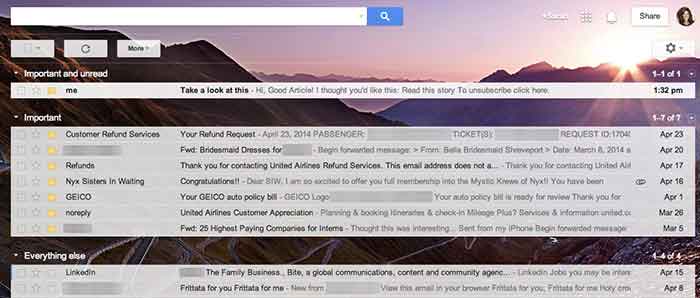
    1. Priority Inboxes

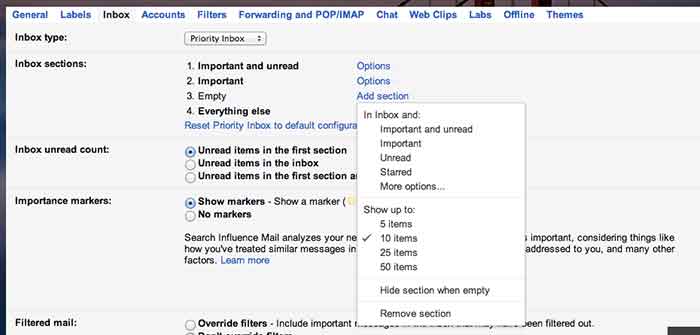
    Priority inboxes are a great way to organize your inbox if you have trouble figuring out what’s important and what is actually relevant to you. This setting is very customizable, and you can set the number of emails you wish to see or have visible per section. I have mine set up as Important and Unread, Important, and Everything Else. Important and unread is exactly what it says- all messages that are marked as important or all messages that are unread. Important is everything that I have read and marked as important, but I haven’t necessarily responded to or handled the particular issue yet. Everything else is compilation of things I just need to file away or delete (because they’re not applicable to me).

    GmailSettings

    2. Important Arrows

    These are great in combination with the Priority Inbox. If you use these, Google will start to learn what is and is not  important to you. It will learn to sort them in the priority inboxes accordingly.  When I get an email in my Important and Unread, Google knows to put it there because it has the important arrow. If I receive an email in my Important and Unread section that is actually not applicable to me, I uncheck the arrow. That way, the next time I get a similar email (with that same subject or from that same person), Google puts it in my Everything Else inbox. It works the other way too- if I see something in my Everything Else Inbox is actually important, I put the important arrow with it, and Google moves it into my Important and Unread Inbox. It learns these habits over time, so your Inbox for the most part really does become organized.

    Gmail-Inbox

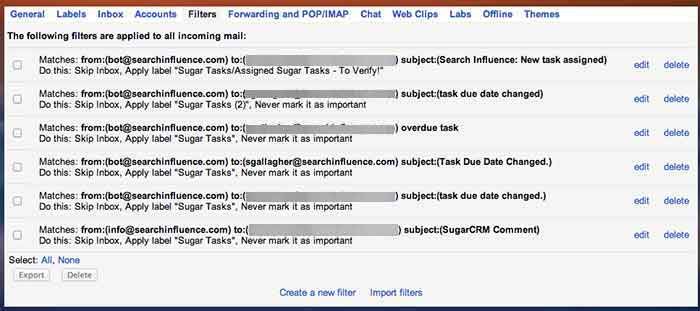
    3. Filters

    Do you find yourself receiving emails that you don’t ever need to read or open? We get emails from our CRM system all the time, but I never look at them because, frankly, I receive way too many other emails a day that are much more important. So, I have set up a filter so the emails I receive from that recipient are automatically filed away into my “CRM” folder. They never actually show up in my inbox! To set up a filter, go to settings, filters, and then create new filter at the bottom. You can perform a search function by email recipient addressed to you with a certain subject line, etc. You can set it so GMail will either automatically apply a label or archive it into the folder you have identified. This will save a lot of filing time if you have emails similar to this coming to you everyday.

    GmailFilters

    4. Unread Messages Icon

    This is a Lab in the settings. If you’re like me and you leave your email open all day in a tab (I know I shouldn’t, but hey- we all have our vices), you can enable this feature so you can monitor your email as you are working on other tasks. My recommendation is if you get more than 10 new messages, you should probably hop back over to your email just to check and make sure nothing SUPER important needs to be tended to.

    GmailInboxTab

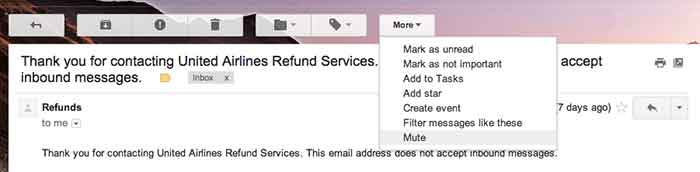
    5. Mute Button

    This is a great feature that you can use to mute conversations if they keep popping up in your inbox. I get a lot of emails that are not related to me, so I often put a “Not Mine” label on them. If that same conversation pops up again in my inbox, I’ll see the “Not Mine” label on it, realize that it is not for me, and press the mute button. This will make it so if anyone else responds on this email strand, the conversation will no longer come to my inbox, but it will stay filed away in its folder. BRILLIANT STUFF HERE!

    Gmail-MuteEmail