Tag: maps

  • Five for Friday: Twitter Trends, #Mobilegeddon, the State of Moz, and More!

    1. Twitter Is Rolling Out Trends with Descriptions on the Web – Marketing Land
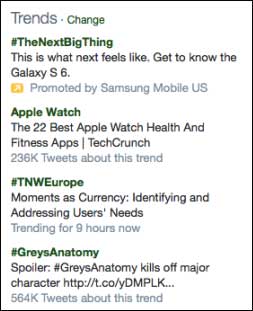
    TwitterTrendsListImageIn an effort to improve engagement with its more casual users, Twitter has made multiple changes to its platform. The most recent has just rolled out on mobile and web, offering descriptions and metrics on trending topics. Now, you can see what a trending topic means and how many other users have shared it.

    2. Moz’s 2014 Annual Report – Moz

    SEO authority Moz has just released their annual report for 2014, showing “many ups and downs.” Despite a few challenges this year, CEO Sarah Bird still proudly showcases the decrease in cost-of-revenue, increase in workplace diversity, and interesting work perks like charity donation totals and paid vacation. In this bid for transparency, we see another interesting example of tech company work culture.

    3. Mobilegeddon Is Here: Google’s Mobile-Friendly Algorithm Is Live! – Search Engine Journal

    Wondering what all the hubbub is about with Google’s new update? Normally, Google doesn’t give much warning ahead of its changes, but this one has been on the SEO world’s radar since last October. Google’s major mobile-friendly push will affect more sites than either Penguin or Panda. But don’t worry: if your site is already mobile-friendly, your ranking won’t be affected. If not, Google’s Webmaster Tools feature will tell you how to fix it.

    4. How Mobilegeddon Impacts Paid Search – PPC Hero

    Speaking of #Mobilegeddon, it’s very likely Google’s Ad Rank formula will be affected by the new mobile criteria. With the changes leading up to the algorithm rollout, we saw both organic search results and AdWords ads labelled with the “mobile-friendly” tag. So it’s not a stretch that AdWords ads will also be affected by how mobile-friendly a website is, both as a factor in the ranking formula and as it affects ad extensions and formatting.

    5. Game of Angels Maps Tech Influence Networks – Tech Crunch
    influencermapimage

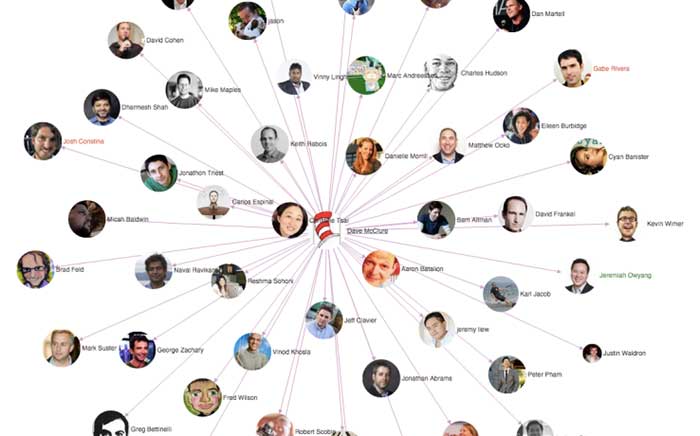
    Developer Pierre-Jean Camillieri is trying to answer the question “who influences the influencers” with his new tool, Game of Angels. Though the program is in its early stages, it could help entrepreneurs connect with industry leaders who have the most online clout.

    The tool gives a visual map of influencers and their major connections based on the number of interactions they have. However, it’s currently limited to those Camillieri himself deems major influencers and industry leaders.

    Image Sources:
    Twitter Trends

    Influence Map

  • Googleplasty: How to Reshape Your Search Results (Part 1)

    As businesses grow more in touch with their online presence, it becomes more and more challenging to stand out in the search results of highly competitive markets and areas—and nowhere is this perhaps more true than in the cosmetic medicine industry.

    Search Influence - Plastic Surgeon Local Google Search Results

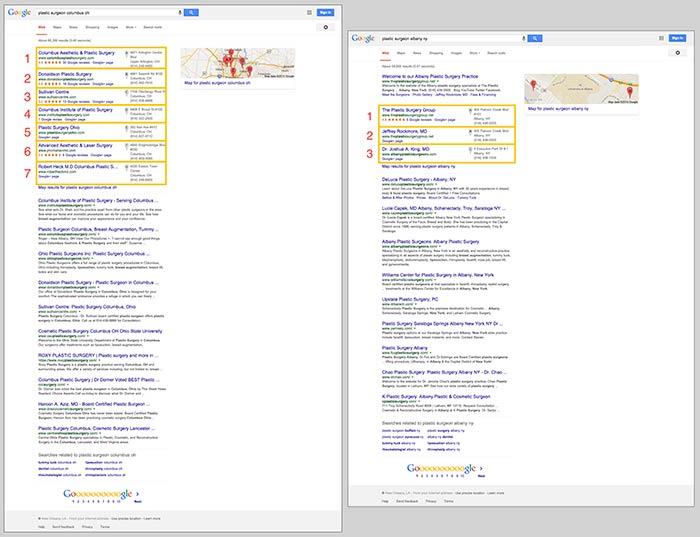
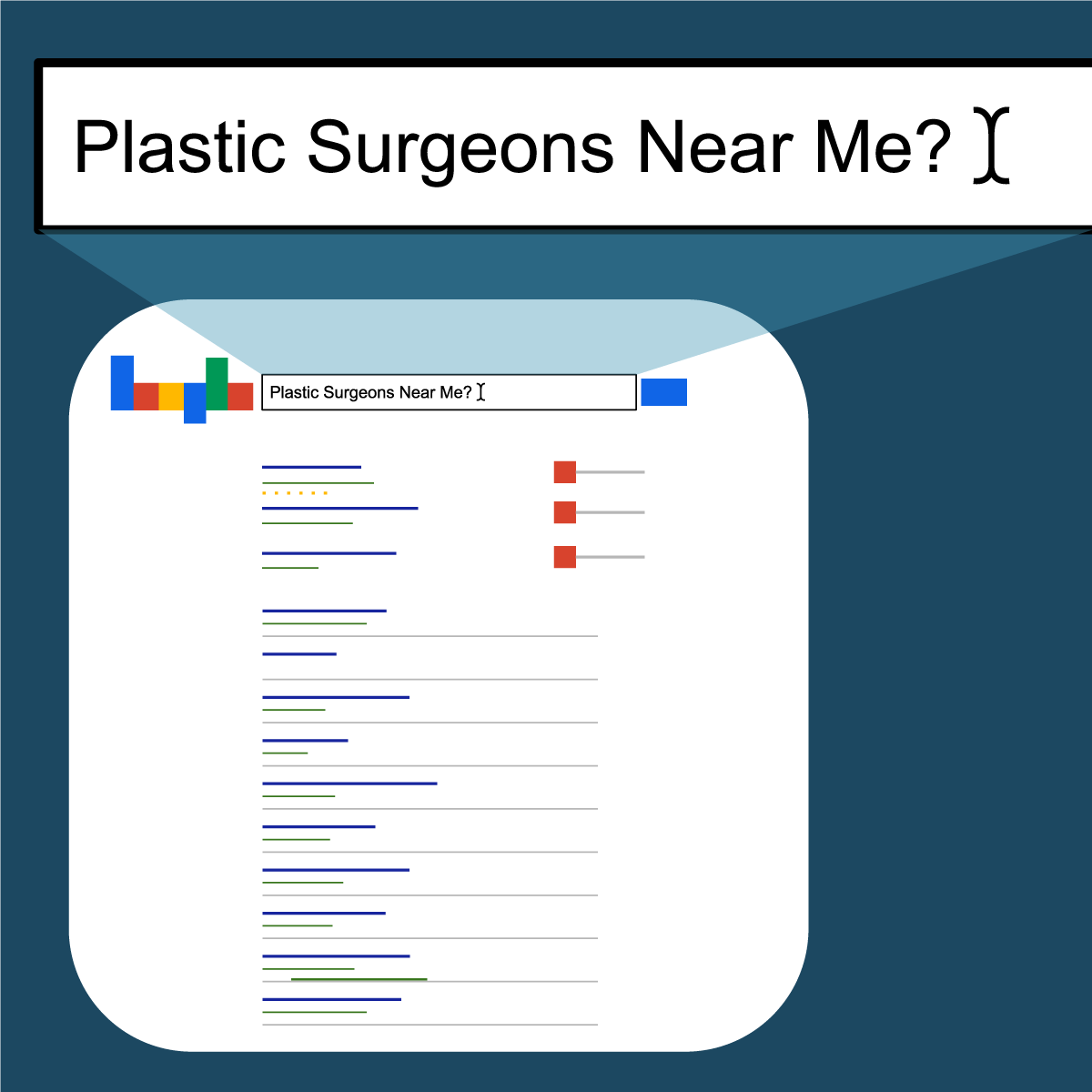
    First things first, let’s make sure we’re on the same page about the two major kinds of results that we see in desktop results for plastic surgeons. “Localized organic” search results and “maps pack” results typically appear together in what is referred to as “combined” search results. The factors that determine what appears in these two areas are not the same, as you can tell by the the difference in results and by the appearance of a site more than once between the two. Maps packs can come in a variety of forms and don’t show up for all search queries, which is also important to note.

    In the screenshot below on the left for the search “plastic surgeon columbus oh,” you’ll see 10 localized organic results below a 7-count maps pack. In the screenshot on the right for “plastic surgeon albany ny,” you’ll see 10 localized organic results, but the 3-count maps pack appears below the first organic result.

    Search Influence - Google Maps Pack Plastic Surgeon

    Stand Out in the Maps Pack

    In the maps pack itself, the most striking features are the review stars and rating display. The data in the maps pack area is pulled directly from Google Plus local listings in Google Maps. So, to make your practice stand out in the maps pack, you should claim and verify your Google Plus listing via Google My Business.

    Once you’ve claimed and verified your listing, you’ll want to get reviews from your patients. It’s important to understand that one or two reviews a month over a few months is better than 15 reviews in one week. As with most online marketing strategies, natural behavior is the best behavior.

    Stand Out in Localized Organic

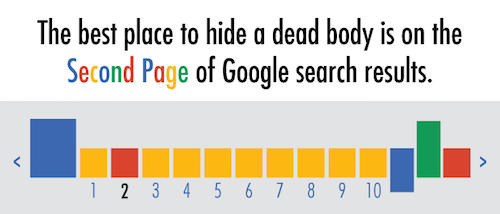
    The most obvious way to stand out in the localized organic results is to be ranking as high as possible and to AT LEAST be in the top 10 so that you’re on the first page. As the age-old SEO joke goes, “The best place to hide a dead body is on the second page of Google search results.” Hardly anyone looks past the first page, and—according to eye-tracking data—not many look past the top half of the search results page.

    Search Influence - dead body Google Search Results meme

    The Google PageRank algorithm that determines these rankings takes into account somewhere around 200 factors, so it’s not as simple as pinpointing one or two efforts to be made.

    Now that we’ve got a better understanding of what we’re looking at in search results, we can start to understand the major factors that affect ranking in each of these sections. Stay tuned for my next blog, where we’ll talk about the top five ranking factors in the maps pack, in the localized organic results, and in competitive markets!

  • Don’t Be Afraid To Stop & Ask For Directions: Making Google My Maps for SABs

    As promised in my last blog about the new Google My Maps, I’m here today to teach you how to how to create My Maps for service area businesses (often referred to as SABs) that have highlighted boundaries of what counties or parishes they service.

    Before we delve into this guide, let’s start with the basics like what exactly is a KML file. KML is the file format used to show geographic data in mapping programs. It is an XML based format and stands for Keyhole Markup Language. Now that you know what this file type is, let’s see how you can use it.

    How to Use Old 2011 KML Files

    Fun Fact: The U.S. Census Bureau holds kml files for all county guidelines here!

    As you can see, they’re from December 2011, so any boundaries that have changed since then will be incorrect. In a very general sense however I’ve found these codes very useful in the past. Each file contains all county boundaries in one state, but the tricky part is that they don’t tell you what state it is in the file name. I went ahead and downloaded them all a long time ago and updated the file names to reflect the state they contain. It’s pretty closely in alphabetical order so if you just use a list of US states in alpha-order next to the list of files in numerical order it should match pretty closely.

    Once you’ve figured out which file contains the state you’re looking for, find the county or counties that you want to display in your map, and move it’s entire code for each county (should start with “Placemark” attribute and end with the closing of the “Placemark” attribute) just below the “Document” attribute. Once you’ve moved the boundaries you want to keep to the top of the KML file, remove all the excess counties and leave the closing attributes for “Document” and “kml” at the bottom.

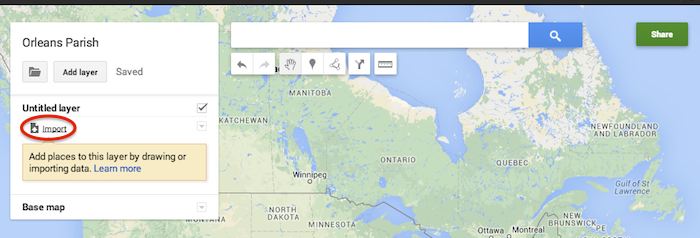
    Now that you’ve successfully prepared your KML file, in My Maps, click Import on the left and choose your KML file from your computer.

    Import A KML File To My Maps - Search Influence

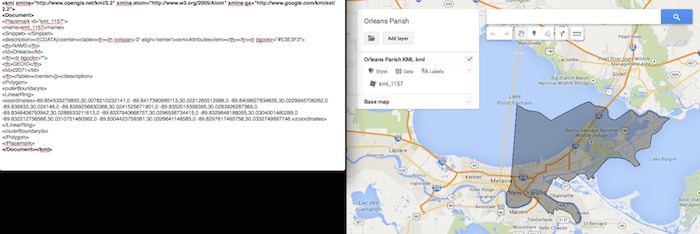
    See the screenshot below for an example of how your KML file should generally look if you’ve done it correctly. The screenshot shows the file for Orleans Parish of Louisiana in TextEdit and then what said file looks like imported into My Maps. (NOTE: In order to show a not so massive screenshot of the KML code, I removed about 3/4 of the coordinates. There are a massive amount of coordinates used to make up these detailed boundaries.)

    Preparing Viewing A KML File In Google My Maps - Search Influence

    How to Use New 2013 KMZ Files

    The U.S. Census Bureau also has the most up to date 2013 files, which are KMZ format (note the .kmz instead of .kml extension). This is essentially zipped KML files with a .kmz extension, but if you use a Mac like me, unzipping or unpacking the zipped file is not easily achieved. The 500k file contains the most detailed boundaries out of the 3 options.

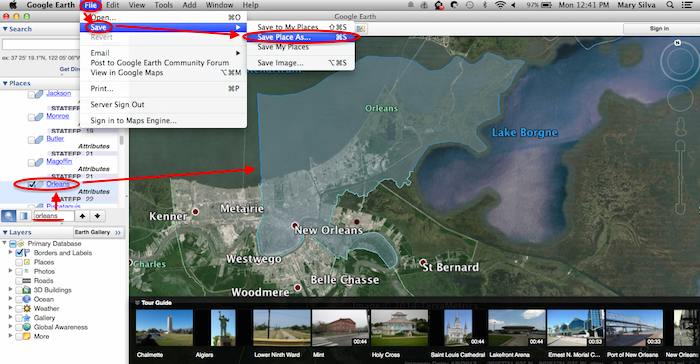
    So, the way I handle this KMZ file is to open the entire file in Google Earth and export just the KML file of the areas I want displayed. To do so you’ll use the search feature of Google Earth on the left at the bottom of the “Places” window to search for and select the areas you want displayed. Since many counties have the same name you’ll want to make sure it’s showing up in the state and location it’s supposed to. Also, note that if you’re trying to add multiple counties in the same state, the Attribute number to the right of the county will be the same for all counties within the same state. This should help you easily identify the counties you’re looking for when adding multiple.

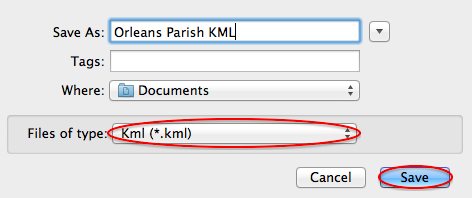
    Once you’ve selected the geographic areas you want displayed on your map in the “Places” section, then save the file as a KML file by clicking File>Save>Save Place As….

    Saving A KML File from Google Earth for Google My Maps - Search Influence

    My Maps will not accept a KMZ file, so make sure to save as a KML.

    Saving a Map in Google Earth As a KML File to Use in My Maps - Search Influence

    Once you’ve saved your file, follow the same steps mentioned above to import the KML file to My Maps. I’m not sure if the paid My Maps Pro is any different, but it appears to me that you cannot import multiple KML files to one My Map. So, in the event that you want to represent multiple service areas in one My Map, you’ll want to have all of the geographic area codes in one KML file.

    This Google Earth process can also be used instead of manually editing the older KML file codes as shown in the first instructional section in case you don’t want to delve into the coding via text edit. It’s definitely an easier route, but for me, Google Earth can sometimes run slow when trying to handle these files and I don’t mind manually editing code.

    Hopefully these steps and screenshots help out a fellow My Mapper!

  • Avoid Detours: Claim and Edit Your Apple Maps Listing with Maps Connect!

    In the past, the only way you could edit Apple Maps listing was through user feedback on the mobile app. Recently, with our company’s big move from Uptown to the CBD New Orleans, the best way to go about getting our address updated in Apple Maps at that time was to email the whole company and have them mass-submit user feedback about the address change. (P.S. it worked!) These kind of mass-effort cleanup requirements made editing your business information as difficult as crossing The Narrow Sea in Game of Thrones. Thankfully, with the release of Maps Connect from Apple, you can now claim, verify, and edit your Apple Maps listing via mapsconnect.apple.com without the hassle of the above process.

    While the data provided to Apple Maps still primarily comes from Yext and major data feeds, such as Localeze, Factual, and Acxiom, the new Maps Connect allows businesses to be in direct control of their Apple Maps information. Businesses no longer have to rely on data feeds to change their information.

    While it’s a pretty intuitive and user friendly process, I’m going to walk you through it!

    Step 1:

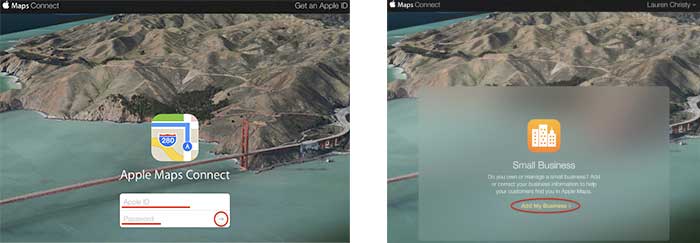
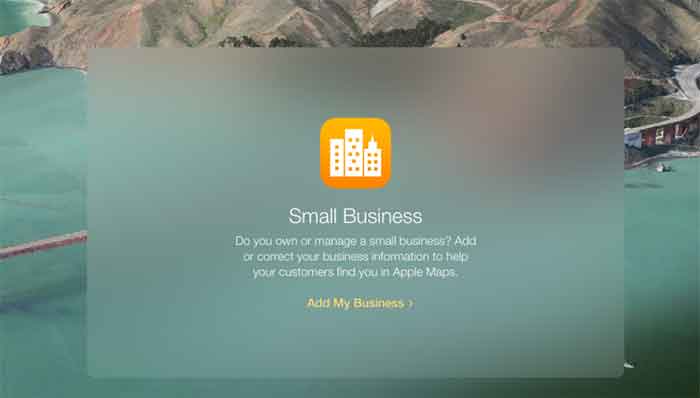
    Click “Add My Business” to get going.

    Step 2:

    Log in with your Apple ID or create a login if you don’t already have one.

    AppleMapsConnectImage

    Step 3:

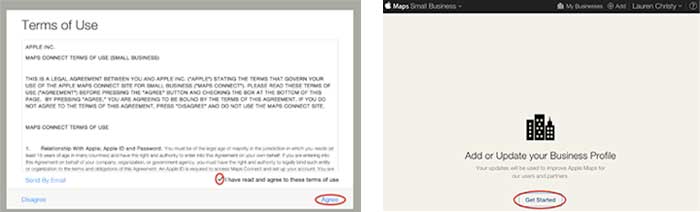
    Read the “Terms of Use,” check “I have read and agree to the terms of use,” then click “Agree.”

    Step 4:

    Click “Get Started” to finally start the actual claiming process.

    GetStartedAddorUpdateBusinessProfile

    Step 5:

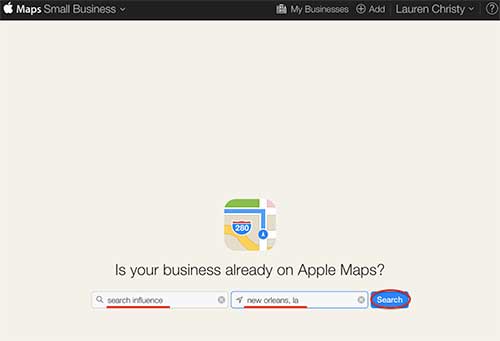
    Search to see if your business is already on Apple Maps by entering your business name, city, and state in the respective fields, then click “Search.”

    IsYourBusinessonAppleMapsImage

    Step 6:

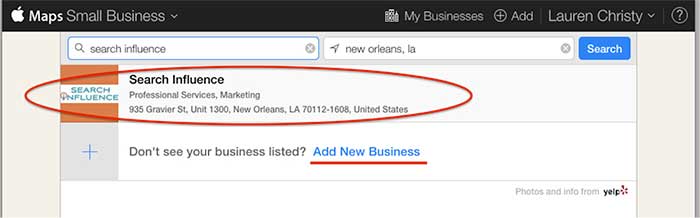
    Based on the results you get, either click on your pre-existing listing to claim it, or click “Add New Business” if yours is not already on Apple Maps.

    NOTE: You should always try searching for truncated versions and any possible variations of your business name before assuming it’s definitely not in a directory.

    AddNewBusiness

    Step 7a:

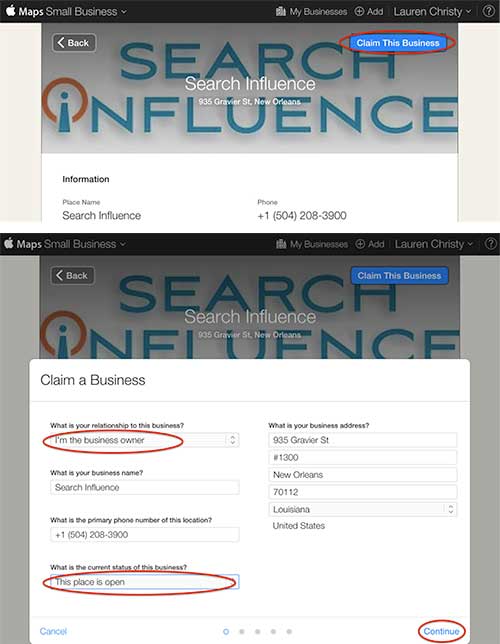
    If claiming a pre-existing listing, you’ll be taken to the live listing of your business where you can click “Claim This Business” in the top right-hand corner. Then you’ll choose your relationship to the business, change any of the business information that is inaccurate, choose the status of the listing, and click “Continue.”

    ClaimThisBusiness

    Step 7b:

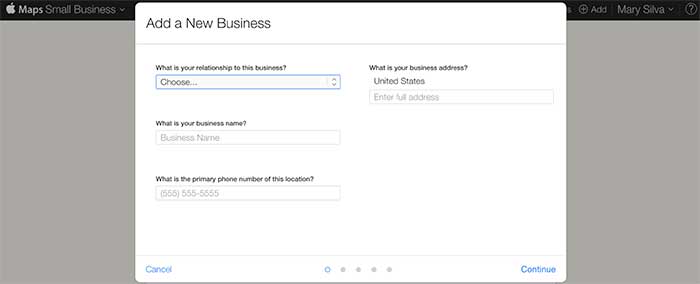
    If creating a new listing, you’ll be taken to a screen to fill out your businesses NAP (Name, Address, Phone Number) and your relationship to the business.

    FillOutBusinessNAP

    Step 8:

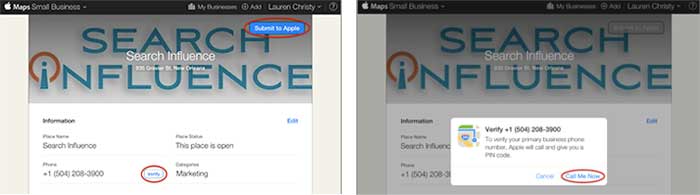
    In either case, the last step is a phone verification. By clicking “Submit to Apple” in the top right corner or “Verify” next to your number, you’ll be taken to a screen to verify your phone number by clicking “Call Me Now.”

    SubmitToApple

    Much like other higher-level directories (think Google, Yahoo, Bing,and Yelp) this phone verification is an immediate, real-time call to the business number to relay a pin. If the phone call with the code doesn’t work the first time, much like Apple’s process for bad pin-code entries on products like the iPhone and iPad that have passcode locks, you have to wait 1 minute to try again, then 5 minutes the next try, and 25 minutes after that. You can circumvent the wait time, however, by logging out of Maps Connect and logging back in.

    Since this is an automated process, businesses like ours with phone tree systems will suffer the inability to phone verify for now. I reached out to Apple Support to see if there’s an option to request a manual phone call to verify or some kind of domain-email verification. Within 24 hours the replied that they “manually reviewed and approved [our] profile” which I assume was because of our domain email being used in our account. Hopefully they’ll take a tip from from Google, Bing, and Yahoo and eventually allow a postcard verification option. Maps Connect is also currently only available to U.S. businesses.

    According to the folks at Search Engine Land, “Updates or new listings will show up within a week or could show up more quickly depending on the situation and whether the listing was flagged and/or there’s additional verification required. Beyond this, Apple has additional fraud prevention measures in place, but didn’t discuss them extensively.” So be patient when making any updates or edits.

  • Is Apple Pay Keeping Google Wallet Away? Yelp Gets Posh + More!

    1. Apple Pay Launches as a part of iOS 8.1
    – Mashable

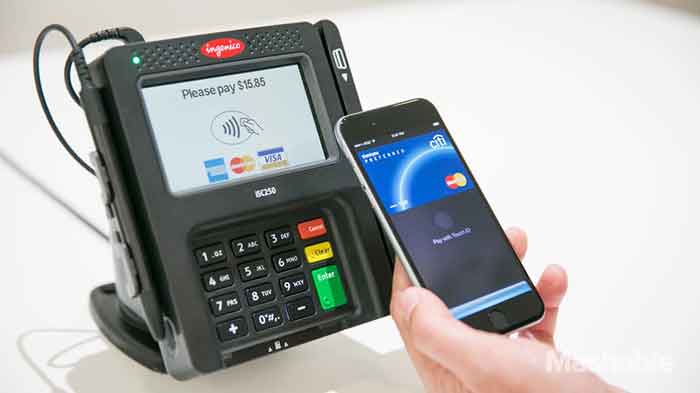
    On Monday, one of iOS 8’s most anticipated features, Apple Pay, went live. iPhone 6 and iPhone 6 Plus users only had to download the iOS 8.1 update and add a credit card to Passbook to start using the feature. In theory, a user only need connect a card, hold their iPhone to a pay terminal, use their personalized Touch ID and be on their way.

    Apple Pay does not link with loyalty cards, nor can it bypass the seemingly never ending prompts you encounter at supermarkets and drugstores. The near field communications (NFC) feature can work with most payment terminals, with most major banks and the list of participating merchants is expected to continue to grow.

    ApplePayImage-SearchInfluence

    2. Google was here first with Google Wallet
    – Mashable

    Although Apple Pay has greatly overshadowed it, Google has had a similar system since 2011 called Google Wallet. But if Google really was the hipster of cellular device tap and pay, why is Apple getting all the credit (pun intended)?

    Apparently, it’s the service providers such as AT&T, Verizon, and T-Mobile that have been obstructing the visibility of Google Wallet for the past three years. While Google controls the Android software that carries Google Wallet, the service providers control the hardware and carried minimal phones capable of using the feature. Apple, on the other hand, controls the hardware and software of their devices.

    Google hopes to gain more media and user attention following the launch of Apple Pay because unlike Apple, Google Wallet is compatible with any bank and any credit card.

    3. Drivers for Uber Protest Company Policies
    – Business Insider

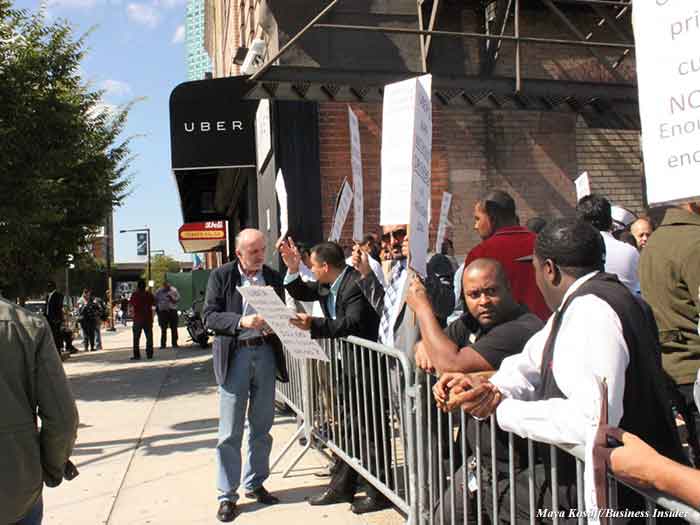
    Drivers for the ridesharing service, Uber, are not happy this week. On Tuesday, drivers organized across the country to protest the company’s policies, including those on reduced fares, tipping, the driver rating system, and driver safety.

    Drivers say that because of Uber’s reduced fares, they are losing money and find shorter trips not worth the cost of gas they require. They feel the company’s automatic tipping policy, that requires drivers to deny cash tips from customers that wish to give one, is only adding to their struggles. Drivers also face concerns over their personal safety when dealing with disgruntled or intoxicated passengers.

    Uber has yet to comment on the matter.

    UberProtestImage-SearchInfluence

    4. Yelp Adds Hotel & Winery Reservations to Business Pages
    – MarketingLand

    Remember last year when Yelp teamed up with OpenTable to make booking a restaurant reservation as simple as a tap of a button? Instead of food, this time it’s rooms and wine. Early on Monday, the company announced that business pages would now do hotel bookings, via Hipmunk, and winery reservations, via CellarPass. Yelp has also expanded its booking services to a number of other third party delivery and reservation services.

    While Yelp does not charge businesses directly for access to these features, the third party providers do and give Yelp a share.

    5. Maps Connect – An Aspirin for the Maps Corrections Headache
    – Search Engine Land

    On Tuesday, Apple launched Maps Connect, a free service that allows small business owners to manage listings on Apple Maps via their Apple ID. The process requires a one-step verification phone call. After that, the business owner is free to manage their listing or listings seamlessly. Updates or newly created listings show up within a week or sooner.

    The service does require an Apple ID, so those without it will need to download it. It also is intended for small business owners themselves, or authorized representatives, but not third party agencies.

    Currently, Maps Connect is only available stateside, but Apple plans to expand overseas in the future.

    AppleMapsUpdateImage-SearchInfluence

    Image Sources:

    Thanks to Mashable for the Apple Pay photo, Maya Kosoff of Business Insider for the Uber protest photo, and Search Engine Land for Apple Maps Self-Service photo.

  • Five For Friday: Vine Allows Video Imports, AdWords Launches New Bulk Editing, Snapchat Does News, And More!

    1. Vine Finally Lets You Import Videos From Your PhoneMashable

    Love making videos on Instagram? Well guess what! The popular app, Vine, is finally allowing users to upload videos from their phones.

    In addition to being able to import your own videos, Vine now also allows you to edit videos, and they have been encouraging users to upload older videos stored on their phones and share them with hashtag, #VintageVine. Check out the announcement video below!

    2. Google AdWords Launches New Bulk Editing ToolsSearch Engine Land

    Google announced early Wednesday morning that AdWords will now contain a bulk editing feature. This snazzy new tool will allow users to update their settings per campaign in a more user-friendly and efficient way. Some of the benefits include:

    • A filter for campaigns targeting specific location
    • Updating multiple campaigns with a new targeted location
    • Adjusting other settings such as language, campaign end dates, and ad rotation

    DrakeAndJohnGifImage

    3. Snapchat is Planning A Move into News, AdvertisingMarketing Land

    ghostsmilingimageThe Wall Street Journal reported Wednesday that Snapchat is expected to launch Snapchat Discovery in November. This new product will allow Snapchat users to read news articles and watch video clips the same way they do now: by holding their finger down on a phone screen. The Journal also reported that Snapchat CEO Evan Spiegel is looking to get into advertising for his popular app.

    4. Bing Maps Adds Hundreds of Streetside & 3D City Images; Plus New HD Aerial ImagesSearch Engine Land

    Bing announced a massive maps update this week. Bing Maps now has over 100 cities that support Streetside imagery across America, including Richmond, Boston, Denver and more. They also now have 3D city images and new, high resolution aerial images. 3D cities are viewable through the Bing Maps Preview app, available exclusively on Windows 8.1. Bing Maps also has new high-resolution imagery in over 150 countries on every continent in the world, covering five million square kilometers.

    5. Moz Announces Brand New Beginner’s Guide to Link BuildingMoz

    Moz released their third guide for marketers this week. As all marketers know, link building has changed over the years. One thing that has not is the importance of link building. In this updated guide, readers will learn:

    • What is link building, and why is it important in SEO?
    • What are good links and what are bad links?
    • How you can start a link building campaign
    • Link building tactics
    • Link building metrics
    • The good, the bad, and the ugly of link building
    • Advanced link building tips and tricks

    Click here to download the PDF!

    ApplauseGifImage

  • Addressing Duplicate Listings In The New Google Places for Business

    Welcome back to the wonderful world of Google! Last week I explained in a post the email that Google Places for Business has been sending out to business owner accounts.

    Part of that email included a bit about your account containing listings that were identified by Google as being duplicates existing within your account. Now I’m here to explain to you the two most common ways in which we see duplicate Google listings and how they can be addressed.

    Internal Duplicates

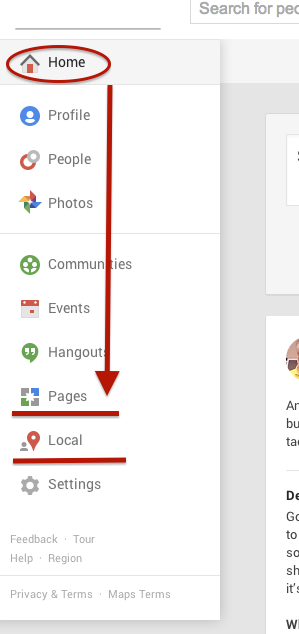
    Screen Shot 2014-03-14 at 1.00.44 PM (2)One way we tend to see duplicate listings in Google Places is from within your business owner account, in your own business dashboard. To see how your businesses are appearing in your account dashboard, go to the Places for Business dashboard, which can be found by going to plus.google.com. Then click “Local”(to see your  Location pages) and “Pages”(to see your Location, Brand, or other Google Plus Pages) in the drop-down on the left.
    The Local dashboard is where we generally identify internal listing duplicates. With the bulk dashboard updates performed by Google, we’ve seen this happening quite often. Since a lot of businesses have been force pulling their listings into the new dashboard by claiming them through the Places section of plus.google.com, there appears to be two listings in the dashboard of these accounts after Google’s mass update.

    Generally, one of these listings appears as verified (the one forced pulled into the new dash) and the other as unverified (the one Google pulled over). Sometimes they both lead to the same G+ page when you click through the “view this listing” link in each. This is just a weird hiccup, and if you wish to clean up the dashboard by deleting the unverified one, it will not affect your listing. As long as you have the verified listing in the new dashboard, you are the sole owner of said listing under this new update.

    In other cases, however, we’ve created a verified local social page through our force pull into the new dashboard that has all of our social content like G+ posting and YouTube videos. Then, when Google pulls in the location page from your old dashboard, that page is a “duplicate” with all your old reviews on it. In this case, both pages would have content that you wouldn’t want your business to lose through “deleting” a duplicate. So, you’d want to make sure the reviews from the location page are moved over to the newer, verified page before having it deleted. This will require a phone call to The Google Places Team support center.

    Obviously if one of these pages has content that you don’t mind losing or doesn’t have any content, that page can be deleted. If the one you want to delete is the verified one and you need the unverified page to be your primary, verified listing, you might be able to avoid having to reverify the listing through getting assistance from The Google Places Team.

    External Duplicates


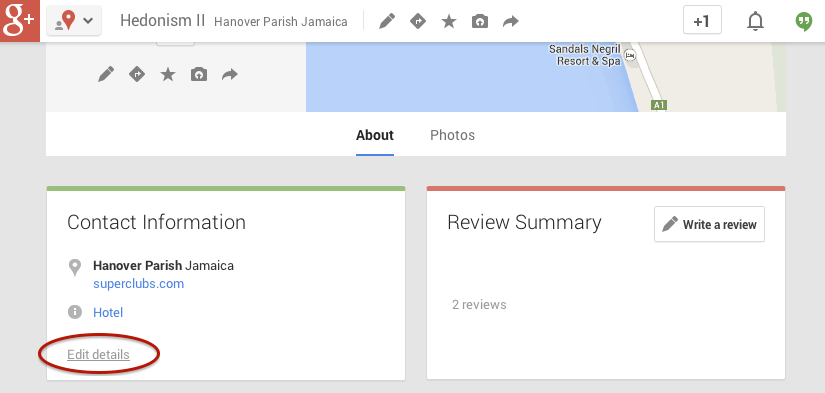
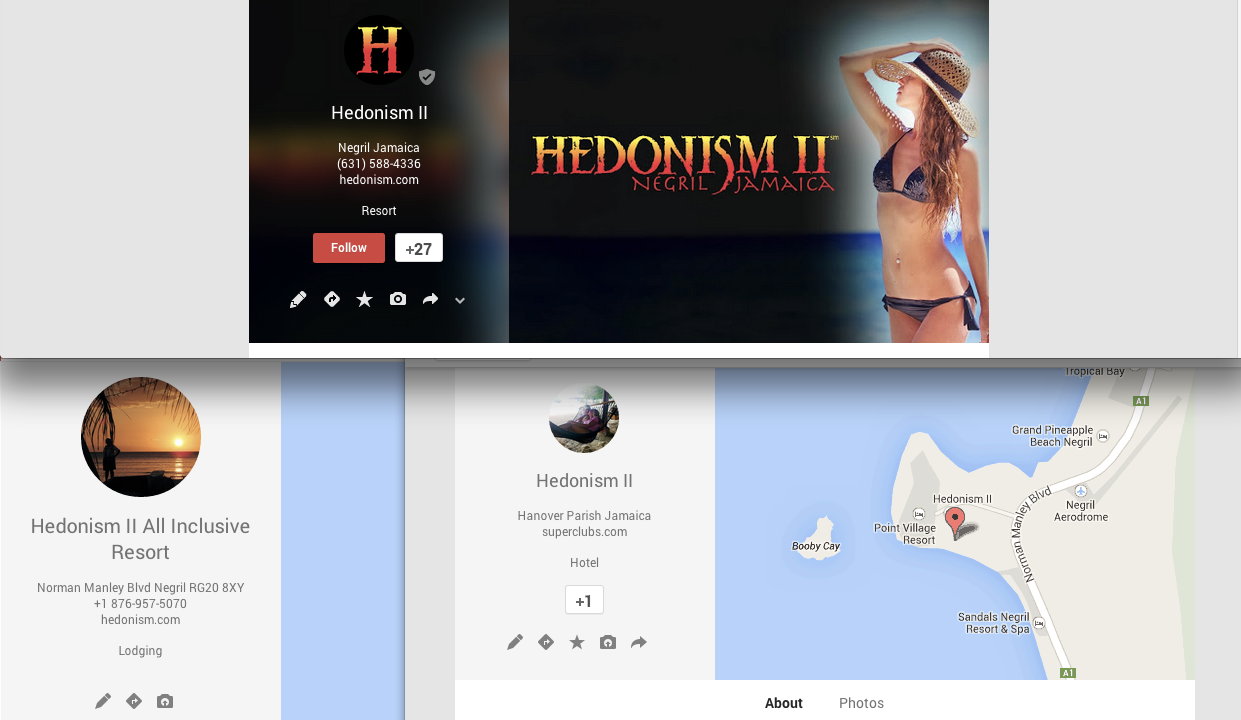
    Another way in which we see duplicate Google business listings is on the front end through Maps search results. You’ll see below that Hedonism II has a couple of duplicates that come up in Maps results. Getting these kind of duplicates cleaned up is a bit easier than the situation explained above. What you’ll do to remove these duplicates is called making a “community edit” or “mapmaker edit.”

    Screen Shot 2014-03-13 at 1.18.56 PM

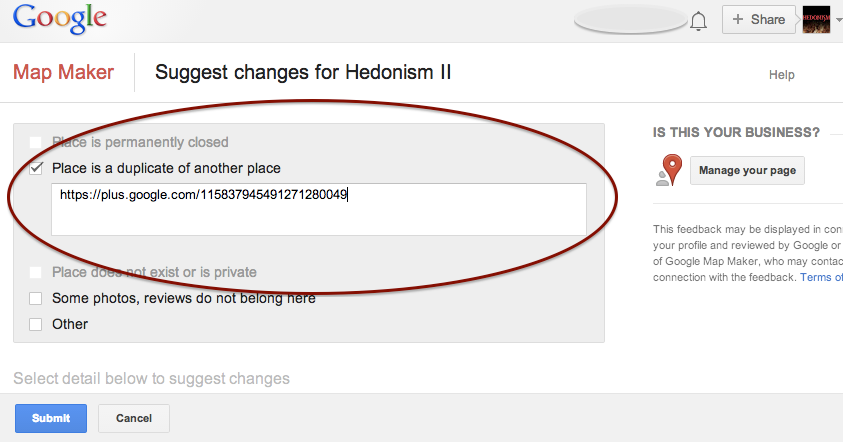
    Go to the duplicate listing you’d like Google to remove. Under the “About” section of the Plus page, then at the bottom of the “Contact Information”  you’ll see the option to “Edit details.” Once you click that, you’ll have to option click a check box to suggest to Google that this “Place is a duplicate of another place.” You’ll also have a box in which you can leave comments about the report. I suggest leaving a link to the correct/verified page in this field to help the duplicate identification process. See screenshots of this process below.

    In my experience, these changes will usually take affect within a week of reporting if Google deems it an accurate report. If no changes take affect in a week, I usually send the report again, wait a week, and repeat again as needed(I’ve never had to report more than 3 times, though).

    Understanding the many nuances of what’s going on here might seem fairly daunting, but the level of which you wish to understand these intricacies is dependent on how much control you wish to have on your business reputation/ presence in Google.

    Screen Shot 2014-03-13 at 1.20.25 PM Screen Shot 2014-03-13 at 1.21.06 PM

    If you have any questions, feel free to comment below!

  • Google Places For Business Email Update

    We’re still not panicking about all of Google’s updates! As many of you already know, Google has been sending out a Google Places for Business email that reads as follows:

    The Message

    Hello,

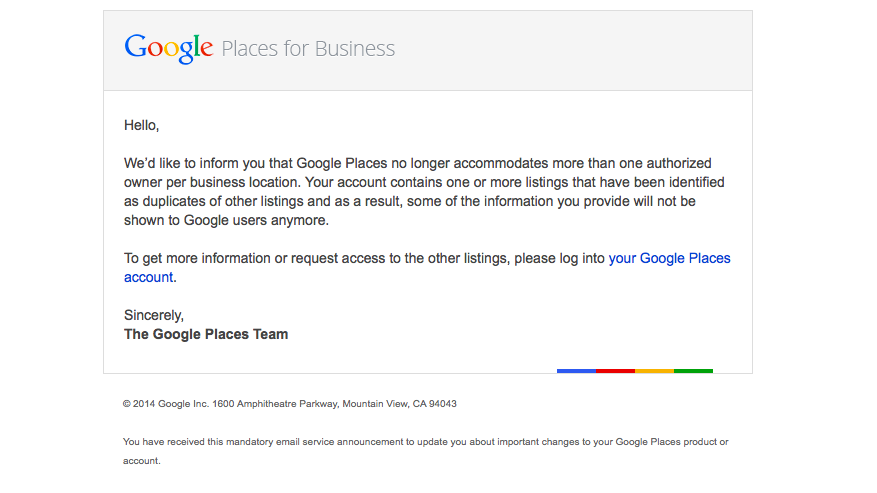
    We’d like to inform you that Google Places no longer accommodates more than one authorized owner per business location. Your account contains one or more listings that have been identified as duplicates of other listings and as a result, some of the information you provide will not be shown to Google users anymore.

    To get more information or request access to the other listings, please log into your Google Places account.

    Sincerely,
    The Google Places Team

    As this message is kind of vague/ confusing, I called a Google rep to get clarification on exactly what’s going on here. Bear with me as I explain what this means exactly and how it’s affecting business listings.

    The Meaning

    PrintGoogle is finally pulling all listings into the new Places for Business dashboard. In the old dashboard there could be multiple owners of a listing, but in the new dashboard there can only be one.


    As Google performs these batch listing upgrades, the first owner whose account is upgraded gets grandfathered in, so to speak, and they will be the sole owner of the listing through the new dashboard. If someone has already claimed and verified a listing in the new dashboard, however, then no one will experience the “grandfather” situation in the batch upgrades as it is already verified in the new dashboard and has its one owner.

    The good news is that many of us have been force pulling businesses into the new dashboard by claiming them through the Places section of plus.google.com. So the latter situation will have already occurred for most, and we will be the current, sole owner of verified listings in the new dashboard. (If you lose ownership of your listing in the batch update by Google, you can still request it back, it will just take time through a two week request period and contact with Google.)

    We have seen cases, however, where after the batch update by Google there appears to be two listings in the dashboard of accounts who have already pulled their listing into the new dash on their own. Generally one appears as verified(the one we forced pulled into the new dash) and the other as unverified(the one Google pulled over), but they both lead to the same G+ page when you click through the “view this listing” link in each. This is just a weird hiccup, and if you wish to clean up the dashboard by deleting the unverified one, it will not affect your listing. As long as you have a verified listing in the new dashboard, you are the sole owner of said listing.

    Now What?

    Basically, anyone who has ever had a listing in the old dashboard is receiving this generic email, and it is not necessarily an indication as to whether or not the listing is owned/verified in the new dash in your account. So, as long as we’re keeping on top of our business listings’ dashboards, there is no cause for alarm! There’s also the note about duplicate listings in the email. Duplicate listing issues are not something that occur in every account which receives this email. More to come on addressing duplicates in the new dashboard next week! If you’d like to see what others are saying about the email, check out Search Engine Land’s post from earlier this morning or these forums where people have been discussing particular, individual issues encountered (Google Product Forums and Local Search Forum).

    Here’s a screenshot of the actual email for those of you who would like to see it:
    Screen Shot 2014-03-05 at 10.42.19 AM

    If you have any questions or comments about this situation, feel free to comment below! Stay tuned for how to handle duplicate listings!

  • Don’t Panic! The Google 3 Weeks Places Update Isn’t Worldwide!

    Now that we’re done making sure your Google business account doesn’t get suspended for a name violation, we’re on the the next Google worry.

    HomeAlone
    http://www.flickr.com/photos/the_napkin/6469892859/

    You may have heard the buzz lately about an email going out to business owners in Google Places telling them that they have three weeks to update their listing. If the listing isn’t updated,  it will no longer be visible to Google users. The good news is that this is actually something that is only occurring for Australian businesses. Basically, you don’t have to worry!

    When we first heard about this issue at Search Influence, we were alarmed because an update like this could potentially affect many of our clients’ accounts. So, I decided to delve deep into the web and find out as much as I could from various online sources, and what I found was even more worrisome and ambiguous. Search Engine Watch’s post was the first that brought this issue to my attention. The post provided great information on what needed to be done by those receiving the email, but nothing about the scale of the email rollout and who was being contacted and why.

    The Word From Google

    Search Engine Journal’s post was awesome enough to give us the exact email google sent out, which reads as follows:

    Hello,
    Due to changes in Google Maps, we’d like to inform you that unless you review and confirm the information in your Google Places account, we will no longer be able to keep and show it to Google users after February 21, 2014.

    If you wish to keep your listing active, follow these three easy steps:

    1. Log in to your Google Places account
    2. Review and update your information
    3. Click the “Submit” button

    Sincerely,
    The Google Places Team

    The fact that the email instructed businesses to click a “Submit” button when updating indicated to me that these were businesses in the old dashboard. So, I thought I had a clue as to who was being contacted at this point.

    Next, I went to discussions on MOZ and Google Product Forums where I started seeing comments that maybe this was only something happening in Australia.

    Calling The Google Places Team

    Google-Plus-Logo

    After seeing both of these slightly alarming, but informative posts I decided to go straight to the source and call The Google Places Team. They were super helpful in taking the time to get to the bottom of the email and were forthcoming about the issue at hand. They also understood that something like this could affect a company like ours on a pretty large scale. The rep on The Google Places Team reached out directly to Google and was able to confirm with me that this is indeed something only happening to Australia Maps.

    There have been speculations as to whether or not this is something that could start happening outside of Australia, because Google has a tendency to do things in a test market before rolling them out worldwide. From what the Google rep told me, however, it seems like this is only happening because of an issue that was occurring specifically with Australia Maps.

    So, DON’T WORRY! United States Places Businesses are NOT at risk!!

    If you’re interested in reaching out to The Google Places Team, log in to your Google places account that has your business listing and click here:  https://support.google.com/business/contact/business_c2c

  • 5 Tips for Managing a Multi-Location Business Online

    Managing a business with multiple locations online can be challenging. It’s important to connect potential customers online with the business location nearest them. Follow these 5 tips for best practices for managing your multi-location business.

    1. All locations need their own individual page!

    It’s important for each location to have its own page on your website. You want each location page to rank for local search in the area. Having one page for each location maximizes the relevancy of the location web page to a searcher and has better chance of ranking locally, especially in blended results (organic mixed with maps results).

    2. Optimize content for each page 

    Add content to the page optimized for a top level keyword and location. Make sure to do this in a way that reads naturally.  
    Optimize all the thing meme
    Content can be relatively short and simple, explaining what the business is / offers, unique selling points, and where the business is located.  Make sure to also optimize the On Page heading (H1), title tag, and meta description as these are all important factors for SEO. It is crucial to have unique content for each page. Many businesses use the same content for all location pages, only switching out the geographical location. This duplicate content leaves the site vulnerable to penalties from Google. For a business with over 100 locations, creating unique content can be difficult. A tip for the writing unique, compelling content for these pages is to incorporate some “local flare” or any information specific to that location in the copy.


    3. Provide a good user experience

    On each location page, also be sure to list out the name, address, and phone number for that location. Its important for visitors that come to the page to be able to easily contact the business or find out where it is located. Adding a map with a pin on your location also proves to help visitors get a better visual of exactly where you are located. When listing the NAP for each, keep the format consistent across all pages. Make sure the name is the actual, official name of the business–instead of “Domino’s New Orleans”–as this will be consistent with other local listings across the web.


     photo 25650BaffinBayDrLakeForestCASelfStorageSmartStopSelfStorage_zpsb1f60ccf.png

    4. Tell Google where you are!

    Implement Hcard or schema around each name, address, and phone number of the location pages. Let Google know who and where you are. These are microformats that provide a standardized way to tell Google and other search engines your contact information. By implementing Hcard around your NAP, you can let Google know “this is my physical location.” Adding this code to the site will help the location page rank well in local search. By knowing where your business is located, Google now knows the page is more relevant to searchers.


    5. Consistent Citations

    When creating local citations across the web, be sure to list the name, address, and phone number of each location consistently. Having consistent listings across online directories helps enforce your physical address to Google and increases the chances of ranking locally. It is especially important to have your NAPs listed consistently on your Google+ local listings. If the directories allow, add the location landing page url in the website field, as this page is most relevant to the listing information.

    Google offers businesses with 10 or more locations a way to bulk upload local listing information. The upload process creates new listings as well as edits pre-existing listings. From my experience, this method has proved to be a very slow process. Bing offers very similar services for multi-location businesses, but 25 or more locations are required to use this upload. The most efficient bulk upload offered by a directory has to be Foursquare. I created a bulk upload for a business with 117 locations, and in less than 24 hours all the listings were created/updated and live.

    Following these 5 steps can dramatically help your local search presence. What other tips do you have for managing a multi-location business? Please share in the comments below!