Tag: email

  • De-stress and Prioritize: How to Keep Your Day-To-Day Organized

    ToDoListImage

    Everyone manages their time differently. With client meetings, calls, internal meetings, and day-to-day tasks, it sometimes gets hard to manage and prioritize what needs to get done.

    Since I’ve started working here in January, I have perfected my system of de-stressing and prioritizing my work so I can always be the efficient.

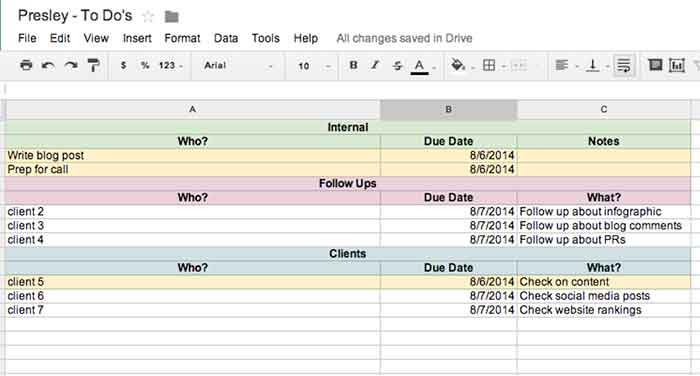
    I don’t know about you, but I work best off of lists. The to-do list that I use each day keeps me organized with internal to-dos, client to-dos, as well as follow ups that need to happen. From this one list, I keep my day-to-day organized!
    PresleysToDoListImage

    Step 1: Check Emails & Do Your Follow Ups

    The very first step of my day consists of checking all emails and replying as needed. Once you’re done with an email, file it away to keep your inbox organized. Also, doing your follow-ups at the same time is helpful because you can get everything out of the way at one time. My follow-up to-do list (see above) is where I go to see what clients I need to follow up on and what the follow up is regarding.

    Step 2: Check Your List & Prioritize

    Check your to-do lists (client and internal) to figure out what needs to get done that day. Give yourself due dates based on the priority of the project, even if the project doesn’t necessarily have a real due date. I highlight each project or follow up that needs to get done that day so it is easy for me to see.

    Step 3: Start On A Project

    Now you can actually start on a project! Pick the project that needs to get completed first based on the due dates you gave yourself. Although I like to finish projects before starting on another one, that is not always possible. Do as much as you can before you have to move on. If you must, set a time limit on each project to ensure you can get everything done that is needed.

    Step 4: Don’t Get Caught Up In Your Emails

    It can be tough seeing your inbox fill up while working on other important things that need to get done. However, don’t get caught up in your emails! Reply back to things that need immediate attention, but continue working on your priority project before starting another round of email replies. Once you’re done with what you are doing, then you can go back to your email if needed.

    Step 5: Re-Date Projects

    If you aren’t done with everything that you assigned for yourself to do that day, redate for the next day and start all over again!

    Of course everyone has their own ways of staying organized, but this system has helped me, and I hope it helps you too!


  • Finding the ‘meez’ – or How To Spend the First 10 Mins of Your Day

    If you’re like me and have a short attention span love a good list, you’ve probably read countless articles like this. Despite being a self-proclaimed efficiency expert, I’m always on the hunt for ways to be even more efficient, especially at the start of my day.

    A recent Harvard Business Review article showcases a tip from legendary chef Anthony Bourdain that is surprisingly as applicable in an office setting as it is in the kitchen. Mise-en-place – or the “meez,” as it is often called – is a French phrase that translates to “everything in its place.” In culinary practice, it involves studying a recipe, thinking through the tools and equipment you will need, and assembling the ingredients in the right proportion before you begin.

    Cooking Ingredients Image

    Despite the fact that I never remember to do this in the kitchen, it’s a great idea for professionals to follow as well. Begin your day with a brief planning session – an intellectual mise-en-place, if you will – by mentally mapping out your upcoming tasks and meetings (and don’t forget about lunch!)

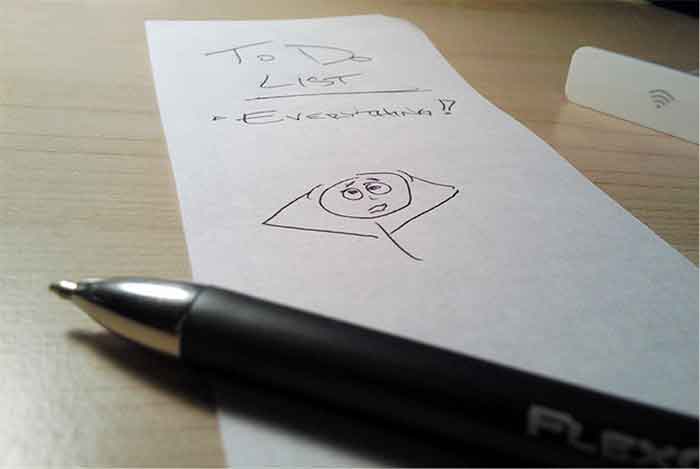
    Also, rather than checking your email immediately upon sitting down in the morning, productivity guru David Allen (how do I get that title?) suggests starting each item on your to do list with a verb. Having a list of actionable items makes it easier to check things off your list. I don’t know about you, but I find few things more satisfying than a well-marked to-do list.

    To Do List Image

    Once you’re done planning, grab a second cup of coffee – because let’s be real, you’ve already finished your first – and now you can take on the day head first with a plan!

    Image Source:  https://flic.kr/p/3mthCn

  • The Secret Life of Gmail (Part 1)

    Part of my everyday is sorting through ~150 emails, which can be quite taxing if you don’t have a good system in place. We use GMail for our email system at SI. I know most small businesses probably have their email system already figured out, but if you don’t, I would HIGHLY RECOMMEND using GMail as it has lots and lots of great features that make emailing less painful. I have learned some great tricks offered within Gmail- far too many for just one blog post. This first post is about organizing and archiving your email account. Part two will be geared towards writing and scheduling emails. I hope you find this helpful!

    1. Priority Inboxes

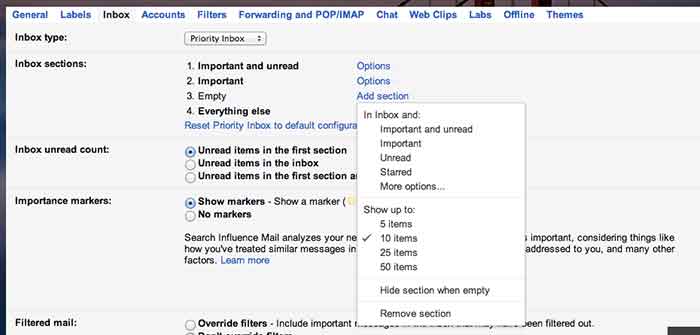
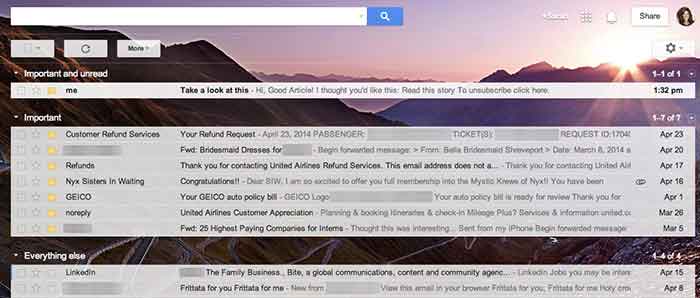
    Priority inboxes are a great way to organize your inbox if you have trouble figuring out what’s important and what is actually relevant to you. This setting is very customizable, and you can set the number of emails you wish to see or have visible per section. I have mine set up as Important and Unread, Important, and Everything Else. Important and unread is exactly what it says- all messages that are marked as important or all messages that are unread. Important is everything that I have read and marked as important, but I haven’t necessarily responded to or handled the particular issue yet. Everything else is compilation of things I just need to file away or delete (because they’re not applicable to me).

    GmailSettings

    2. Important Arrows

    These are great in combination with the Priority Inbox. If you use these, Google will start to learn what is and is not  important to you. It will learn to sort them in the priority inboxes accordingly.  When I get an email in my Important and Unread, Google knows to put it there because it has the important arrow. If I receive an email in my Important and Unread section that is actually not applicable to me, I uncheck the arrow. That way, the next time I get a similar email (with that same subject or from that same person), Google puts it in my Everything Else inbox. It works the other way too- if I see something in my Everything Else Inbox is actually important, I put the important arrow with it, and Google moves it into my Important and Unread Inbox. It learns these habits over time, so your Inbox for the most part really does become organized.

    Gmail-Inbox

    3. Filters

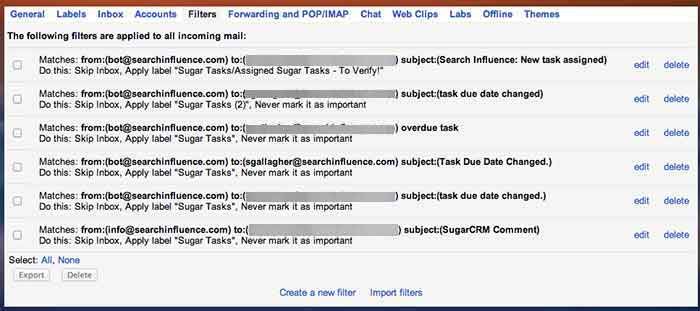
    Do you find yourself receiving emails that you don’t ever need to read or open? We get emails from our CRM system all the time, but I never look at them because, frankly, I receive way too many other emails a day that are much more important. So, I have set up a filter so the emails I receive from that recipient are automatically filed away into my “CRM” folder. They never actually show up in my inbox! To set up a filter, go to settings, filters, and then create new filter at the bottom. You can perform a search function by email recipient addressed to you with a certain subject line, etc. You can set it so GMail will either automatically apply a label or archive it into the folder you have identified. This will save a lot of filing time if you have emails similar to this coming to you everyday.

    GmailFilters

    4. Unread Messages Icon

    This is a Lab in the settings. If you’re like me and you leave your email open all day in a tab (I know I shouldn’t, but hey- we all have our vices), you can enable this feature so you can monitor your email as you are working on other tasks. My recommendation is if you get more than 10 new messages, you should probably hop back over to your email just to check and make sure nothing SUPER important needs to be tended to.

    GmailInboxTab

    5. Mute Button

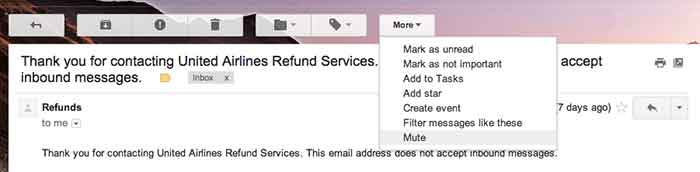
    This is a great feature that you can use to mute conversations if they keep popping up in your inbox. I get a lot of emails that are not related to me, so I often put a “Not Mine” label on them. If that same conversation pops up again in my inbox, I’ll see the “Not Mine” label on it, realize that it is not for me, and press the mute button. This will make it so if anyone else responds on this email strand, the conversation will no longer come to my inbox, but it will stay filed away in its folder. BRILLIANT STUFF HERE!

    Gmail-MuteEmail

  • 5 For Friday – Links, Stories, & Posts for Your Weekend

    5-Dice

    1. SEO 101: Getting the On-Page SEO Basics
    – Search Engine Journal

    This article provides a ground-floor explanation of some of the basic, on-page SEO elements. Though this article may not seem useful for experts, this article takes into account that the rules for SEO are always changing. A refresher to update readers on what’s changed slightly and what’s stayed the same can help a new site get started and an old site get freshened up. The article also offers some useful tools to help with implementing the basics it suggests.

    2. Fix These 5 Email Marketing Missteps
    – Mashable

    Emails are such a normal part of our daily lives that we forget how to treat it during marketing campaigns. This article describes 5 problems that are commonly found and offers solutions to overcome these issues. It’s important to use whatever tools we have on hand when it comes to marketing, and email is no exception.

    3. How to Identify Non-Ranking URL Page Types Using Google Site Search
    – Search Engine Watch

    The author provides the benefits of using Google’s site search in order to identify and find “valuable indexation metrics” for non-ranking page types. Though the author doesn’t state that this should replace crawling a site, he does state that there are useful details to gleam from a slower and more in-depth study of a site.

    4. Marketing 101: How to Create a Successful Influencer #Marketing Plan
    – Search Engine Journal

    Reaching your target audience means enlisting the help of people with a good voice in the industry, known as an influencer. The article provides a definition of influencer marketing, as well as the benefits that can come from it. There are also a few simple ways suggested in designing the marketing strategy, reaching out to influencers, and keeping them with you. The author also puts emphasis on making sure to have something to offer when reaching out to influencers. Anyone with a steady audience and a good voice does not need or wish to offer any favors for free.

    5. 6 Changes We Always Thought Google Would Make to SEO that They Haven’t Yet
    – Moz

    This article gives an interesting insight into the Google changes and updates that experts have expected, but haven’t seen implemented yet. The notes are sensible, and when it comes to changing SEO rules, it’s extremely important to try and stay ahead of the game and to figure out the path that Google is trying to take search.

    FridayPeople

  • Don’t Panic! The Google 3 Weeks Places Update Isn’t Worldwide!

    Now that we’re done making sure your Google business account doesn’t get suspended for a name violation, we’re on the the next Google worry.

    HomeAlone
    http://www.flickr.com/photos/the_napkin/6469892859/

    You may have heard the buzz lately about an email going out to business owners in Google Places telling them that they have three weeks to update their listing. If the listing isn’t updated,  it will no longer be visible to Google users. The good news is that this is actually something that is only occurring for Australian businesses. Basically, you don’t have to worry!

    When we first heard about this issue at Search Influence, we were alarmed because an update like this could potentially affect many of our clients’ accounts. So, I decided to delve deep into the web and find out as much as I could from various online sources, and what I found was even more worrisome and ambiguous. Search Engine Watch’s post was the first that brought this issue to my attention. The post provided great information on what needed to be done by those receiving the email, but nothing about the scale of the email rollout and who was being contacted and why.

    The Word From Google

    Search Engine Journal’s post was awesome enough to give us the exact email google sent out, which reads as follows:

    Hello,
    Due to changes in Google Maps, we’d like to inform you that unless you review and confirm the information in your Google Places account, we will no longer be able to keep and show it to Google users after February 21, 2014.

    If you wish to keep your listing active, follow these three easy steps:

    1. Log in to your Google Places account
    2. Review and update your information
    3. Click the “Submit” button

    Sincerely,
    The Google Places Team

    The fact that the email instructed businesses to click a “Submit” button when updating indicated to me that these were businesses in the old dashboard. So, I thought I had a clue as to who was being contacted at this point.

    Next, I went to discussions on MOZ and Google Product Forums where I started seeing comments that maybe this was only something happening in Australia.

    Calling The Google Places Team

    Google-Plus-Logo

    After seeing both of these slightly alarming, but informative posts I decided to go straight to the source and call The Google Places Team. They were super helpful in taking the time to get to the bottom of the email and were forthcoming about the issue at hand. They also understood that something like this could affect a company like ours on a pretty large scale. The rep on The Google Places Team reached out directly to Google and was able to confirm with me that this is indeed something only happening to Australia Maps.

    There have been speculations as to whether or not this is something that could start happening outside of Australia, because Google has a tendency to do things in a test market before rolling them out worldwide. From what the Google rep told me, however, it seems like this is only happening because of an issue that was occurring specifically with Australia Maps.

    So, DON’T WORRY! United States Places Businesses are NOT at risk!!

    If you’re interested in reaching out to The Google Places Team, log in to your Google places account that has your business listing and click here:  https://support.google.com/business/contact/business_c2c

  • Secret of Successful E-Mail Newsletters

    Many clients ask what the point of an e-mail newsletter is and how it can help them grow their business.  Will people read it?  Will it clog up potential customer inboxes? How much is it?

    There are several reasons I recommend e-mail newsletters. Not only do they provide free information, they are also one of the least expensive and most effective tools to draw attention to a site.  Below are some additional advantages to implementing a company e-mail newsletter.

    Stay in Touch
    Stay in Touch

    Stay in contact – Keep your business top of mind to your customers so that when they need a service you provide, they will contact you.  Newsletters serve as a reminder to customers to come back to your site.

    Develop relationships and trust – You become familiar to your subscribers. Familiarity encourages return visits and establishes customer loyalty.

    Promotional tool – A great way to communicate new products and announce new services.  Specials or discounts are a way to attract customers back to your site.  Offers entice subscribers who may not necessarily need the service but will be prompted to act during a special.

    Increase site traffic – Again, good to send out when launching a new product or service.  Gives subscriber a reason to visit the site, helping drive additional traffic .
    Set specific delivery time – Complete control of when information is disseminated.

    Trackable – Use the newsletter as a research tool to see what people read about most and what they are most interested in hearing about.  Research will allow you to write a newletter for a specific target audience.

    Provides immediate results – Real time statistics and data provide you with the information needed to evaluate the effectiveness of the newsletter.  Tweak future newsletters from that information.

    When developing your newsletter consider the following:

    • Content has to engage readers.  Articles should be more informative and less like an advertisement.
    • Keep articles brief.
    • Use images to attract reader’s attention.
    • Use links and provide URL’s as additional resources.
    • Frequency is key. Stick to a regular schedule. Try to send out same time every month or week.

    So if you are looking for a cost efficient way to target and reach a large group of customers or potential customers, consider an e-mail newsletter.